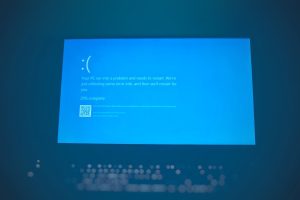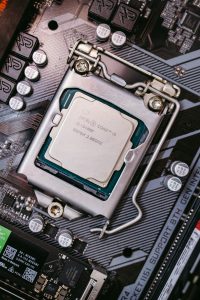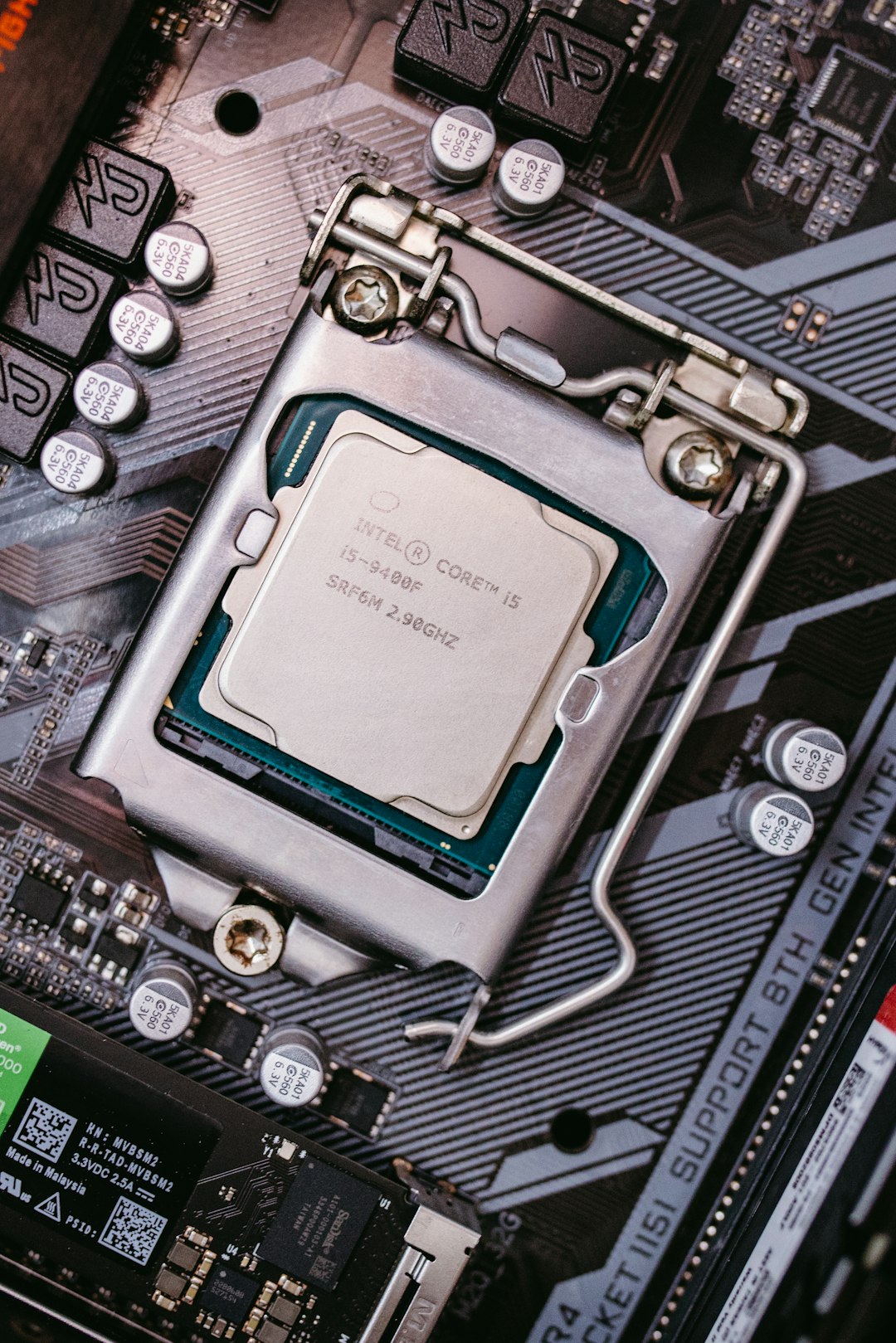
Check Intel ME health before you flash anything. Do not start with the newest BIOS file just because it is available. Intel Management Engine, often called Intel ME or CSME, is low-level firmware used for power control, security features, boot behavior, and business tools such as AMT. Intel has published security guidance for ME firmware issues before, including Intel SA 00086, which affected several ME, TXE, and SPS firmware branches [source: Intel].
TLDR: Before updating your PC, confirm the current Intel ME firmware version, check Device Manager for Intel Management Engine Interface errors, and review firmware status in BIOS or vendor tools. For example, if a laptop shows ME firmware version: 0.0.0.0 or N/A, a normal BIOS update may fail or take 10 to 20 minutes longer than expected. In a small office with 50 PCs, even a 10% failure rate during firmware updates means five machines may need hands-on repair. Catching ME problems first saves time and avoids ugly recovery work.
Start with the current ME version
The first job is simple. Find the exact Intel ME firmware version already installed. You can usually see it in one of these places:
- BIOS or UEFI setup: Look under system information, firmware, security, or advanced chipset menus.
- OEM update tools: Dell Command Update, Lenovo Commercial Vantage, HP Image Assistant, and similar tools often show firmware state.
- Windows Device Manager: Open System devices and check Intel Management Engine Interface.
- Vendor support page: Compare your installed BIOS and ME package with the latest version for your exact model.
Be careful here. The Intel ME driver is not the same as Intel ME firmware. It drives me crazy that some updater tools blur the two. A driver update may say “Management Engine,” yet it does not repair broken ME firmware.
Watch for the obvious warning signs
Some ME problems are not subtle. If you see any of these signs, pause before you update:
- ME firmware version reads N/A, 0.0.0.0, or blank in BIOS.
- Device Manager shows Code 10, Code 43, or a yellow warning icon for Intel Management Engine Interface.
- Sleep, shutdown, or restart acts strange. Fans may keep spinning after shutdown.
- Boot time suddenly grows by 15 to 30 seconds with no clear reason.
- AMT, vPro, or remote management stops working on business PCs.
- BIOS update tools fail early with vague messages like “firmware update failed.”
One warning by itself does not prove the ME region is damaged. Two or three together? Now you have a real suspect.
Check Windows logs before blaming the BIOS
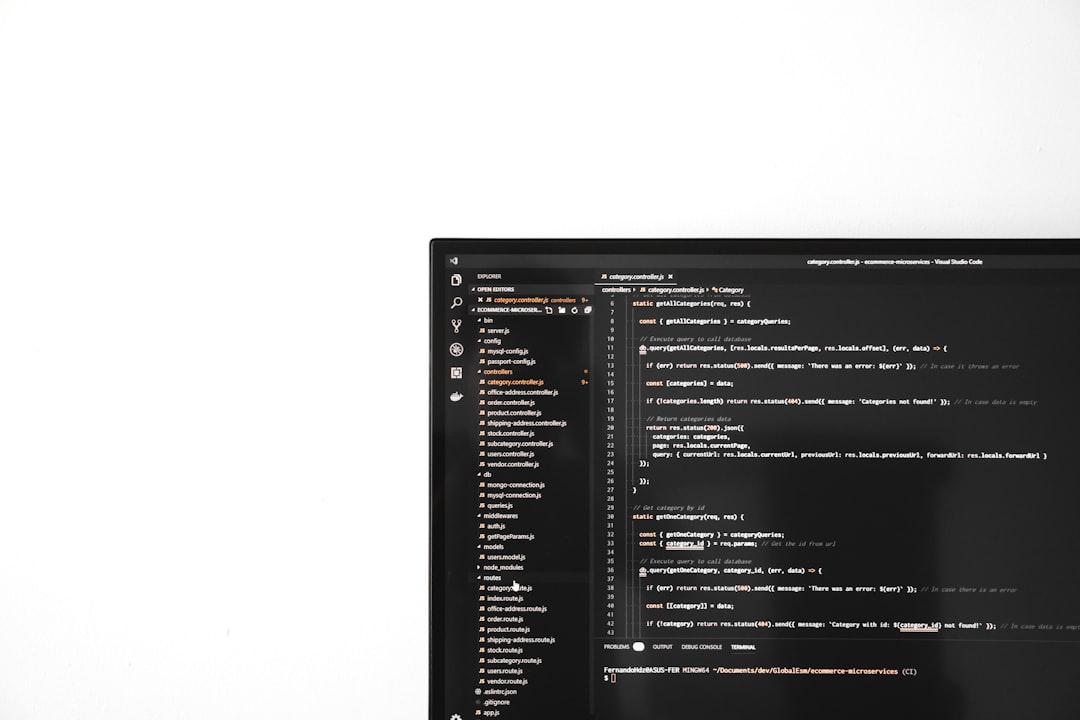
Windows can give useful clues. Open Event Viewer and check these areas:
- Windows Logs > System
- Kernel PnP events
- DriverFrameworks UserMode
- MEIx64 or HECI related entries, if present
Look for repeated device start failures, power transition errors, or driver load failures. If the same ME device fails every boot, do not ignore it. A clean driver install may help, but only if the firmware underneath is healthy.
Use vendor diagnostics, not random updater apps
Use tools from the PC maker first. They know the board, BIOS branch, and firmware package format. That matters. A ThinkPad, OptiPlex, EliteBook, NUC, and custom gaming board may all use Intel ME, but their update process can be very different.
Avoid “one click driver updater” apps. Many report old Intel ME drivers as a critical issue, then install the wrong package. Honestly, that is how simple fixes turn into two hour repair jobs.
For advanced work, technicians often use Intel MEInfo or MEManuf from the matching Intel System Tools package. These can show firmware status, SKU, manufacturing mode, and health checks. The key word is matching. A tool made for ME 11 may not read ME 15 correctly.
Confirm the right firmware package
Before updating, match these items:
- Exact PC or motherboard model, including generation and revision.
- Current BIOS version and the required minimum BIOS version.
- ME firmware branch, such as 11.x, 12.x, 14.x, 15.x, or newer.
- Consumer or corporate SKU, especially on vPro systems.
- Operating system requirements, if the updater runs inside Windows.
Do not force a near match. “Close enough” is bad firmware logic. If your OEM offers a BIOS update and a separate ME update, read the order notes. Some require BIOS first. Some require ME first. Some bundle both.
Prepare the PC before flashing
A healthy update needs a stable machine. Do this before you press the button:
- Plug in AC power.
- Charge laptops above 50%.
- Suspend BitLocker and save the recovery key.
- Disconnect docks and non essential USB devices.
- Close security tools that may block firmware installers.
- Reset overclocks on desktops.
- Allow enough time. Do not interrupt a black screen too soon.
If ME already looks broken
If BIOS reports no ME version, or MEInfo says the firmware is in recovery mode, a normal update may not work. Try a full shutdown, remove AC power, hold the power button for 20 seconds, then boot again. On desktops, clearing CMOS can help.
If nothing changes, use the OEM recovery method. Some business PCs can reflash the ME region through a BIOS recovery file. Others lock that region and need service tools. At that point, stop guessing. Document the current BIOS version, ME reading, error codes, and update logs. Then contact the vendor or board maker.
The best rule is simple: diagnose first, update second. Intel ME problems hide below the operating system, so they can make a normal BIOS update look broken. A five minute check can save a motherboard recovery session later.