
Completely wiping a Windows PC is sometimes necessary when selling, recycling, donating, or troubleshooting persistent system issues. A proper wipe ensures that all personal files, applications, and settings are permanently removed from the device. While Windows offers built-in reset and recovery tools, users must follow the appropriate steps to guarantee that sensitive information cannot be recovered.
TLDR: To completely wipe a Windows PC, back up important data, sign out of accounts, and use the built-in Reset this PC feature with the “Remove everything” and “Fully clean the drive” options. For deeper security, advanced users can use bootable media or disk formatting tools. Always reinstall Windows or prepare the system for its next owner before powering it off permanently. Proper preparation ensures data security and a smooth reset process.
Below is a detailed, step-by-step guide explaining how to safely and thoroughly erase a Windows computer.
Step 1: Back Up Important Files
Before erasing anything, the user should ensure all essential files are backed up. Wiping a PC will permanently delete documents, photos, applications, and system settings.
- Copy important files to an external hard drive.
- Upload necessary documents to cloud storage (such as OneDrive, Google Drive, or Dropbox).
- Export browser bookmarks and saved passwords.
- Deauthorize licensed software if needed.
It is also wise to create a list of applications that may need to be reinstalled later. Once the wipe process begins, recovery becomes extremely difficult without backup copies.
Step 2: Sign Out of Accounts and Deactivate Licenses
To prevent account lock issues or activation conflicts, the user should sign out of:
- Microsoft account
- Email accounts
- Cloud storage services
- Streaming or subscription software
In Windows, removing the device from the Microsoft account online ensures activation locks do not affect the future user. This step is particularly important when selling the machine.
Step 3: Use “Reset This PC” (Windows 10 & 11)
The easiest and most reliable way to wipe a Windows PC is by using the built-in reset feature.

How to Access Reset:
- Click the Start menu.
- Open Settings.
- Select System (Windows 11) or Update & Security (Windows 10).
- Click Recovery.
- Under Reset this PC, select Get started.
Choose the Correct Option:
When prompted, select:
- Remove everything – This deletes all personal files, apps, and settings.
Next, choose between:
- Cloud download – Downloads a fresh copy of Windows from Microsoft servers.
- Local reinstall – Reinstalls using existing Windows files.
For most users, Cloud download provides a cleaner installation.
Critical Step: Fully Clean the Drive
When asked whether to clean the drive, choose:
- Fully clean the drive
This option takes significantly longer but makes file recovery far more difficult. It is highly recommended when selling or disposing of the device.
Once confirmed, Windows will restart and begin the wiping process. This can take anywhere from 20 minutes to several hours depending on storage size and speed.
Step 4: Wiping Using Windows Installation Media (Advanced Method)
For users who want an additional layer of certainty, wiping the drive during a fresh Windows installation is another effective method.

Create Installation Media:
- Download the Windows Media Creation Tool from Microsoft’s website.
- Insert a USB drive (at least 8GB).
- Run the tool and create bootable installation media.
Boot from USB:
- Insert the USB into the PC.
- Restart the computer.
- Enter the BIOS or Boot Menu (commonly by pressing F2, F12, DEL, or ESC).
- Select the USB drive as the boot device.
Delete Partitions:
During Windows setup:
- Select Custom Install.
- Delete all existing partitions.
- Install Windows on the unallocated space.
Deleting all partitions ensures that previous data structures are removed. The operating system will recreate necessary system partitions automatically.
Step 5: Secure Erase for SSDs and HDDs
Traditional hard drives (HDDs) and solid-state drives (SSDs) handle data differently. For maximum data destruction:
For HDDs:
- Use built-in Windows full clean option.
- Or use disk wiping software that performs multiple overwrite passes.
For SSDs:
- Use the manufacturer’s secure erase utility.
- Or perform Secure Erase via BIOS (if supported).
SSDs do not benefit from multiple overwrite passes in the same way HDDs do. A secure erase command resets all memory cells efficiently and safely.
Note: Physical destruction (such as removing and shredding the drive) is the only guaranteed method for highly sensitive government or corporate data. However, this is unnecessary for most home users.
Step 6: Post-Wipe Setup or Shutdown
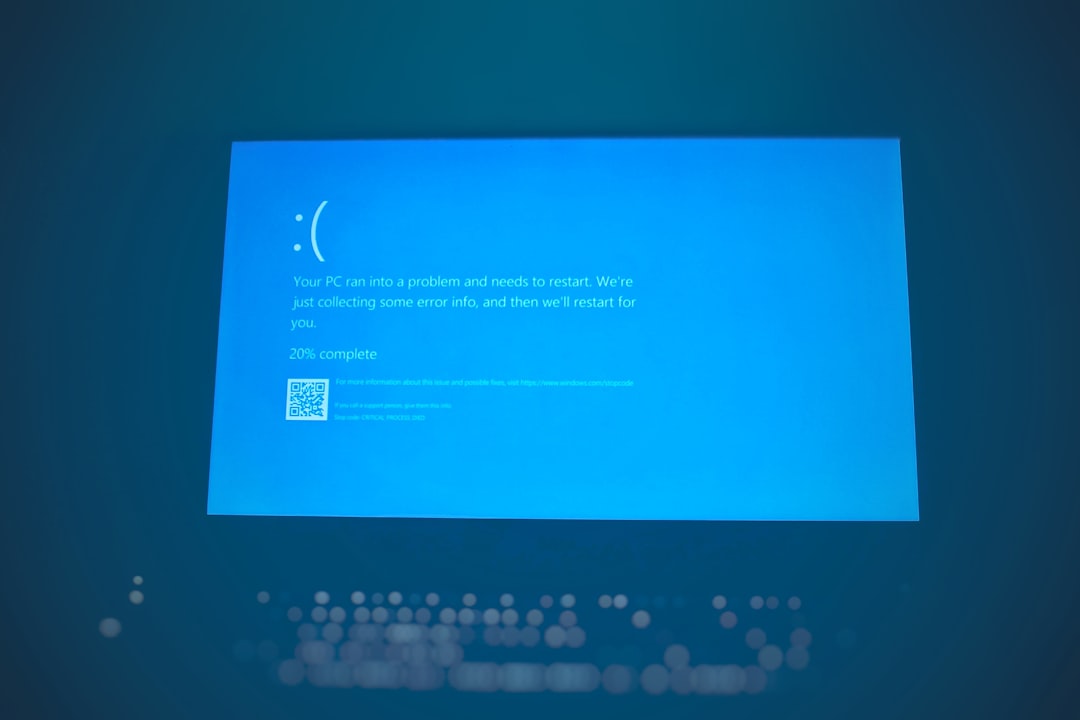
After the wipe completes, Windows will either:
- Present the setup screen for a new installation, or
- Complete installation and prompt for user account creation.
If selling or giving away the PC:
- Stop at the initial setup screen (the “Welcome” or region selection page).
- Power down the computer.
This ensures the next owner can configure the device as new.
If keeping the PC, proceed with the setup process:
- Create a new Microsoft or local account.
- Restore backed-up files.
- Install updated drivers and applications.
Common Mistakes to Avoid
- Skipping backup: Once wiped, recovery options are limited.
- Choosing “Keep my files”: This does not fully erase personal information.
- Not selecting “Fully clean the drive”: Quick removal may leave recoverable traces.
- Forgetting to remove accounts: Activation locks can create future login problems.
- Interrupting the process: Power loss mid-wipe can corrupt installation files.
Taking time to follow each step carefully prevents security risks and technical frustrations.
When Should Someone Completely Wipe a PC?
There are several valid reasons:
- Preparing the device for resale or donation
- Removing malware or persistent viruses
- Fixing severe system corruption
- Improving performance through clean installation
- Starting fresh after years of accumulated data
A full wipe often results in noticeably faster system performance and fewer software conflicts.
FAQ
1. Does resetting Windows delete everything permanently?
If “Remove everything” and “Fully clean the drive” are selected, most data becomes extremely difficult to recover. For complete assurance on SSDs, a secure erase tool is recommended.
2. How long does it take to wipe a Windows PC?
A basic reset may take 20–45 minutes. A full drive cleaning process can take several hours depending on storage capacity and drive speed.
3. Is deleting files manually enough?
No. Simply deleting files or emptying the Recycle Bin does not permanently remove data. A full system reset or drive formatting is necessary.
4. Can wiped data be recovered?
If only a quick format is performed, some recovery may be possible. However, using full clean or secure erase tools makes recovery highly unlikely.
5. Do I need a Windows product key after wiping?
Most modern PCs store the product key in firmware. Windows automatically reactivates once connected to the internet.
6. What is the difference between quick reset and full clean?
A quick reset removes file references but may leave underlying data intact. A full clean overwrites the drive areas, making recovery significantly harder.
7. Should the drive be physically destroyed?
Physical destruction is only necessary for extremely sensitive information. For typical personal use, secure erase or full clean is sufficient.
Completely wiping a Windows PC is not complicated, but it requires attention to detail. By backing up data, removing accounts, selecting the proper reset options, and ensuring secure drive cleaning, users can confidently protect their personal information. Whether preparing a device for sale or starting over with a clean system, following these steps ensures a safe and thorough reset from beginning to end.