A dual-monitor setup should make work, gaming, and multitasking easier, so it is frustrating when only one monitor turns on while the other stays black, shows “No Signal,” or never appears in Windows or macOS. In most cases, the problem is not serious: it usually comes down to a loose cable, the wrong input source, display settings, a graphics driver issue, or a limitation with the port, dock, or adapter being used.
TLDR: If only one of your monitors turns on, start by checking power, cables, input source, and whether the second display is detected in your operating system. Then test each monitor and cable individually to isolate whether the issue is the screen, the cable, the port, or the computer. If the hardware is fine, update or reinstall your graphics drivers and verify display settings. Docking stations, adapters, and laptop ports can also cause one monitor to fail if they do not support the required resolution, refresh rate, or number of displays.
1. Start With the Simple Physical Checks
Before changing advanced settings, confirm that the second monitor is actually receiving power and a usable video signal. This sounds obvious, but many dual-monitor issues are caused by small physical problems that are easy to overlook.
- Check the power cable: Make sure the monitor’s power cable is firmly connected to both the monitor and the wall outlet or power strip.
- Look for a power indicator: Most monitors have a small LED light. If there is no light at all, the issue may be power-related.
- Try another outlet: A failed power strip or loose wall socket can make it seem like the monitor is faulty.
- Press the monitor’s power button: Some monitors do not automatically turn on after being unplugged or after a power interruption.
If the monitor powers on but says “No Signal”, that usually means the display is alive but not receiving a usable signal from the computer.
2. Confirm the Correct Input Source
Many monitors have multiple inputs, such as HDMI, DisplayPort, USB C, VGA, or DVI. If the monitor is set to the wrong input, it may remain black even though the cable is connected correctly.
Use the monitor’s physical buttons or joystick menu and look for Input, Source, or Signal. Select the exact port you are using. For example, if your computer is connected through DisplayPort, make sure the monitor is not set to HDMI 1 or HDMI 2.
Some monitors have an Auto Detect option, but it is not always reliable. Manually selecting the correct input is often the better test.
3. Check the Video Cable and Connection Type
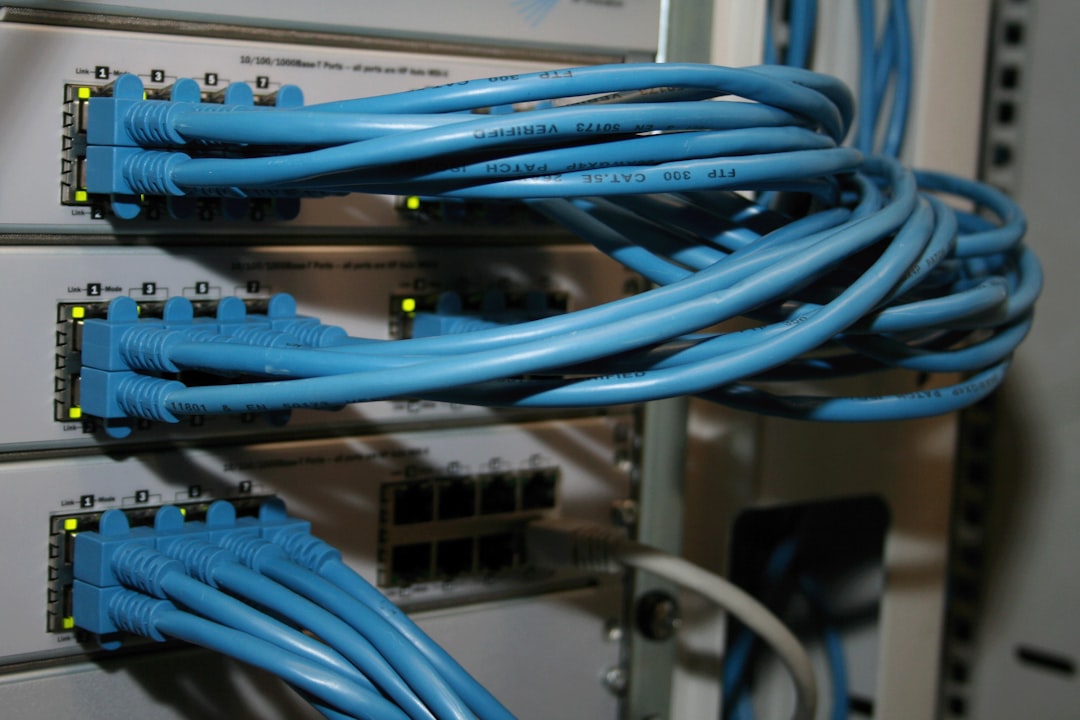
A faulty or incompatible cable is one of the most common reasons only one monitor works. Even if a cable looks fine externally, it may be damaged internally or unable to support the resolution and refresh rate you are trying to use.
Try the following:
- Reseat the cable: Unplug and reconnect both ends of the video cable firmly.
- Swap cables: Use the working monitor’s cable on the non-working monitor.
- Try a different cable type: If possible, test HDMI instead of DisplayPort, or DisplayPort instead of HDMI.
- Avoid cheap adapters: Low-quality HDMI to DisplayPort or USB C adapters can cause detection problems.
Pay attention to direction-specific adapters. For example, a DisplayPort to HDMI adapter may not work in reverse as HDMI to DisplayPort unless it is specifically designed as an active adapter. This is a frequent source of confusion in dual-monitor setups.
4. Test Each Monitor Separately
To identify whether the issue is the monitor or the computer, test each display by itself. Disconnect one monitor and connect only the monitor that is not turning on. Use a cable and port that you know already works.
If the second monitor works alone, the monitor itself is probably fine. The issue is more likely related to system settings, graphics output limitations, the port being used, or the way both displays are connected together.
If the second monitor still does not work when connected alone with a known good cable, the monitor may have a hardware fault, incorrect input setting, or power issue.
5. Check Display Settings in Windows
If you are using Windows, the second monitor may be connected but disabled in display settings. Windows can sometimes default to showing an image on only one screen, especially after driver updates, docking station changes, or switching cables.
To check this:
- Right-click the desktop and select Display settings.
- Scroll to the Multiple displays section.
- Click Detect if the second monitor does not appear.
- If both displays appear, select the second display and make sure it is enabled.
- Under multiple display options, choose Extend these displays instead of Show only on 1 or Show only on 2.
You can also press Windows + P and choose Extend. If the system is set to PC screen only, the second monitor will not be used.
6. Check Display Settings on macOS
On a Mac, open System Settings, then go to Displays. If the second monitor is detected, you should see it listed there. If it is not visible, hold the Option key and look for the Detect Displays option, depending on your macOS version.
Also confirm that the display is not mirrored in an unexpected way or set to a resolution the monitor cannot handle. If the monitor briefly turns on and then goes black, an unsupported resolution or refresh rate could be involved.
7. Restart the Computer Properly
A proper restart can clear temporary display detection errors. Shut the computer down completely, turn off both monitors, and unplug them from power for about 30 seconds. Then reconnect power, turn the monitors on, and start the computer again.
This process resets the handshake between the computer and the displays. That handshake, often called EDID detection, allows the computer to identify the monitor’s supported resolutions, refresh rates, and audio capabilities. If that detection fails, one monitor may not turn on correctly.
8. Update or Reinstall Graphics Drivers
Graphics drivers control how your computer communicates with monitors. If the driver is outdated, corrupted, or recently updated improperly, one display may stop working.
For Windows users, check your graphics hardware first. You may have an NVIDIA, AMD, or Intel graphics processor. Download the latest driver directly from the manufacturer’s official website or through your computer manufacturer’s support page if you are using a laptop or prebuilt desktop.
You can also try this route:
- Right-click the Start button.
- Open Device Manager.
- Expand Display adapters.
- Right-click your graphics adapter and choose Update driver.
If updating does not help, uninstalling and reinstalling the driver may resolve deeper driver conflicts. For serious driver corruption, advanced users sometimes use a display driver cleanup utility, but this should be done carefully because removing the wrong driver can temporarily reduce display functionality.
9. Verify That Your Computer Supports Two Monitors
Not every computer, laptop, dock, or graphics card supports every dual-monitor configuration. This is especially important when using high-resolution displays, high refresh rates, USB C hubs, or docking stations.
For example, a laptop may have an HDMI port and a USB C port, but the USB C port may not support video output. Some USB C ports are data-only. Others support DisplayPort Alt Mode, Thunderbolt, or USB4 video output. The port symbol next to the connector can help, but checking the manufacturer’s specifications is more reliable.
Similarly, some docking stations support only one external display on certain laptops, while others support two or more only at reduced resolution or refresh rate. If your first monitor is 4K at 144 Hz, your second monitor may fail because the dock or cable does not have enough bandwidth.
10. Be Careful With Mixed Ports and Adapters
Dual-monitor issues often happen when one monitor is connected directly and the other is connected through an adapter. For example, one display may use HDMI while the second uses USB C to HDMI, DisplayPort to HDMI, or a dock.
Common adapter-related problems include:
- Passive adapter limitations: Some adapters only work if the source port supports the required signal conversion.
- One-way conversion: Many adapters work in only one direction.
- Insufficient bandwidth: Older adapters may not support 1440p, 4K, or high refresh rates.
- Dock firmware problems: Some docks require firmware updates to handle multiple displays reliably.
If possible, test the second monitor with a direct connection to the computer. This removes the adapter or dock from the equation and helps identify the actual failure point.
11. Lower the Resolution or Refresh Rate
A monitor may remain black if the computer is trying to output a resolution or refresh rate the display cannot accept. This is more common after replacing a monitor, changing cables, updating drivers, or using a new dock.
In Windows, go to Display settings, select the affected monitor, and choose a basic resolution such as 1920 × 1080. Then open Advanced display and set the refresh rate to 60 Hz. If the monitor starts working, you can gradually raise the settings until you find the highest stable configuration.
This step is especially important for gaming monitors. A cable that works at 1080p 60 Hz may fail at 1440p 165 Hz or 4K 120 Hz.
12. Inspect the Graphics Card and Ports
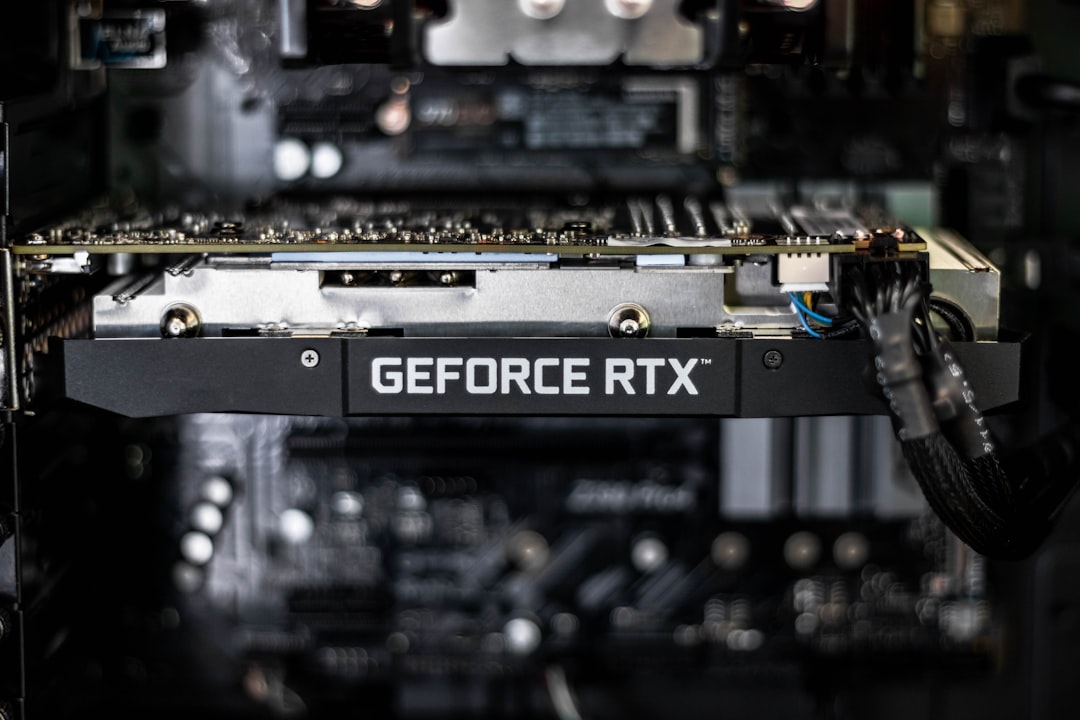
On desktop computers, make sure both monitors are connected to the graphics card, not accidentally split between the graphics card and the motherboard video output. If your system has a dedicated GPU, the motherboard HDMI or DisplayPort connections may be disabled unless integrated graphics is enabled in BIOS.
Look at the back of the computer carefully. The graphics card ports are usually lower on the case and arranged horizontally, while motherboard display ports are higher and grouped with USB, Ethernet, and audio ports.
If one port on the graphics card does not work, try another port. A single damaged HDMI or DisplayPort connector can prevent one monitor from turning on even though the rest of the GPU works properly.
13. Consider Sleep, Wake, and Power Management Problems
Sometimes the second monitor works at startup but fails after sleep mode. This can be caused by power management settings, monitor firmware, GPU drivers, or docking station behavior.
To reduce sleep-related problems, disable deep sleep or eco mode in the monitor’s menu if available. In Windows, you can also test by disabling fast startup:
- Open Control Panel.
- Go to Power Options.
- Select Choose what the power buttons do.
- Click Change settings that are currently unavailable.
- Uncheck Turn on fast startup.
This is not always necessary, but it can help if the issue appears only after shutdown, restart, or waking from sleep.
14. When the Monitor Is Detected but Still Black
If your operating system detects the second monitor but the screen remains black, the issue is usually not basic detection. Instead, it may involve resolution, refresh rate, display mode, or monitor hardware.
Try dragging a window toward the second display area to confirm whether the desktop is extended. Also check the brightness and contrast settings on the monitor itself. Some monitors can appear nearly black if brightness has been lowered significantly or if a display mode setting is malfunctioning.
If the monitor has a factory reset option in its on-screen menu, use it. This can clear incorrect input, color, or power settings that may be preventing a normal image.
15. Practical Troubleshooting Order
To avoid wasting time, use a structured process. The best approach is to isolate one variable at a time.
- Confirm both monitors have power.
- Manually select the correct input source.
- Swap video cables between the working and non-working monitor.
- Test the non-working monitor by itself.
- Try a different port on the computer or graphics card.
- Check Windows or macOS display settings.
- Set the display mode to Extend.
- Lower resolution and refresh rate.
- Update or reinstall graphics drivers.
- Remove docks and adapters for testing.
This order helps you determine whether the problem is caused by the monitor, cable, port, adapter, driver, or operating system configuration.
When to Suspect Hardware Failure
You should suspect a hardware fault if the same monitor fails with multiple known-good cables, on multiple ports, and on another computer. Likewise, if a particular computer port never works with any monitor, that port may be damaged.
Signs of monitor failure can include flickering before going black, random shutdowns, a burning smell, swollen capacitors, repeated clicking sounds, or a screen that works only after warming up. If you notice electrical smells, sparks, or excessive heat, stop using the device and have it inspected professionally.
Final Thoughts
When only one monitor turns on in a dual setup, the cause is usually practical rather than mysterious. Start with power, input source, and cables, then move to display settings, drivers, adapters, docks, and hardware limitations. The key is to test methodically instead of changing many things at once.
In most cases, you can restore the second monitor by selecting the correct input, replacing a bad cable, choosing Extend these displays, updating the graphics driver, or connecting directly instead of through an unreliable adapter. If none of those steps work, testing the monitor on another computer is the clearest way to determine whether the display itself needs repair or replacement.