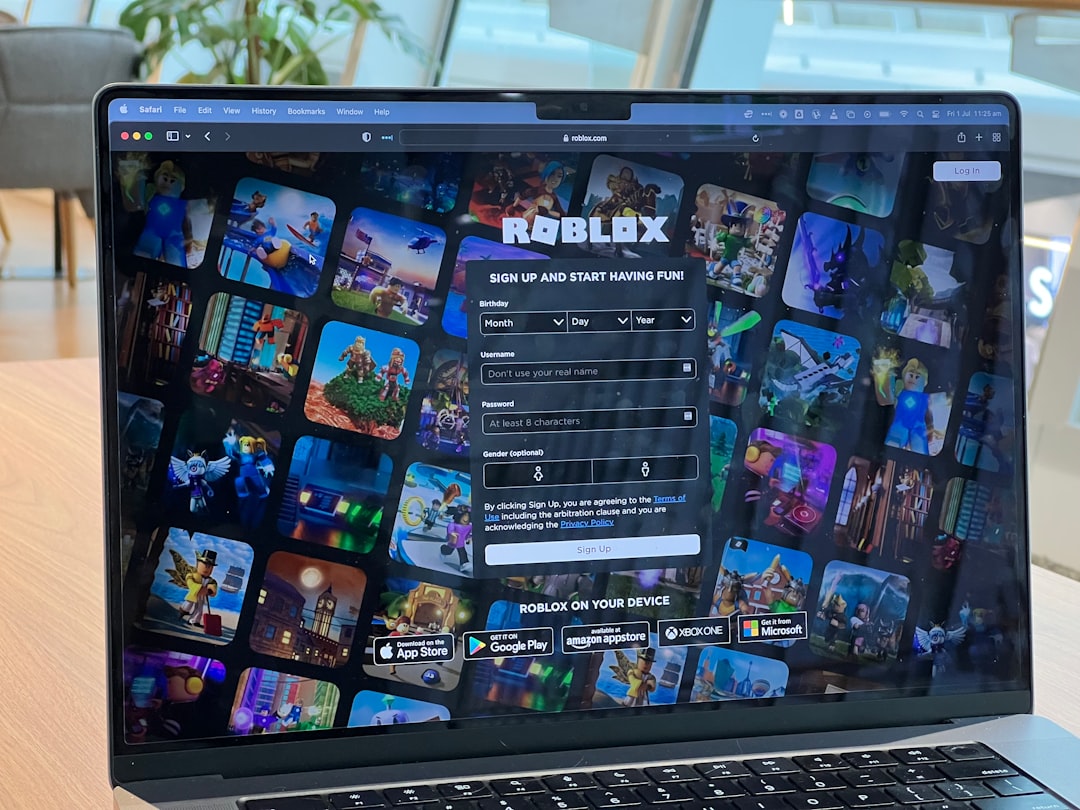
Running more than one Roblox account at the same time sounds tricky. But it’s easier than you think. Whether you are testing your game or playing with yourself (yes, really), multiple instances can save time and boost fun.
TLDR: You can run multiple Roblox instances by using different browsers, the Microsoft Store app, or special third-party tools. Each method has pros and cons. Some are simple and safe. Others give more power but need care. Pick the one that fits your goal and always follow Roblox rules.
Let’s break it down in a fun and simple way.
Why Run Multiple Roblox Instances?
You might be wondering. Why even do this?
Here are some common reasons:
- Game testing: Developers test multiplayer features alone.
- Trading: Move items between accounts.
- AFK farming: Let one account grind while you play on another.
- Roleplay: Control multiple characters.
- Helping yourself level up: Boost or support a main account.
It gives you power. And flexibility.
But remember. Roblox has rules. Always stay within them. Don’t use methods that break Terms of Service.
Method 1: Use Different Platforms (Easiest Way)
This is the safest and simplest method.
You can open:
- Roblox in your web browser
- Roblox from the Microsoft Store app
These count as separate instances.
How to do it:
- Log into Account 1 using Chrome (or any browser).
- Download Roblox from the Microsoft Store.
- Log into Account 2 in the app.
- Launch both games.
Done. Two accounts running.
It’s smooth. It’s simple. And it usually works without extra setup.
Pros:
- Very safe
- No third-party downloads
- Quick setup
Cons:
- Usually limits you to two accounts
- Can use more system resources
If you just need two accounts, stop here. This is enough for most people.
Method 2: Use Different Browsers
This one is sneaky and smart.
You can log into Roblox on:
- Chrome
- Firefox
- Edge
- Opera
But here’s the catch. By default, Roblox often launches through one main app. So this method usually works best when combined with the Microsoft Store trick.
You can also use:
- Incognito mode
- Browser profiles
Each browser profile acts like a different user.
Steps:
- Create a new browser profile.
- Log into a second Roblox account.
- Launch the game.
If your system allows separate launches, they may run side-by-side.
This method works differently depending on your PC setup.
Method 3: Roblox Account Manager (Advanced Users)
This method is powerful. But use caution.
Roblox Account Manager (RAM) is a third-party tool. It lets you:
- Store multiple account logins
- Launch multiple Roblox instances
- Quick-switch between accounts
It is popular among developers.
How it works:
- Download Roblox Account Manager from a trusted source.
- Add your account credentials.
- Select the accounts you want to launch.
- Click launch.
It handles the rest.
Important: Always research before downloading tools. Only use trusted versions. And check Roblox policies to avoid violations.
Pros:
- Can run more than two accounts
- Fast switching
- Great for testing multiplayer games
Cons:
- Third-party software risk
- Possible rule violations if misused
- More complex setup
This is best for serious developers.
Method 4: Virtual Machines (Heavy Duty Option)
This is the “tech wizard” method.
You create virtual computers inside your computer.
Software like:
- VirtualBox
- VMware
Lets you install another operating system.
Inside that system, you install Roblox again.
Now you have:
- Main PC running Roblox
- Virtual PC running Roblox
They work separately.
Pros:
- Strong separation between accounts
- Can run multiple environments
Cons:
- Needs powerful computer
- Complex setup
- May lag
If your PC has low RAM, this may not work well.
Comparison Chart
| Method | Difficulty | Number of Accounts | Safety Level | Best For |
|---|---|---|---|---|
| Browser + Microsoft App | Easy | 2 | Very High | Casual players |
| Multiple Browsers | Easy | 1-2 | High | Simple testing |
| Roblox Account Manager | Medium | 3+ | Medium | Developers |
| Virtual Machine | Hard | 2+ | High | Advanced users |
Performance Tips
Running multiple instances eats resources.
Here’s how to stay smooth:
- Lower graphics settings in Roblox.
- Close unused apps.
- Add more RAM if possible.
- Use wired internet for stability.
- Set background accounts to lowest quality mode.
You don’t need ultra graphics on your alt account. Keep it simple.
Common Problems (And Fixes)
Problem: Game won’t launch twice.
Fix: Make sure one version is from Microsoft Store.
Problem: Roblox crashes.
Fix: Lower graphics and close background apps.
Problem: Accounts log each other out.
Fix: Use separate browsers or profiles.
Problem: Major lag.
Fix: Reduce window size and graphics settings.
Most issues are resource-related. Not software-related.
Is It Allowed?
This is important.
Running multiple accounts is not automatically banned.
But…
Using them to:
- Exploit games
- Abuse reward systems
- Scam trades
- Break game rules
Can get you banned.
Always check:
- Roblox Terms of Service
- Specific game rules
Be smart. Play fair.
Best Setup for Most People
If you just want a clean, easy solution:
Use the browser + Microsoft Store method.
It works.
It’s safe.
It takes five minutes.
Only move to advanced tools if you really need them.
Final Thoughts
Running multiple Roblox instances is not magic. It’s just smart setup.
Start simple.
Test your system limits.
Watch your performance.
And most importantly — have fun.
Whether you’re testing a new multiplayer game. Trading items between accounts. Or building your own Roblox empire.
Now you know how to do it the right way.
Game on.