Fix slow Chrome by checking Chrome Task Manager first, turning on Memory Saver, then using OneTab or a trusted tab suspender only if tabs are still eating RAM. Google says Chrome’s Memory Saver can use up to 40% less memory and save as much as 10GB by freeing resources from inactive tabs [source: Google]. That is the fastest win for most people. After that, the best tool depends on how you browse.
TLDR: If Chrome feels slow, start with Chrome Task Manager and Memory Saver before installing anything. For example, if you keep 35 tabs open and 20 are old research pages, OneTab can cut the mess into one clean list in seconds. If you want tabs to stay visible but sleep in the background, use a safe Great Suspender alternative like Auto Tab Discard. Expect the biggest gain when you close or suspend media-heavy tabs, such as YouTube, Gmail, dashboards, and shopping pages.
Why Chrome Gets Slow So Fast
Chrome is fast, but it loves memory. Each tab, extension, and web app runs its own process. That helps stability, but it can get heavy. Ten plain articles may be fine. Ten web apps with video, chat, ads, and live updates can chew through RAM like nothing.
It gets worse when extensions pile up. Password managers, coupon tools, grammar checkers, VPNs, note clippers, and screen recorders all add work. Some run on every page. Some keep background tasks alive even when you are not using them.
Step 1: Use Chrome’s Built-In Performance Tools
Before adding another extension, use the tools already in Chrome. They are safer, simple, and often enough.
- Chrome Task Manager: Press Shift + Esc in Chrome. Sort by memory or CPU. Kill the tab or extension that is hogging resources.
- Memory Saver: Go to Settings > Performance. Turn on Memory Saver. Chrome will free memory from inactive tabs.
- Energy Saver: Useful on laptops. It reduces background activity and visual effects when your battery is low.
- Preload pages: If Chrome feels slow to start or eats data, try turning off page preloading under privacy settings.
Honestly, it feels like Chrome should show the worst tab more clearly. Still, Task Manager works. If one tab is using 1,200MB of memory, you have found your problem.
OneTab: Best for Tab Hoarders Who Want a Clean Break
OneTab takes all your open tabs and turns them into a list. It is great when your browser looks like a row of tiny crumbs. Click once, and your tabs disappear into a simple page of links.
Best use case: research, shopping comparisons, trip planning, client work, or saving articles for later.
What it does well:
- Reduces open tabs fast.
- Makes messy sessions easier to read.
- Helps you save groups of links without bookmarking everything.
- Works well for people who open tabs “just in case.”
What gets annoying: OneTab does not keep the original tab state. If you had a half-written form, a filtered dashboard, or a paused video, you may lose that exact state. It is better for saving pages than for pausing work.
Pick OneTab if you want fewer open tabs and do not mind restoring pages manually.
Great Suspender Alternatives: Best for Keeping Tabs in Place
The old Great Suspender was popular because it suspended inactive tabs without closing them. Then trust became a problem, and many users moved away from it. That left people searching for safer replacements.
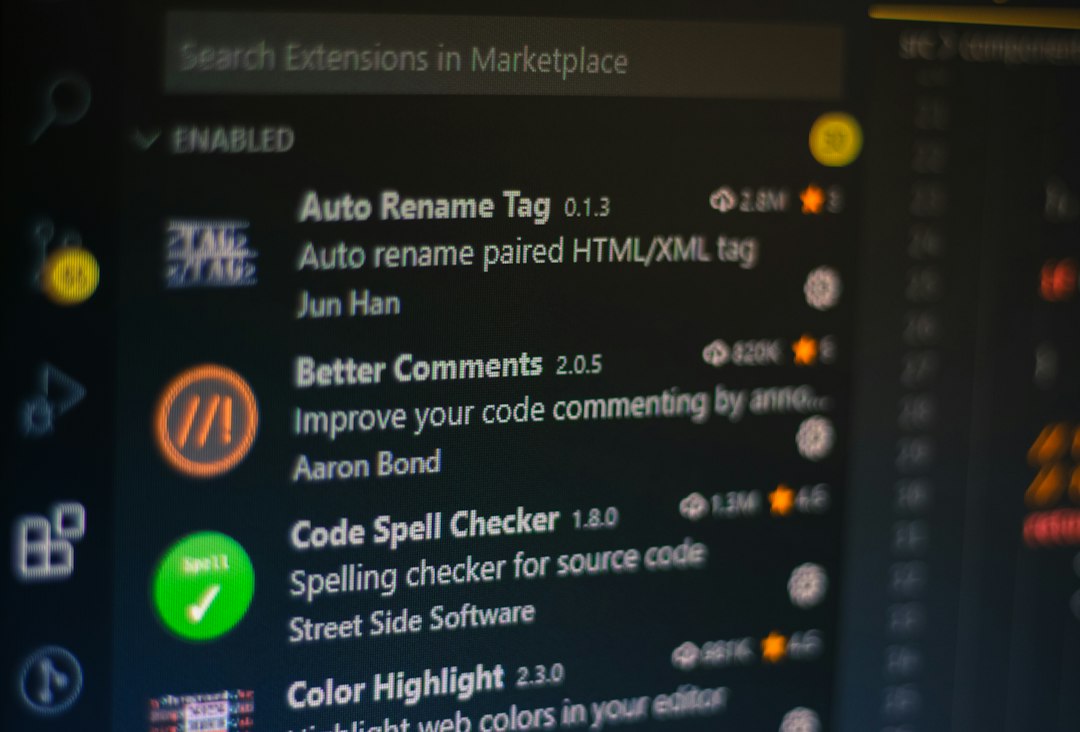
Good alternatives include Auto Tab Discard, Tab Suspender, and browser-native tab sleeping features. The idea is simple. The tab stays in your tab bar, but the page stops using active memory until you click it again.
Best use case: dashboards, email, documentation, admin panels, and tabs you need later but do not want to reload from a saved list.
What they do well:
- Keep your tab layout intact.
- Free memory after a set time.
- Let you whitelist sites like music players or chat apps.
- Suit people who work across many tabs all day.
The catch is… some suspenders can break live pages. A project board may reload. A login may expire. A chart may lose filters. Expect to waste time on settings if you want it to behave perfectly.
Pick a suspender if you want tabs to stay visible but stop draining resources.
OneTab vs Suspender vs Built-In Tools
| Tool | Best For | Main Weakness |
|---|---|---|
| Chrome Performance Tools | Quick fixes, safe cleanup, finding bad tabs | Less control than extensions |
| OneTab | Saving many tabs as a clean link list | Does not preserve every tab state |
| Great Suspender Alternatives | Sleeping inactive tabs while keeping them visible | Can break live pages or logged-in sessions |
A Simple Fix Plan That Works
- Open Chrome Task Manager and kill the worst memory hog.
- Remove extensions you have not used in 30 days.
- Turn on Memory Saver in Chrome settings.
- Use OneTab for old research tabs and link piles.
- Use a tab suspender only for tabs you need to keep in position.
- Restart Chrome once in a while. Yes, really.

Which Option Should You Choose?
If you want the safest path, use built-in Chrome tools first. They are already there and do not add extension risk. If your issue is clutter, use OneTab. It turns chaos into a readable list. If your issue is heavy background tabs, use a Great Suspender alternative with careful settings.
The best setup for most people is not one magic extension. It is a mix. Let Chrome handle memory. Use OneTab for tab piles. Add a suspender only if you still keep dozens of active tabs open every day. Chrome will not feel brand new every time, but it should stop crawling after every work session.