Your network security key is usually just your Wi-Fi password. On Windows 11, try the Settings app first. If that feels like a tiny maze, use Control Panel. If both fail, check your router sticker or router admin page. Microsoft also explains that Windows can show the Wi-Fi password for networks saved on your PC [source: Microsoft].
TLDR: Open Settings, go to Network & internet, then look for your Wi-Fi details and the option to view the security key. Example: if your new phone asks for Wi-Fi and your laptop is already connected, Windows 11 can help you find the key in under 2 minutes. In a home with 10 smart devices, losing the Wi-Fi password is not rare. It is just annoying.
What is a network security key?
A network security key is the password for your Wi-Fi network.
That is it. Fancy name. Simple job.
You may see it called:
- Wi-Fi password
- Wireless key
- WPA key
- WPA2 password
- Security key
If Windows asks for a network security key, it wants the Wi-Fi password. Not your Microsoft password. Not your router login password. Just the Wi-Fi password.
Option 1: Find it in Windows 11 Settings
This is the cleanest option. At least, it should be. Honestly, it feels like Microsoft moves this button every few updates.
Try this first:
- Click the Start button.
- Open Settings.
- Click Network & internet.
- Click Wi-Fi.
- Click Manage known networks.
- Pick your Wi-Fi network.
- Look for View Wi-Fi security key.
- Click View.
Windows may ask for your PIN, password, or fingerprint. That is normal. It is checking that you are allowed to see the key.
If you see the password, copy it carefully. Wi-Fi passwords are picky little goblins. A capital A is not the same as a lowercase a.
If that button is missing
Do not panic. Some Windows 11 PCs do not show the same menu. Updates, device makers, and work laptops can change what you see.
If the Settings method fails, use Control Panel. Yes, Control Panel is old. Yes, it still saves the day.
Option 2: Find it in Control Panel
This method works best when your PC is already connected to the Wi-Fi network.
- Press Windows + R.
- Type ncpa.cpl.
- Press Enter.
- Right-click your Wi-Fi adapter.
- Click Status.
- Click Wireless Properties.
- Open the Security tab.
- Tick Show characters.
Your network security key should appear in the box. It may look like a random string. It may also look like something your family made up in 2018, such as PizzaNight77. No judgment.
The catch is that this usually works only for the current connected network. If you want the key for a Wi-Fi network you used months ago, Settings may be better.
Option 3: Check the router sticker
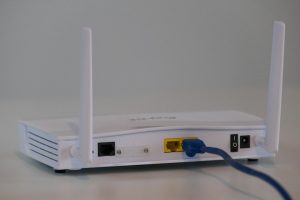
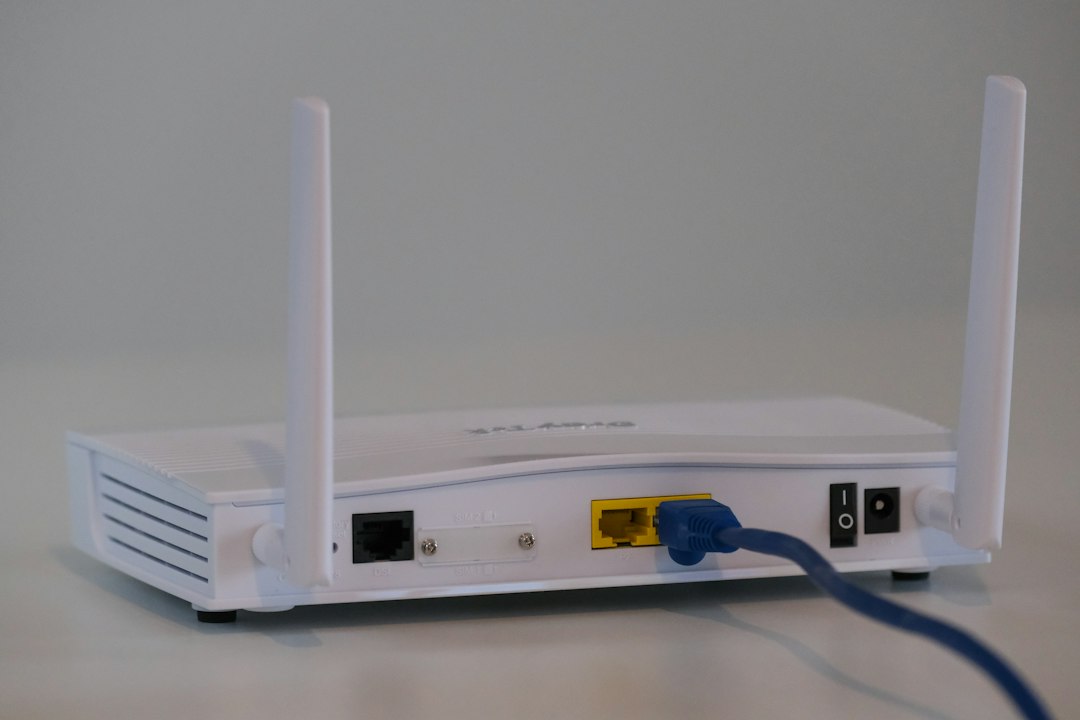
If Windows is being stubborn, go to the router.
Look for a sticker on the:
- Back of the router
- Bottom of the router
- Side panel
- Separate card that came in the box
The sticker may say SSID and Password. The SSID is the Wi-Fi name. The password is your network security key.
This works only if nobody changed the default Wi-Fi password. If someone did, the sticker is now just a tiny piece of history.
Option 4: Open the router admin page
This is the boss level. It is not hard, but it can feel clunky.
First, find your router address:
- Press Windows + R.
- Type cmd.
- Press Enter.
- Type ipconfig.
- Press Enter.
- Find Default Gateway.
You may see something like 192.168.1.1 or 192.168.0.1.
Open a browser. Type that number into the address bar. Sign in to your router.
Now look for a section called:
- Wireless
- Wi-Fi
- Security
- WLAN
- Network settings
Your Wi-Fi password may be hidden behind dots. Click show if that option exists.
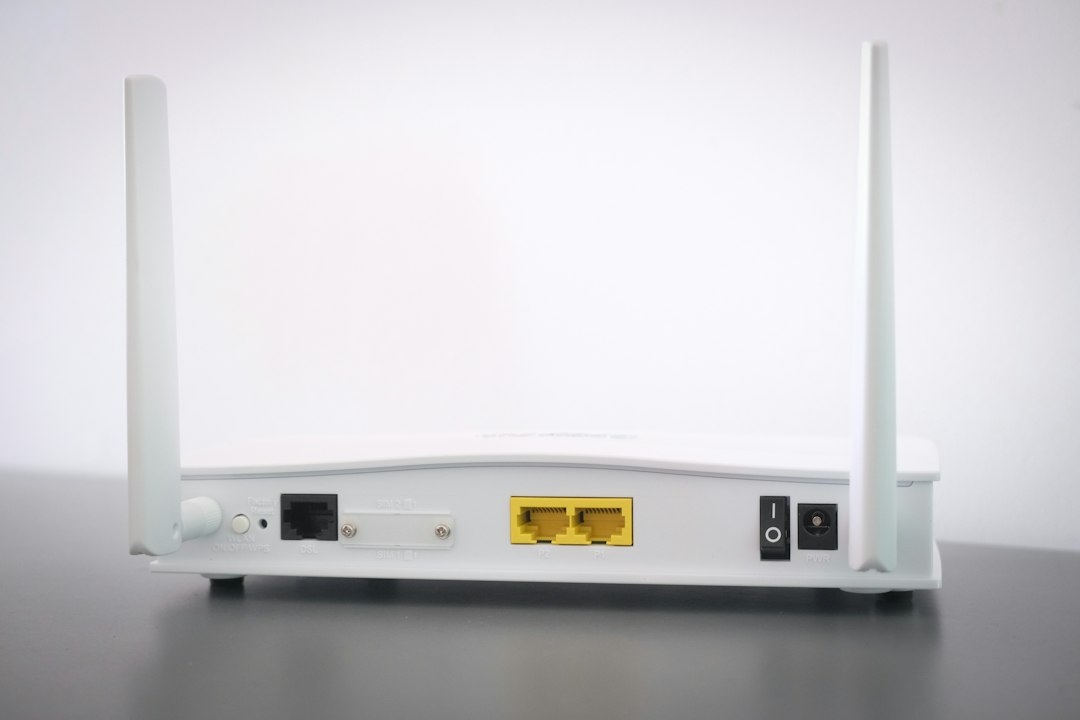
Router login vs Wi-Fi password
These are not always the same thing.
- Router login: Lets you change router settings.
- Wi-Fi password: Lets devices join your wireless network.
If you mix them up, nothing breaks. You just waste five minutes and sigh at a plastic box with blinking lights.
Quick safety tips
- Do not share your Wi-Fi key in group chats.
- Change weak passwords like password123.
- Use WPA2 or WPA3 if your router supports it.
- Write the password down and keep it somewhere safe.
- Restart devices after changing the Wi-Fi password.
Which method should you use?
Use Settings first. It is the easiest path on newer Windows 11 PCs.
Use Control Panel if Settings does not show the key. It looks old, but it works.
Use the router sticker if you never changed the default password.
Use the router admin page if you need the real current password, or if you want to change it.
Once you find the key, test it on one device before telling everyone. Nothing is more irritating than reading a 16-character Wi-Fi password out loud three times, only to find out you missed one tiny capital letter.