
The fastest way to optimize WordPress content with Yoast SEO is to update metadata from the Posts or Pages list before opening individual articles. An editor can scan SEO scores, readability signals, titles, slugs, categories, and dates in one place. Then Quick Edit and related Yoast panels can fix obvious issues in batches.
TLDR: Yoast SEO Quick Edit features help editors improve many WordPress posts without opening each one. For example, a content team with 120 old blog posts might update 40 meta descriptions in one afternoon instead of spending two days clicking through every editor screen. If organic click-through rate rises from 1.8% to 2.4% after clearer titles and snippets, that can mean hundreds of extra visits per month on an established site. The best workflow is simple: filter low-scoring posts, adjust titles and descriptions, check slugs, then open only the posts that need deeper edits.
What Yoast SEO Quick Edit Helps Fix
Yoast SEO adds useful signals to the WordPress content list. These include the SEO score, readability score, and sometimes extra columns tied to cornerstone content or internal linking. When the editor sees red, orange, or gray markers, weak pages stand out fast.
Quick Edit is useful because many SEO problems are not complex. Some posts need a cleaner title. Others have a messy slug, missing category, poor publish date, or no clear focus. It drives editors mad that a tiny change can take 45 seconds longer than it should when each article must be opened one by one. Quick Edit cuts that waste.
Best Uses for Quick Edit in Yoast SEO Workflows
Quick Edit should be used for simple, repeatable updates. It is not meant to replace full content editing. It shines when a site has dozens or hundreds of posts that need light cleanup.
- Update post slugs: Shorter URLs are easier to read and share.
- Change categories: Better grouping improves site structure.
- Adjust tags: Cleaner tags reduce clutter and thin archive pages.
- Set publish status: Draft, pending, or published content can be managed faster.
- Review SEO indicators: Yoast scores help identify which posts need attention first.
- Pair with Yoast Bulk Editor: SEO titles and meta descriptions can be edited at scale from Yoast tools.
Step 1: Show the Right Columns
The editor should start on the WordPress Posts or Pages screen. At the top, the Screen Options panel controls which columns appear. Yoast-related columns should be enabled if available.
The most useful columns are usually:
- SEO score
- Readability score
- Title
- Author
- Categories
- Date
This creates a simple audit table. The editor can sort and filter content without opening every post. Honestly, it feels like basic housekeeping, but it catches a surprising number of issues.
Step 2: Filter Posts That Need Fast Fixes
A good workflow starts with filters. The editor can choose a category, author, date range, or status. Older posts are often the best target. They may have weak snippets, outdated slugs, or no clear keyword plan.
For example, a food blog might filter posts from 2021 in the “Dinner” category. If 60 posts appear and 25 have orange or red Yoast markers, the editor has a focused work queue. That is better than guessing.
Good candidates for Quick Edit include:
- Posts with vague titles such as “Quick Tips”
- Posts with long slugs full of filler words
- Posts in the wrong category
- Posts with missing or weak tags
- Posts that should be marked as cornerstone content after review
Step 3: Use Quick Edit for WordPress-Level SEO Cleanup
From the Posts list, the editor can hover over a title and select Quick Edit. This opens a compact editing panel. The panel usually includes fields for slug, date, author, password, category, tags, status, and template options.
These fields affect SEO more than many site owners think. A cleaner slug can improve user trust in search results. A better category can strengthen internal structure. Correct tags can help reduce messy archive pages.
For instance, a slug like best easy homemade pasta sauce recipe for beginners can become easy homemade pasta sauce. The shorter version is clearer. It also looks less clumsy in search results.

Step 4: Use Yoast Bulk Editor for Titles and Meta Descriptions
Yoast SEO also includes a Bulk Editor in many installations. It is found under Yoast SEO and then Tools. This area is built for editing SEO titles and meta descriptions across multiple pages.
This is where the real time savings appear. The editor can move down a list and rewrite snippets without loading the full block editor each time. A good meta description should stay clear, specific, and benefit driven.
Weak meta description: This post talks about pasta sauce and gives some ideas.
Better meta description: Learn how to make easy homemade pasta sauce with pantry ingredients in 25 minutes.
The second version gives a promise. It includes the topic. It also adds a time-based reason to click.
Step 5: Open Full Posts Only When Needed
Quick Edit cannot fix everything. If a post has a poor readability score, thin content, missing headings, or weak internal links, the editor should open the full post. The same applies when Yoast flags missing focus keyphrases, poor keyphrase use, or weak image alt text.
The catch is that Quick Edit is best for triage, not surgery. It helps sort and patch fast. Full editing is still required for content quality.
A smart team might split work like this:
- Quick Edit: Slugs, categories, tags, status, authors, dates.
- Yoast Bulk Editor: SEO titles and meta descriptions.
- Full editor: Headings, body text, links, images, schema, and readability.
Step 6: Track Results After Updates
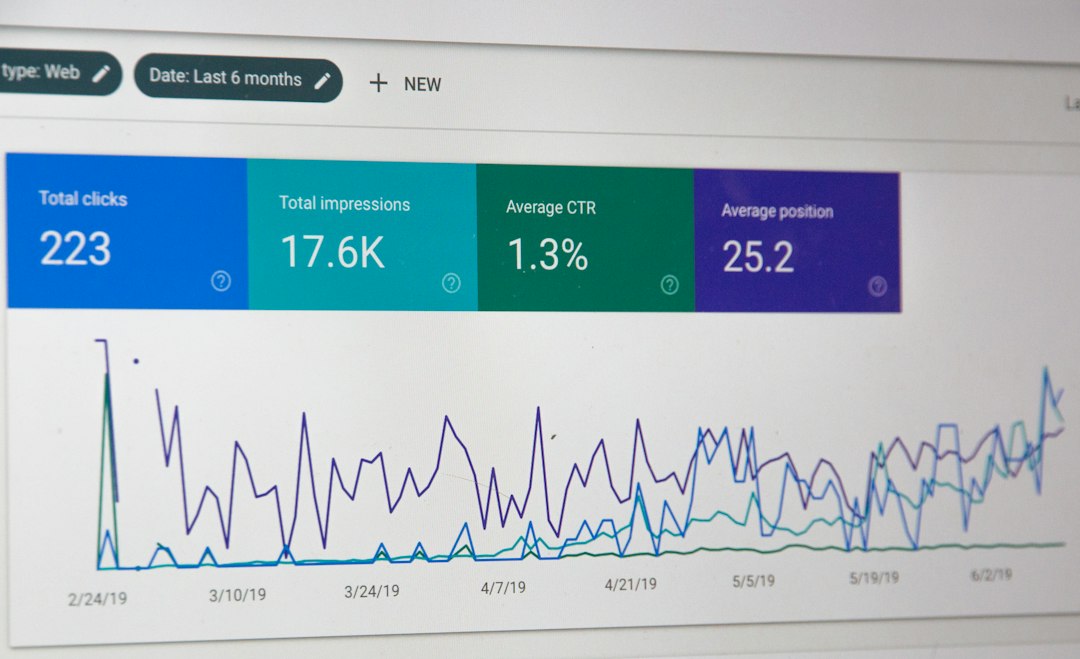
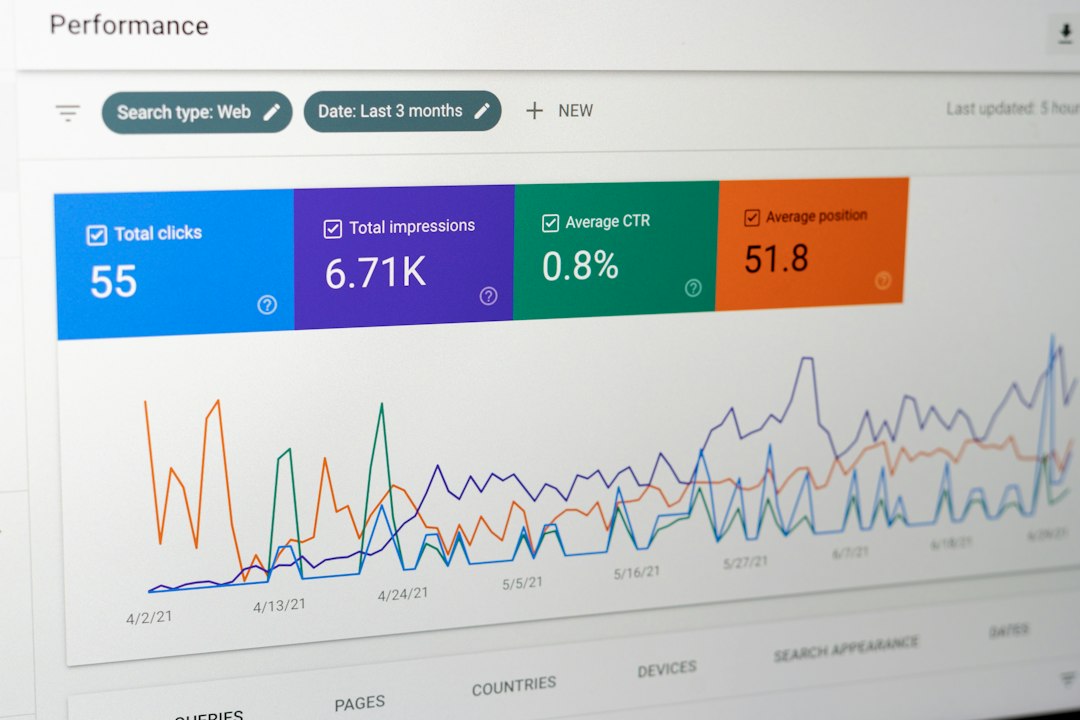
Fast editing only matters if performance improves. After updates, the editor should review search data in Google Search Console. The best metrics are clicks, impressions, average position, and click-through rate.
A basic tracking sheet can include the page URL, old title, new title, date changed, clicks before, and clicks after. A 28-day comparison is usually enough for early feedback. Larger sites may see changes sooner.
Common Mistakes to Avoid
- Changing too many slugs without redirects: Old URLs can break if redirects are not set.
- Writing titles only for search engines: Awkward titles reduce clicks.
- Using the same meta description everywhere: Duplicate snippets look lazy.
- Ignoring readability: A green SEO score does not guarantee a useful article.
- Bulk editing without notes: Teams need a record of what changed.
FAQ
Can Yoast SEO Quick Edit replace the full WordPress editor?
No. It is best for small updates and content list cleanup. Full article editing is still needed for headings, body copy, links, images, and deeper SEO work.
Where can SEO titles and meta descriptions be edited faster?
Many sites can use the Yoast SEO Bulk Editor under the Yoast tools area. It is often faster than opening each post.
Does changing a slug help SEO?
It can help when the old slug is long, unclear, or stuffed with filler words. A redirect should be added if the post is already published.
How often should older posts be reviewed?
A practical schedule is every three to six months. High-traffic posts should be checked more often.
What is the biggest time-saving benefit?
The editor can spot weak pages from the content list, make simple fixes in seconds, and save full editing time for posts that truly need it.