Fixing a broken network connection can feel scary at first. No internet. No email. No cat videos. But in the CompTIA A+ 7.3.3 Lab: Fix a Network Connection, you learn how to solve the problem step by step. And guess what? It is not magic. It is logic. With a simple process and calm thinking, you can troubleshoot almost any basic network issue.
TLDR: Start with the basics. Check cables, check settings, and test connections step by step. Use tools like ping, ipconfig, and Device Manager to find the problem. Follow a logical process and do not skip steps.
Why This Lab Matters
The CompTIA A+ exam loves troubleshooting questions. In real life, IT support jobs also love them. Most user problems are network-related. Slow internet. No connection. Limited connectivity. Wrong IP address.
This lab teaches you how to:
- Identify the problem
- Test possible causes
- Apply a fix
- Verify the solution
- Document what happened
That process is everything.
Step 1: Identify the Problem
First rule. Do not panic.
Ask simple questions:
- Is the computer connected by cable or WiFi?
- Is the problem happening on one device or many?
- Did it work before?
- Has anything changed?
Look at the screen. Look for error messages. Look for warning icons.

If you see a small yellow triangle over the network icon, that is a clue. If WiFi is off, that is another clue. Clues are good. Clues guide you.
Pro Tip: Always start with the obvious. Many issues are simple things.
Step 2: Check Physical Connections
This step is boring. But it solves many problems.
If using Ethernet:
- Is the cable plugged in firmly?
- Are link lights on?
- Is the cable damaged?
If using WiFi:
- Is WiFi turned on?
- Is Airplane mode off?
- Are you connected to the correct network?
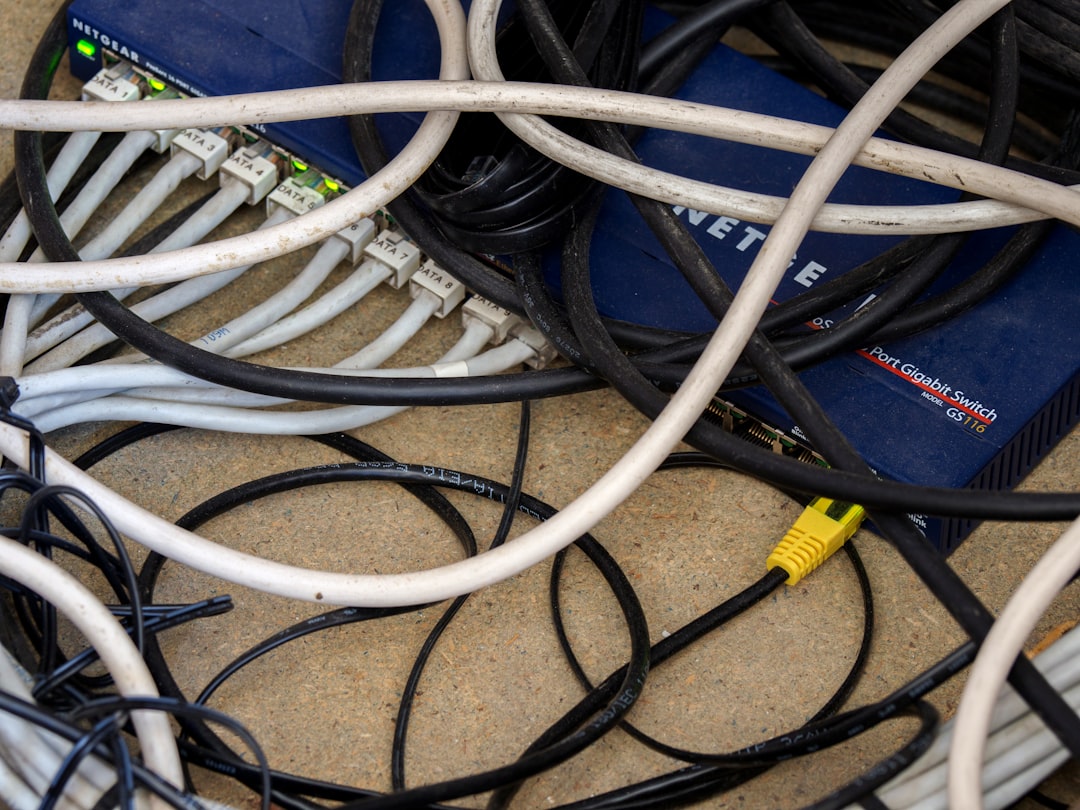
Try using a different Ethernet cable. Try a different switch port. Try restarting the router.
Restarting fixes more problems than you think.
Why does restarting help?
- Clears memory
- Resets network sessions
- Reassigns IP addresses
Simple. Effective. Underrated.
Step 3: Check IP Configuration
If cables look fine, move deeper.
Open Command Prompt. Type:
ipconfig
This command shows your IP address information.
Look for:
- IPv4 address
- Subnet mask
- Default gateway
If you see an IP that starts with 169.254, that is a problem.
This means the computer could not get an address from DHCP.
To try fixing it, type:
- ipconfig /release
- ipconfig /renew
This asks the DHCP server for a new IP address.
If it works, great. If not, continue investigating.
Step 4: Test Connectivity with Ping
Now it is time to test the network step by step.
Use the ping command.
Test in this order:
- Ping 127.0.0.1 (tests TCP IP stack)
- Ping your own IP address
- Ping the default gateway
- Ping 8.8.8.8 (tests internet access)
- Ping google.com (tests DNS)
This order matters.
If 127.0.0.1 fails, TCP IP may be broken.
If gateway fails, router may be down.
If 8.8.8.8 works but google.com fails, it is likely a DNS issue.
Each ping gives you information. Follow the clues.
Step 5: Check Network Adapter
Open Device Manager.
Look under Network Adapters.
Do you see:
- A yellow exclamation mark?
- A red X?
- The adapter missing?
If yes, the driver may be the issue.
Try:
- Disable and re-enable the adapter
- Update the driver
- Uninstall and reinstall the device
If the adapter is disabled, enable it. That one clicks fixes the problem sometimes.
Easy win.
Step 6: Check Network Settings
Sometimes the IP settings are wrong.
Go to:
Network and Sharing Center → Change adapter settings → Properties → Internet Protocol Version 4
Check if the system is set to:
- Obtain IP address automatically
- Obtain DNS server automatically
If the network uses DHCP, these should be automatic.
If static IP is required, verify:
- Correct IP address
- Correct subnet mask
- Correct gateway
- Correct DNS server
A single wrong number can break everything.
Common Troubleshooting Tools Comparison
In this lab, you use several tools. Here is a simple comparison chart:
| Tool | What It Does | When To Use It | Difficulty Level |
|---|---|---|---|
| ipconfig | Shows IP configuration | When checking IP address problems | Easy |
| ping | Tests connectivity | When checking if devices communicate | Easy |
| Device Manager | Manages hardware drivers | When adapter has errors | Easy |
| Network Settings | Manages IP and DNS settings | When config seems incorrect | Medium |
| tracert | Shows path to destination | When network path issues occur | Medium |
This chart makes tool selection simple. Match the symptom to the tool.
Step 7: Check the Router
If multiple devices have no internet, the router may be the problem.
Check:
- Are status lights normal?
- Is WAN light active?
- Has the ISP reported outages?
Log into the router web interface.
Verify:
- Internet connection status
- DHCP enabled
- No error messages
If needed, reboot the router. Wait fully. Test again.
Step 8: Consider Software Issues
Firewalls can block connections.
Antivirus software can interfere.
VPN clients can break routing.
Try temporarily disabling:
- Firewall
- Antivirus
- VPN
If network works after disabling one, you found your suspect.
Do not forget to re-enable security after testing.
Step 9: Apply the Fix and Test
You found the issue. Great.
Now:
- Apply the fix carefully
- Reconnect to the network
- Test access to websites
- Ping external servers
Make sure everything works.
Do not stop at “it kind of works.” Confirm full functionality.
Step 10: Document the Solution
This step is often ignored. Do not skip it.
Write down:
- What the problem was
- What caused it
- How you fixed it
Why document?
- Helps future troubleshooting
- Shows professionalism
- Saves time later
Good IT techs document everything.
Extra Troubleshooting Tips
Here are bonus tips to boost your lab performance.
1. Follow the OSI mindset.
Start from physical layer. Move upward.
2. Change one thing at a time.
Do not change five settings at once. You will not know what fixed it.
3. Always test after each change.
Testing confirms direction.
4. Stay logical.
Guessing wastes time. Testing saves time.
5. Keep calm.
Frustration blocks thinking.
How This Helps in the Real World
This lab is not just for passing the exam.
It prepares you for:
- Help desk jobs
- Desktop support roles
- IT technician work
- Field service positions
Most tickets in real companies are network related.
If you master this troubleshooting flow, you become valuable fast.
Managers love techs who solve problems quickly and methodically.
Final Thoughts
The CompTIA A+ 7.3.3 lab is all about process. Not memorization. Not luck.
Start simple. Move step by step. Test everything.
Check cables. Check IP. Ping smartly. Verify settings. Inspect hardware. Re-test.
Troubleshooting is like detective work. Every symptom is a clue. Every test gives information.
When you stop guessing and start following a clear process, network problems become puzzles. And puzzles can be solved.
Practice this flow again and again. Soon it will feel natural. And when exam day comes, you will not panic.
You will troubleshoot with confidence.
And that is exactly what CompTIA wants.