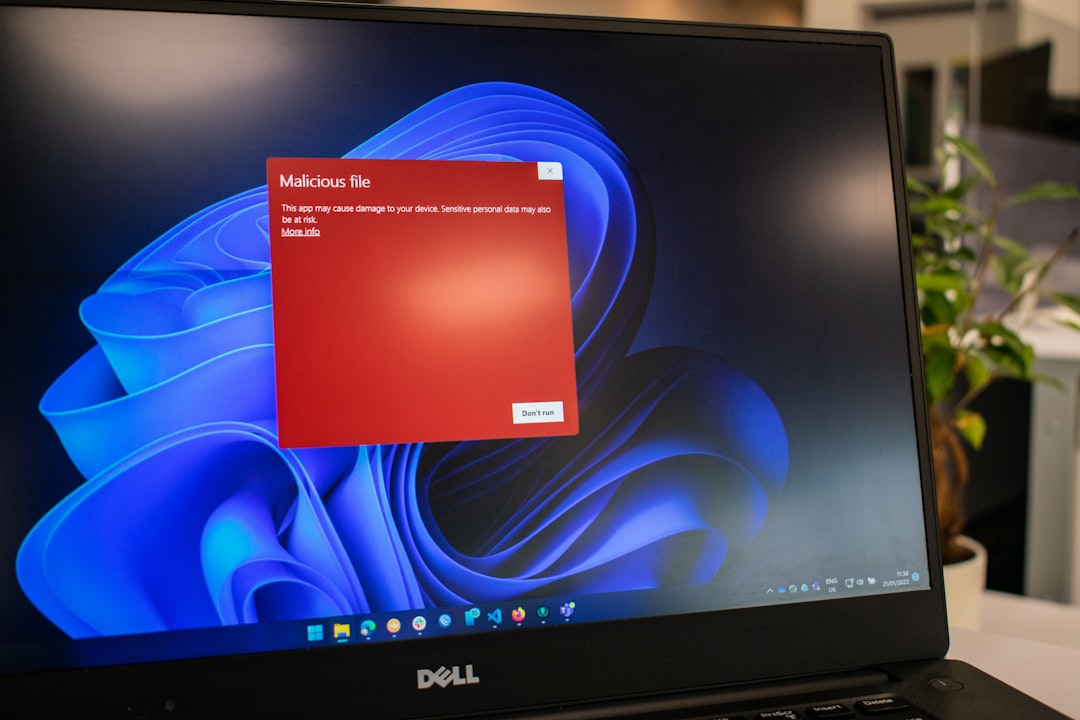
Few Windows errors cause as much frustration and concern as Error 0x80070570. It often appears during Windows installation, file transfers, system updates, or when accessing specific files and folders. The message usually reads, “The file or directory is corrupted and unreadable” or “Windows cannot install required files”, immediately raising concerns about data integrity. While the error can signal serious underlying issues, it is not always catastrophic. With the right diagnostic steps and corrective measures, it can usually be resolved safely.
TLDR: Error 0x80070570 in Windows typically indicates file corruption, disk errors, faulty RAM, or installation media problems. It can lead to data access issues and potential data loss if ignored. Fortunately, built-in Windows tools like CHKDSK, SFC, and DISM, along with hardware checks and secure reinstallations, can resolve the issue in most cases. Prompt action significantly reduces the risk of permanent damage.
What Is Error 0x80070570?
Error 0x80070570 is a Windows system-level error that typically points to file system corruption, unreadable sectors on a disk, or damaged installation files. It may occur in several scenarios:
- During Windows installation or upgrade
- When copying or moving files
- While deleting files or emptying the Recycle Bin
- During Windows Update
- When accessing external drives or USB devices
The common denominator is that Windows cannot reliably read or verify data from a storage medium. This is why the error frequently hints at corruption or unreadable content.
Main Causes of Error 0x80070570
Understanding the root causes helps determine the appropriate solution. The most common triggers include:
1. Corrupted System Files
Improper shutdowns, sudden power loss, malware infections, and failed updates can damage essential Windows system files.
2. Hard Drive or SSD Problems
Bad sectors, aging drives, loose cables, or firmware issues may prevent Windows from reading data correctly.
3. Faulty RAM
Unstable or defective memory modules can corrupt data during installation or file transfers.
4. Damaged Installation Media
If the error occurs during Windows setup, the ISO file, USB drive, or DVD may be corrupted.
5. File System Errors
NTFS structure corruption or improper disk handling can create unreadable file entries.
Data Risks Associated with the Error
Error 0x80070570 should not be ignored because it can indicate deeper storage integrity issues. The potential risks include:
- Permanent data loss due to worsening bad sectors
- Unbootable system if system files are affected
- Failed Windows updates leading to security vulnerabilities
- Drive failure progression if hardware issues are present
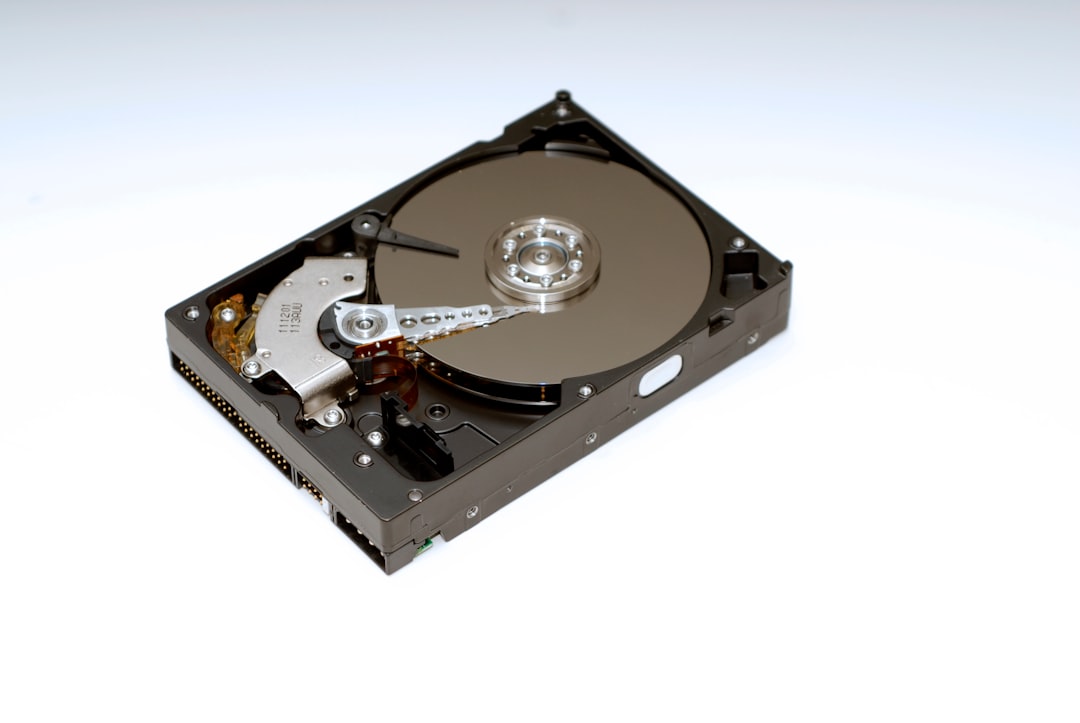
If you suspect drive degradation, it is critical to back up your data immediately before attempting extensive repairs.
8 Proven Fixes for Error 0x80070570
1. Run CHKDSK to Repair Disk Errors
The Check Disk (CHKDSK) utility scans for file system errors and bad sectors.
- Open Command Prompt as Administrator.
- Type:
chkdsk C: /f /r /x - Press Enter and allow the scan to complete.
The /f flag fixes errors, /r locates bad sectors, and /x forces the disk to dismount if necessary.
2. Use System File Checker (SFC)
SFC scans and repairs corrupted Windows system files.
- Open Command Prompt as Administrator.
- Type:
sfc /scannow - Wait for verification to reach 100%.
This tool is particularly effective when the error appears after failed updates.
3. Run DISM to Repair Image Corruption
If SFC cannot fix the issue, use the Deployment Imaging Service and Management Tool (DISM):
DISM /Online /Cleanup-Image /RestoreHealth
DISM repairs Windows component store corruption that SFC relies upon.
4. Test Your RAM for Faults
Memory problems can silently corrupt files. Use Windows Memory Diagnostic:
- Press Win + R
- Type
mdsched.exe - Restart and run diagnostics
If errors appear, consider replacing the faulty RAM module.
5. Recreate Windows Installation Media
If the error occurs during installation:
- Download a fresh ISO from Microsoft’s official website
- Use the Media Creation Tool
- Try a different USB drive
Corrupted installation files are a common and often overlooked cause.
6. Transfer Data Using Safe Mode
If you cannot normally access files:
- Boot into Safe Mode
- Attempt file copying from there
Safe Mode minimizes driver conflicts and background processes.
7. Check Physical Connections and Drive Health
Inspect SATA cables and external drive connections. You may also use SMART monitoring tools to verify drive health.
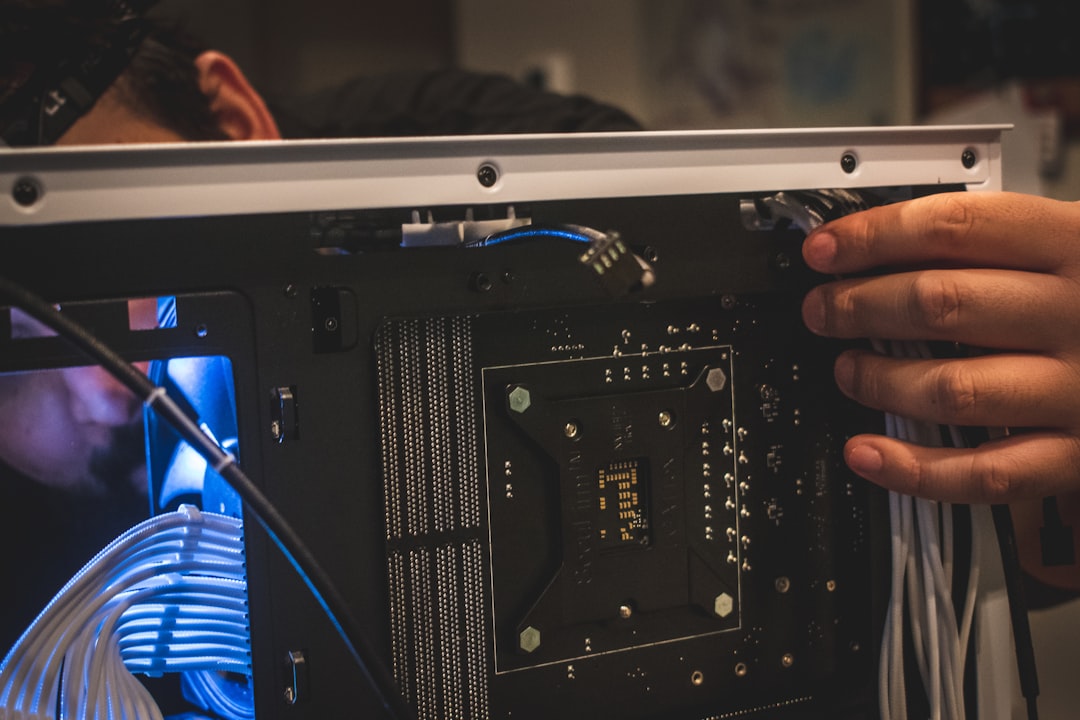
If SMART reports reallocated sectors or pending sectors increasing over time, replacing the drive is advisable.
8. Perform a Clean Windows Installation
If corruption is severe and persistent:
- Back up all critical data
- Create bootable installation media
- Format the system partition
- Install Windows fresh
This eliminates deep system corruption but should only be done after securing your files.
Comparison of Built-In Repair Tools
| Tool | Primary Function | Best Used When | Difficulty Level |
|---|---|---|---|
| CHKDSK | Repairs file system errors and bad sectors | Disk corruption suspected | Moderate |
| SFC | Repairs corrupted system files | Update or system crash issues | Easy |
| DISM | Repairs Windows image corruption | SFC fails to fix errors | Moderate |
| Memory Diagnostic | Detects faulty RAM | Random file corruption or crashes | Easy |
When to Consider Professional Data Recovery
If the drive produces unusual noises, disappears from BIOS, or accumulates new bad sectors rapidly, avoid repeated repair attempts. Each write operation may worsen recoverable data. In such cases:
- Disconnect the drive
- Avoid formatting or reinstalling Windows
- Consult a certified data recovery service
Mechanical drive failures require specialized equipment and cleanroom environments.
Preventing Error 0x80070570 in the Future
Preventive measures are essential for long-term system reliability:
- Maintain regular automatic backups
- Use a UPS to prevent sudden shutdowns
- Monitor SMART drive health periodically
- Keep Windows updated
- Run antivirus scans regularly
- Replace aging drives proactively
Most importantly, treat recurring file corruption as an early warning sign rather than an inconvenience.
Final Thoughts
Error 0x80070570 is a serious but manageable Windows issue. While it frequently indicates file system corruption or hardware problems, it does not automatically mean catastrophic data loss. Through systematic troubleshooting—starting with CHKDSK, SFC, and DISM, and progressing to hardware diagnostics—you can isolate and resolve the root cause in most cases.
However, ignoring persistent errors places both system stability and personal data at risk. Early detection, consistent backups, and disciplined maintenance practices remain the most reliable safeguards. When handled carefully and promptly, Error 0x80070570 can be corrected without lasting consequences.