Fortnite players occasionally encounter frustrating error messages that interrupt gameplay, and one of the most confusing is the Internal Content Beacon Error. This issue can prevent users from joining matches, connecting to servers, or accessing certain game modes. While the error may seem complex, it is often tied to connectivity issues, corrupted files, or server-side problems that can be resolved with the right troubleshooting steps.
TL;DR: The Internal Content Beacon Error in Fortnite is usually caused by server issues, corrupted game files, or unstable internet connections. Players can fix it by restarting the game and router, verifying game files, updating Fortnite, or reinstalling the game. Checking Epic Games server status and adjusting firewall settings can also help. Following a structured troubleshooting process resolves the issue in most cases.
What Is the Internal Content Beacon Error?
The Internal Content Beacon Error typically appears when Fortnite fails to properly communicate with Epic Games servers. In simple terms, the game client cannot establish or maintain a stable link to retrieve necessary content data. This may happen when:
- Fortnite servers are down or undergoing maintenance
- Game files are missing or corrupted
- The player’s network connection is unstable
- Firewall or antivirus software blocks communication
- The game version is outdated
Understanding the root cause is critical before attempting fixes. The following sections outline a complete troubleshooting process players can follow step by step.
1. Check Epic Games Server Status
Before changing any system settings, players should first confirm whether the issue is server-side. If Epic Games servers are down, troubleshooting locally will not solve the problem.
To check server status:
- Visit the official Epic Games Status page
- Check Fortnite’s server indicators
- Look for ongoing maintenance announcements
- Monitor Fortnite’s official social media accounts
If servers are down, the only solution is to wait until Epic resolves the issue.
2. Restart Fortnite and Your Device
Temporary glitches are common in online multiplayer games. A simple restart can often clear cache issues and refresh the connection.
Steps:
- Close Fortnite completely
- Restart the PC, PlayStation, Xbox, or Nintendo Switch
- Launch Fortnite again
This quick fix works surprisingly often, especially after recent updates or system changes.
3. Restart and Refresh Your Internet Connection
An unstable or slow internet connection is one of the primary causes of the Internal Content Beacon Error.
How to refresh the connection:
- Turn off the modem and router
- Wait at least 60 seconds
- Turn the modem back on, then the router
- Reconnect your device to the internet
Players should also:
- Use a wired Ethernet connection instead of Wi-Fi
- Disconnect other bandwidth-heavy devices
- Run a speed test to confirm stable upload and download speeds
If packet loss or high latency appears during testing, contacting the internet service provider may be necessary.
4. Verify Fortnite Game Files
Corrupted or missing game files frequently trigger connection-related errors. Fortunately, the Epic Games Launcher includes a built-in verification tool.
How to verify Fortnite files:
- Open the Epic Games Launcher
- Go to the Library
- Click the three dots next to Fortnite
- Select Verify
The launcher will scan and automatically replace any damaged files. This process may take several minutes depending on system performance.
5. Update Fortnite to the Latest Version
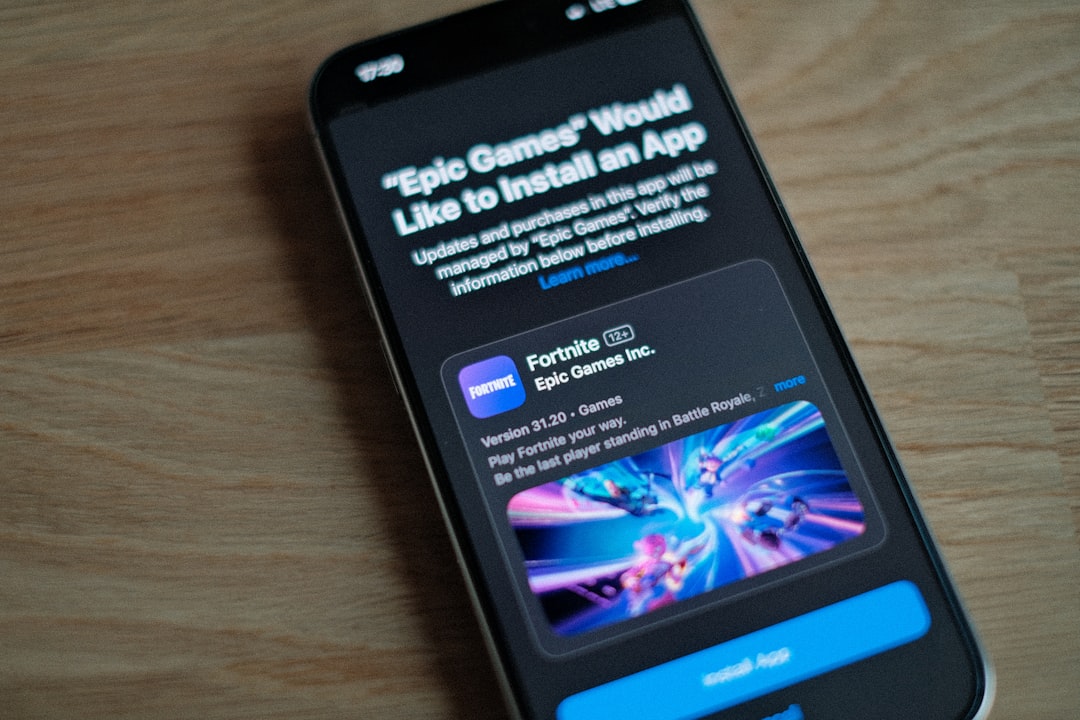
Running an outdated version of Fortnite can lead to communication issues with updated servers. Epic Games frequently releases patches that address bugs and server compatibility.
Players should ensure:
- Automatic updates are enabled
- No pending patches remain in the launcher
- The console system software is up to date
After updating, restarting the device is recommended before launching the game again.
6. Check Firewall and Antivirus Settings
Firewall or antivirus software can sometimes block Fortnite from accessing required ports or external servers.
Fix:
- Add Fortnite to the firewall exceptions list
- Allow Epic Games Launcher through security software
- Temporarily disable antivirus software (for testing purposes only)
If the game works after disabling security software, adjusting the settings permanently will resolve the issue.
7. Flush DNS and Reset Network Settings (PC Only)
On Windows computers, flushing DNS can resolve cached networking conflicts.
Steps:
- Open Command Prompt as Administrator
- Type: ipconfig /flushdns
- Press Enter
For more persistent issues, a complete network reset may help:
- Go to Network Settings
- Select Network Reset
- Restart the computer
This method clears outdated connection configurations.
8. Reinstall Fortnite
If all other solutions fail, a fresh installation may resolve deeply corrupted files.
Reinstallation process:
- Uninstall Fortnite from the system
- Restart the device
- Download and reinstall from Epic Games Launcher
Although this step takes the most time, it often eliminates persistent internal errors.
Troubleshooting Methods Comparison Chart
| Method | Difficulty Level | Time Required | Effectiveness |
|---|---|---|---|
| Check Server Status | Very Easy | 2–5 minutes | High if server issue |
| Restart Game/Device | Easy | 5 minutes | Moderate |
| Restart Internet | Easy | 10 minutes | High |
| Verify Game Files | Easy | 10–20 minutes | Very High |
| Update Fortnite | Easy | 5–30 minutes | High |
| Adjust Firewall | Moderate | 10–15 minutes | Moderate to High |
| Flush DNS | Moderate | 5 minutes | Moderate |
| Reinstall Game | Advanced | 30–120 minutes | Very High |
Preventing the Error in the Future
While some errors occur due to server-side issues, players can reduce the likelihood of encountering the Internal Content Beacon Error by following preventive measures:
- Keep Fortnite and system software updated
- Use a stable wired connection when possible
- Regularly verify game files after major updates
- Avoid interrupting game downloads or updates
- Maintain router firmware updates
Taking these proactive steps significantly decreases the chances of connection-related issues during gameplay.
FAQ
What does the Internal Content Beacon Error mean in Fortnite?
It indicates that Fortnite cannot properly communicate with Epic Games servers to retrieve necessary content data. This is usually caused by connectivity issues, corrupted files, or server maintenance.
Is the Internal Content Beacon Error caused by my internet?
In many cases, yes. Unstable connections, packet loss, and slow speeds can prevent proper server communication. Restarting the router and switching to a wired connection often fixes the issue.
Can outdated Fortnite versions cause this error?
Yes. Running an outdated version may result in compatibility issues with updated servers. Always ensure Fortnite is fully updated.
Will reinstalling Fortnite fix the problem?
Reinstalling resolves the issue if corrupted or missing files are responsible. It is recommended only after trying simpler troubleshooting steps first.
Is the error sometimes on Epic Games’ side?
Absolutely. If servers are undergoing maintenance or experiencing outages, players must wait until Epic Games resolves the issue.
Does this error affect all platforms?
Yes. The Internal Content Beacon Error can occur on PC, PlayStation, Xbox, and Nintendo Switch, though troubleshooting steps may vary slightly by platform.
By following the structured solutions outlined above, most players can resolve the Internal Content Beacon Error quickly and return to enjoying Fortnite without extended interruptions.