For many Windows 11 users, the taskbar is more than a row of icons at the bottom of the screen. It is a command center for daily work, quick communication, file access, creative tasks, meetings, and system navigation. When apps are pinned thoughtfully, the taskbar can reduce wasted clicks, limit distractions, and help users move through their workflow with more confidence and speed.
TLDR: Windows 11 taskbar pinning helps users keep essential apps within immediate reach and create a faster, cleaner workflow. The best setup usually places the most used apps near the left or center, groups related tools logically, and removes anything that does not support daily productivity. With a few smart adjustments, users can turn the taskbar into a simple, efficient workspace launcher.
Why Taskbar Organization Matters in Windows 11
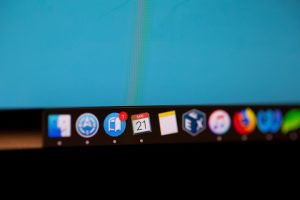
The Windows 11 taskbar is designed to provide quick access to apps, open windows, search, settings, and system features. However, when it becomes crowded or disorganized, it can slow users down instead of helping them. A cluttered taskbar forces the eyes to scan too many icons, increases the chance of opening the wrong app, and makes switching between tasks feel less fluid.
A well-organized taskbar works like a personal productivity map. It shows which apps matter most, which tools support focused work, and which shortcuts should stay out of the way. For office workers, students, designers, developers, business owners, and casual users, the right pinned app layout can make Windows 11 feel more natural and responsive.
The goal is not to pin every useful app. The goal is to pin the apps that are used often enough to deserve permanent space.
Understanding Taskbar Pinning
Pinning an app to the taskbar means placing its shortcut directly on the taskbar so it can be opened with a single click. Unlike desktop shortcuts, pinned taskbar apps remain visible even when multiple windows are open. This makes them ideal for programs that are used several times a day.
In Windows 11, apps can usually be pinned in several ways:
- From the Start menu: Users can open Start, search for an app, right-click it, and choose Pin to taskbar.
- From an open app: If an app is currently running, users can right-click its taskbar icon and select Pin to taskbar.
- From File Explorer or desktop shortcuts: Some apps allow pinning by right-clicking their shortcut and selecting additional options.
Unpinning is just as simple. Users can right-click a pinned icon and select Unpin from taskbar. This makes it easy to experiment with different layouts without making permanent changes.
Step 1: Identify Essential Daily Apps
The first step in organizing the Windows 11 taskbar is deciding which apps actually deserve to be pinned. Many users pin apps out of habit, not because those apps are truly needed every day. A better approach is to think about frequency, importance, and workflow value.
Essential apps often include:
- Web browser: Microsoft Edge, Google Chrome, Firefox, or another preferred browser.
- Email and calendar: Outlook, Gmail in a browser app, or another communication tool.
- File management: File Explorer for documents, downloads, cloud folders, and drives.
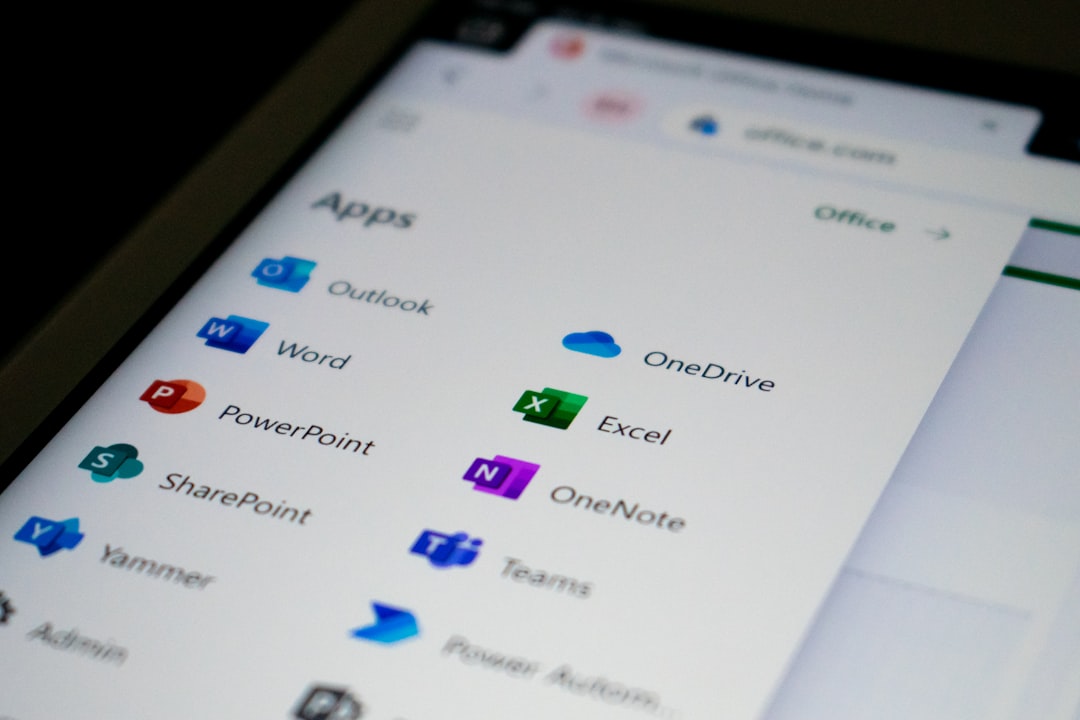
- Productivity apps: Word, Excel, PowerPoint, OneNote, Notion, or task managers.
- Communication tools: Microsoft Teams, Slack, Zoom, or similar platforms.
- Creative or technical tools: Adobe apps, code editors, design software, terminal tools, or database clients.
Apps that are only used once a week or once a month usually do not need to be pinned. They can stay in the Start menu, desktop folders, or search results. Keeping the taskbar reserved for high-use tools helps it remain fast and readable.
Step 2: Arrange Apps by Workflow Order
After choosing which apps to pin, users should arrange them in an order that reflects their daily routine. Windows 11 allows icons to be dragged left or right across the taskbar. This simple feature can make a major difference in speed.
One useful method is to place apps in the order they are typically opened during the workday. For example, a business user may arrange icons like this:
- Browser
- Calendar or Teams
- File Explorer
- Word or document editor
- Excel or spreadsheet tool
- Project management app
A developer may prefer a different structure:
- Browser
- Code editor
- Terminal
- File Explorer
- Database tool
- Communication app
- Notes app
This type of ordering reduces mental friction. Users do not need to search visually because the icons always appear in a predictable sequence.
Step 3: Group Related Apps Together
Another smart taskbar strategy is grouping tools by purpose. Instead of arranging apps randomly, users can create small visual zones. This helps the brain recognize categories quickly and improves task switching.
Common taskbar groups may include:
- Communication: Email, calendar, Teams, Slack, Zoom.
- Work creation: Word processors, spreadsheets, presentation tools.
- Research: Browser, notes app, PDF reader.
- File access: File Explorer, cloud storage, download folders.
- Technical tools: Code editor, terminal, virtual machines, database apps.
- Creative tools: Image editors, video editors, layout software, asset managers.
While Windows 11 does not provide built-in spacing dividers for taskbar icons, users can still create a sense of grouping by arranging icons carefully. Some may pin fewer apps and rely on the Start menu for secondary tools, keeping each group small and easy to scan.
Step 4: Use Keyboard Shortcuts with Pinned Apps
Taskbar pinning becomes even more powerful when combined with keyboard shortcuts. In Windows 11, users can open pinned taskbar apps by pressing Windows key + number. The number corresponds to the app’s position on the taskbar from left to right.
For example, if the first pinned app is a browser, pressing Windows + 1 opens it or switches to it. If File Explorer is the fourth pinned app, Windows + 4 activates it. This shortcut is especially useful for users who prefer keyboard navigation or want to reduce mouse movement.
Because of this feature, the first five taskbar positions are especially valuable. Users should place their most important apps there. A strong setup might look like this:
- Position 1: Primary web browser
- Position 2: Email or communication app
- Position 3: File Explorer
- Position 4: Main work app
- Position 5: Notes, calendar, or task manager
When the taskbar layout is stable, muscle memory develops quickly. Over time, users may open important apps without even looking at the icons.
Step 5: Remove Clutter from the Taskbar
A faster workflow often depends on what is removed, not just what is added. If too many apps are pinned, the taskbar becomes crowded and less effective. Users should review pinned apps regularly and remove anything that no longer supports daily work.
Signs that an app should be unpinned include:
- It has not been opened from the taskbar in several weeks.
- It is used only for rare maintenance or setup tasks.
- It duplicates another pinned app’s purpose.
- It creates visual clutter or confusion.
- It is better accessed from search or the Start menu.
Windows 11 also includes taskbar items such as Search, Task View, Widgets, and Chat or Teams-related features depending on the system configuration. Users can adjust these by opening Settings, selecting Personalization, and then choosing Taskbar. Turning off unused taskbar items can create more space for important pinned apps.
Step 6: Use File Explorer and Folders Efficiently
File Explorer deserves special attention because it is one of the most useful taskbar pins in Windows 11. When pinned, it gives users fast access to documents, downloads, desktop files, external drives, network locations, and cloud storage folders.
Users can also right-click the File Explorer icon to view frequent folders and pinned locations. This jump list can become a powerful mini-navigation menu. For example, users may pin important folders such as:
- Current projects
- Client files
- Invoices
- Downloads
- Templates
- Shared team folders
To make this more effective, users should keep frequently used folders organized and clearly named. A taskbar shortcut is only helpful if the destination is easy to understand once opened.
Step 7: Balance Pinned Apps with the Start Menu
The taskbar and Start menu should work together. The taskbar is best for immediate access, while the Start menu is better for secondary apps, occasional tools, and broader organization. If users try to make the taskbar handle everything, it loses its advantage.
A practical rule is simple: pin daily apps to the taskbar and weekly apps to the Start menu. Rarely used apps can remain searchable. This creates a clean hierarchy where every app has a logical place.
Windows 11 also allows users to pin apps to the Start menu. This is helpful for tools that are important but not needed constantly. For example, a user may keep a password manager, printer utility, scanner app, image converter, or accounting tool in Start instead of placing it on the taskbar.
Recommended Taskbar Layouts for Different Users
Different workflows require different layouts. A taskbar that works for a writer may not work for an analyst, gamer, or IT administrator. The best arrangement reflects actual behavior rather than a generic template.
Office Productivity Layout
- Browser
- Outlook or email app
- Microsoft Teams
- File Explorer
- Word
- Excel
- OneNote or task manager
Student Layout
- Browser
- File Explorer
- Notes app
- Word or Google Docs shortcut
- Calendar
- PDF reader
- Communication or learning platform
Creative Professional Layout
- Browser
- File Explorer
- Design or photo editing app
- Video or audio editing app
- Cloud storage
- Project management tool
- Communication app
Developer Layout
- Browser
- Code editor
- Terminal
- File Explorer
- Git client
- Database tool
- Team chat app
Taskbar Alignment and Visual Preferences
Windows 11 centers taskbar icons by default, giving the desktop a modern look. However, some users prefer the traditional left alignment from earlier Windows versions. This can be changed by going to Settings, then Personalization, then Taskbar, and opening Taskbar behaviors. From there, users can change Taskbar alignment to Left or Center.
Centered icons may feel balanced on wide monitors, while left-aligned icons may feel faster for users with long-standing Windows habits. Neither option is universally better. The most efficient choice is the one that allows the user to locate icons quickly and consistently.
Maintaining the Taskbar Over Time
Taskbar organization should not be a one-time project. Workflows change, new apps appear, and old tools become less relevant. A monthly review can keep the layout clean and practical.
During a taskbar review, users can ask:
- Which pinned apps are opened every day?
- Which icons are ignored?
- Are related apps grouped logically?
- Are the first five positions assigned to high-value tools?
- Is there enough empty space to avoid visual clutter?
This quick review may take only a few minutes, but it can prevent the taskbar from becoming messy again. For shared or family computers, each user may need a different arrangement based on personal habits.
Common Taskbar Pinning Mistakes
Several mistakes can reduce the value of taskbar pinning. The most common is pinning too many apps. A crowded taskbar is harder to read, especially on smaller laptops. Another mistake is placing rarely used apps in prime positions while daily tools sit farther away.
Some users also change their layout too often. While experimentation is useful, constant rearrangement prevents muscle memory from developing. Once a strong layout is chosen, it should remain stable for a while.
Finally, users sometimes ignore keyboard shortcuts. Taskbar pinning is helpful with a mouse, but it becomes much faster when combined with Windows + number shortcuts. This is one of the easiest ways to improve navigation speed without installing anything extra.
Conclusion
A well-organized Windows 11 taskbar can make daily computing smoother, faster, and less distracting. By pinning only essential apps, arranging them by workflow, grouping related tools, and using keyboard shortcuts, users can create a taskbar that supports their habits instead of interrupting them. The best layout is simple, consistent, and tailored to the way the user actually works.
With regular cleanup and thoughtful placement, the taskbar becomes more than a shortcut area. It becomes a practical productivity layer that keeps important tools close, reduces unnecessary searching, and helps users move from one task to the next with less effort.
FAQ
How does a user pin an app to the Windows 11 taskbar?
A user can open the Start menu, search for the app, right-click it, and select Pin to taskbar. If the app is already open, the user can also right-click its taskbar icon and choose Pin to taskbar.
How many apps should be pinned to the taskbar?
There is no fixed number, but most users benefit from keeping the taskbar limited to daily apps. A practical range is usually between five and ten pinned apps, depending on screen size and workflow complexity.
Can pinned taskbar apps be rearranged?
Yes. Users can drag pinned icons left or right on the taskbar to change their order. This is useful for placing important apps in the first few positions.
What is the fastest way to open pinned taskbar apps?
The fastest method is often the Windows key + number shortcut. For example, Windows + 1 opens the first pinned app, while Windows + 2 opens the second.
Should File Explorer be pinned to the taskbar?
For most users, yes. File Explorer is frequently used for documents, downloads, folders, drives, and cloud storage, making it one of the most useful taskbar pins.
Is it better to use center or left taskbar alignment?
It depends on user preference. Center alignment looks modern and balanced, while left alignment may feel faster and more familiar for users accustomed to older Windows versions.
How often should the taskbar be reorganized?
A monthly review is usually enough. Users should remove unused apps, adjust icon order, and make sure the most important tools still occupy the easiest positions.