When an iPhone or iPad is broken, water-damaged, or completely unresponsive, many users assume their data is lost forever. Photos, contacts, messages, and important documents often feel irreplaceable. Fortunately, recovering data from damaged iOS devices is frequently possible with the right approach, tools, and preparation. This comprehensive guide explains how iOS data recovery works, what options are available, and how users can maximize their chances of successful restoration.
TLDR: Data recovery from broken or damaged iOS devices is often possible using backups, iCloud, recovery software, or professional services. The best method depends on whether the device powers on and whether backups exist. Acting quickly and avoiding further damage significantly increases recovery success. Prevention through regular backups is ultimately the most reliable protection.
Understanding iOS Data Recovery
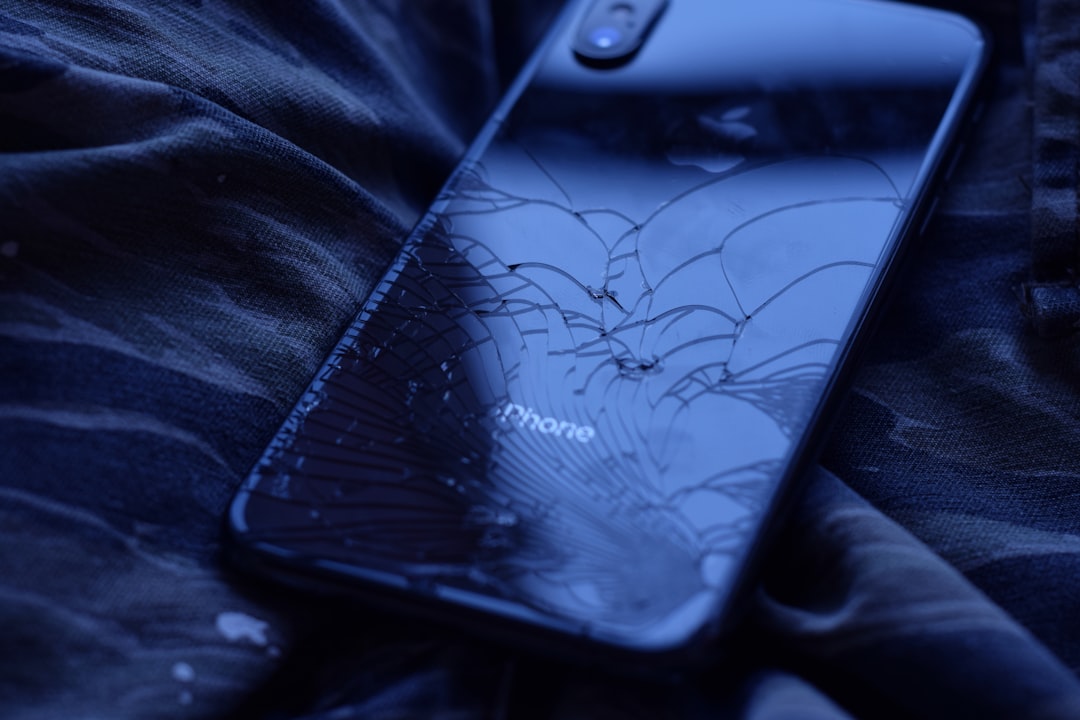
iOS data recovery refers to the process of retrieving lost, deleted, or inaccessible data from an iPhone or iPad. Damage may be physical (cracked screen, water exposure, motherboard failure) or software-related (system crash, iOS corruption, failed update).
Data stored on iOS devices typically includes:
- Photos and videos
- Contacts and call history
- Text messages and iMessages
- App data
- Notes and reminders
- Documents and files
The recovery strategy depends largely on whether the device can power on and whether backups exist.
Step 1: Determine the Type of Damage
Before attempting recovery, assessing the situation is essential.
1. Screen Damage Only
If the device powers on but the screen is cracked or unresponsive, recovery is usually straightforward. Connecting the device to a computer may allow full access.
2. Water Damage
Water damage is more complex. The device should be turned off immediately to prevent short circuits. Avoid charging it until fully dried or inspected by professionals.
3. Device Will Not Power On
If the iPhone does not turn on, the issue could relate to the battery, logic board, or internal storage. In such cases, backup-based recovery becomes the primary option.
4. System Crash or Boot Loop
If the device is stuck on the Apple logo or restarting continuously, system repair software may restore functionality without data loss.
Step 2: Attempt Recovery via Backup
The simplest and safest recovery method involves restoring from an existing backup.
Recover from iCloud Backup
- Sign in to iCloud.com to check available data.
- Recover contacts, photos, notes, or files directly from the web interface.
- If using a replacement device, select Restore from iCloud Backup during setup.
iCloud automatically backs up devices daily when connected to Wi-Fi and power.
Recover from iTunes or Finder Backup
- Connect the replacement device to a Mac or PC.
- Open Finder (macOS Catalina and later) or iTunes (Windows or older macOS).
- Select Restore Backup.
This method restores most data, including SMS, apps, and settings.
Step 3: Use iOS Data Recovery Software
When backups are incomplete or unavailable, third-party iOS recovery tools can help extract data directly from the device or from backup files.
These tools typically offer three recovery modes:
- Recover from iOS Device
- Recover from iTunes Backup
- Recover from iCloud Backup
Popular iOS Data Recovery Tools
| Tool | Recovery from Device | Backup Extraction | System Repair Feature | Ease of Use |
|---|---|---|---|---|
| Dr.Fone | Yes | Yes | Yes | High |
| iMobie PhoneRescue | Yes | Yes | Limited | High |
| Tenorshare UltData | Yes | Yes | Yes | Medium |
| iMyFone D Back | Yes | Yes | Limited | High |
Important: Recovery success from a physically damaged device depends on whether the internal storage remains functional.
General Recovery Steps Using Software
- Install the recovery software on a computer.
- Connect the damaged device via USB.
- Select the desired recovery mode.
- Scan the device or backup.
- Preview recoverable files.
- Export selected data to the computer.
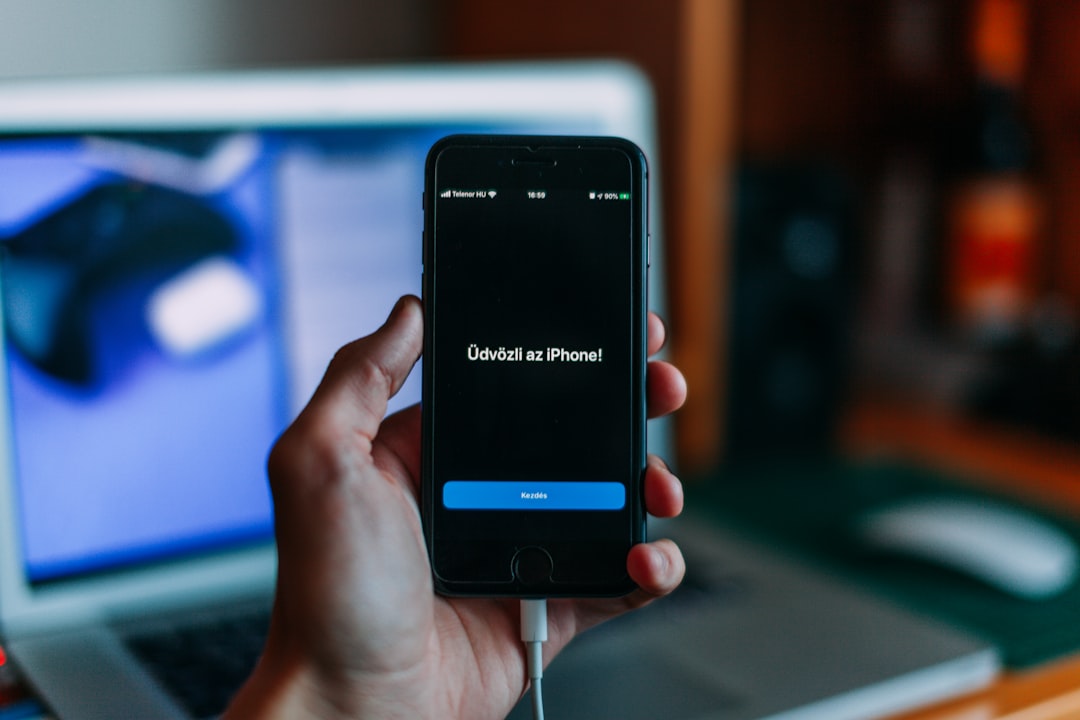
Step 4: Recovery from Devices That Won’t Turn On
If the iPhone is completely dead, software solutions may not detect it. In such cases, options include:
1. Force Restart
Attempt a forced restart specific to the device model. Sometimes devices appear dead but are frozen.
2. Recovery Mode
Connecting to a computer and entering Recovery Mode may allow system repair without wiping data.
3. DFU Mode
Device Firmware Update (DFU) mode reinstalls firmware at a deeper level. This is typically used as a last resort because it can erase data if no backup exists.
Step 5: Professional Data Recovery Services
When the motherboard, NAND chip, or internal circuits are severely damaged, professional recovery services may be necessary.
These services:
- Disassemble the device in clean-room labs
- Repair damaged circuits
- Extract data directly from storage chips
While expensive, this method may be the only solution when:
- The phone does not power on at all
- No backups exist
- Critical data must be retrieved
Users should choose reputable services experienced specifically with Apple devices.
Data Recovery from Water-Damaged Devices
Water damage presents unique risks. Immediate steps can increase the likelihood of successful recovery:
- Power off the device immediately.
- Do not charge it.
- Do not use heat sources like hair dryers.
- Seek professional inspection quickly.
Delays increase corrosion, which can permanently destroy internal components.
Common Mistakes to Avoid
Many data recovery attempts fail due to preventable errors:
- Continuing to use a damaged phone, which may overwrite recoverable data.
- Installing unreliable recovery apps that may compromise security.
- Ignoring backups and attempting risky procedures unnecessarily.
- Opening the device at home, which can void warranties and cause further damage.
Acting calmly and strategically improves results.
Preventing Future Data Loss
The most effective recovery strategy is proactive prevention.
1. Enable Automatic iCloud Backup
Ensure iCloud Backup is toggled on inside device settings.
2. Create Computer Backups Regularly
Periodic encrypted backups through Finder or iTunes secure sensitive data like health information and passwords.
3. Use Cloud Storage for Photos and Files
Services like iCloud Photos ensure media remains accessible even if the device is destroyed.
4. Protect the Device Physically
- Use a shockproof case
- Install a tempered glass screen protector
- Avoid moisture-rich environments
Redundancy is key. Multiple backup methods offer maximum security.
When Data Cannot Be Recovered
In rare cases, recovery is impossible. This may occur when:
- The NAND storage chip is physically destroyed
- Data was permanently overwritten
- No backups were ever created
- Severe corrosion damaged internal storage layers
Modern iOS encryption also means that data extraction without proper authentication is virtually impossible, which protects users but limits recovery options.
Final Thoughts
Recovering data from a broken or damaged iOS device may feel overwhelming, but it is often achievable. The key factors include the type of damage, the presence of backups, and the speed of action taken. Software solutions can address logical failures, while professional labs may handle severe physical damage. Most importantly, consistent backup habits transform a potential disaster into a manageable inconvenience.
Frequently Asked Questions (FAQ)
1. Can data be recovered from a completely dead iPhone?
Yes, if backups exist. Without backups, professional repair services may still retrieve data if the internal storage chip is intact.
2. Is it safe to use third-party iOS recovery software?
Reputable tools are generally safe when downloaded from official sources. However, users should research reviews and avoid unknown programs.
3. Can water-damaged iPhones still be recovered?
Often yes, especially if the device is turned off immediately. Quick professional assessment significantly improves success rates.
4. Does restoring in Recovery Mode delete data?
It can. Attempting system updates first may preserve data, but a full restore will erase the device unless a backup is available.
5. How much does professional iPhone data recovery cost?
Costs typically range from a few hundred to over a thousand dollars, depending on damage severity and required chip-level repair.
6. Can data be recovered after a factory reset?
If no backup exists, recovery is extremely unlikely due to iOS encryption and secure data wiping protocols.
7. What is the best way to prevent future data loss?
Enable automatic iCloud backups, create regular computer backups, and store critical data in cloud-based storage systems.