Few things are more frustrating for new parents than opening the Owlet app only to see that your device isn’t connecting to WiFi. When you’re relying on real-time insights about your baby’s sleep, heart rate, or oxygen levels, even a brief disconnection can feel stressful. The good news? Most WiFi connection issues with Owlet devices are surprisingly easy to fix once you understand what’s causing them.
TL;DR: If your Owlet isn’t connecting to WiFi, the issue is usually related to your network band (2.4GHz vs 5GHz), router placement, outdated firmware, or incorrect setup steps. Start by restarting your router and device, checking that you’re using a 2.4GHz network, and ensuring your app is updated. Move closer to the router during setup and double-check your WiFi password. Most connection problems can be fixed in under 15 minutes with these basic troubleshooting steps.
Why Your Owlet Isn’t Connecting
Before jumping into solutions, it helps to understand why connectivity issues happen. Owlet Smart Socks and cameras rely on a stable WiFi connection to send data to the companion app. When something interrupts that link, the app stops displaying live updates.
Here are the most common reasons:
- Using a 5GHz network instead of 2.4GHz
- Weak WiFi signal in the nursery
- Incorrect WiFi password
- Router security settings blocking the device
- Outdated app or firmware
- Router needing a simple restart
Let’s break these down and fix them one by one.
Step 1: Check Your WiFi Band (This Is the #1 Issue)
Owlet devices only connect to 2.4GHz WiFi networks. Many modern routers broadcast both 2.4GHz and 5GHz bands under the same network name (SSID), which can cause confusion during setup.
How to Fix It:
- Log into your router settings (usually by typing 192.168.1.1 in your browser).
- Locate wireless settings.
- Ensure 2.4GHz is enabled.
- If both bands share the same name, temporarily disable 5GHz during setup.
- Reconnect your phone to the 2.4GHz band before setting up Owlet.
Once connected, you can typically re-enable 5GHz without affecting the Owlet.
Step 2: Restart Everything (Yes, Really)
It sounds simple, but restarting devices resolves a surprising number of connectivity problems.
Follow this order:
- Unplug your router for 30–60 seconds.
- Restart your smartphone.
- Power cycle your Owlet base station or camera.
Wait until your router is fully back online before trying to reconnect through the app.
This single step fixes temporary IP conflicts and clears minor firmware glitches.
Step 3: Move Closer to the Router During Setup
If you’re setting up the device in the nursery and your router is across the house, signal strength could be the problem.
Weak WiFi signals are one of the most overlooked causes of:
- Setup failures
- Frequent disconnections
- Delayed live feed
Quick Test:
Try setting up the Owlet in the same room as your router. If it connects instantly, distance is the issue.
Solutions include:
- Repositioning your router
- Adding a WiFi extender
- Installing a mesh WiFi system
Step 4: Double-Check Your WiFi Password
This might seem obvious, but WiFi passwords are case-sensitive, and even one wrong character will cause connection failure.
Common mistakes include:
- Accidentally adding a space before or after the password
- Mixing up uppercase and lowercase letters
- Confusing similar characters like O and 0
If you’re unsure, log into your router settings and confirm the exact password before re-entering it in the app.
Step 5: Update the Owlet App and Firmware
Outdated software can prevent successful connections, especially after recent updates to your phone’s operating system.

What to Do:
- Check the App Store or Google Play for updates.
- Install any available updates.
- If issues persist, delete and reinstall the Owlet app.
Reinstalling the app clears temporary data that may be interfering with setup.
Step 6: Review Router Security Settings
Some advanced router settings may block your Owlet from connecting.
Check these:
- MAC address filtering (disable temporarily)
- Firewall restrictions
- Guest network limitations
- WPA3 security (switch to WPA2 if needed)
Owlet devices typically work best with WPA2 encryption.
Step 7: Perform a Factory Reset
If all else fails, a factory reset can clear corrupted settings.
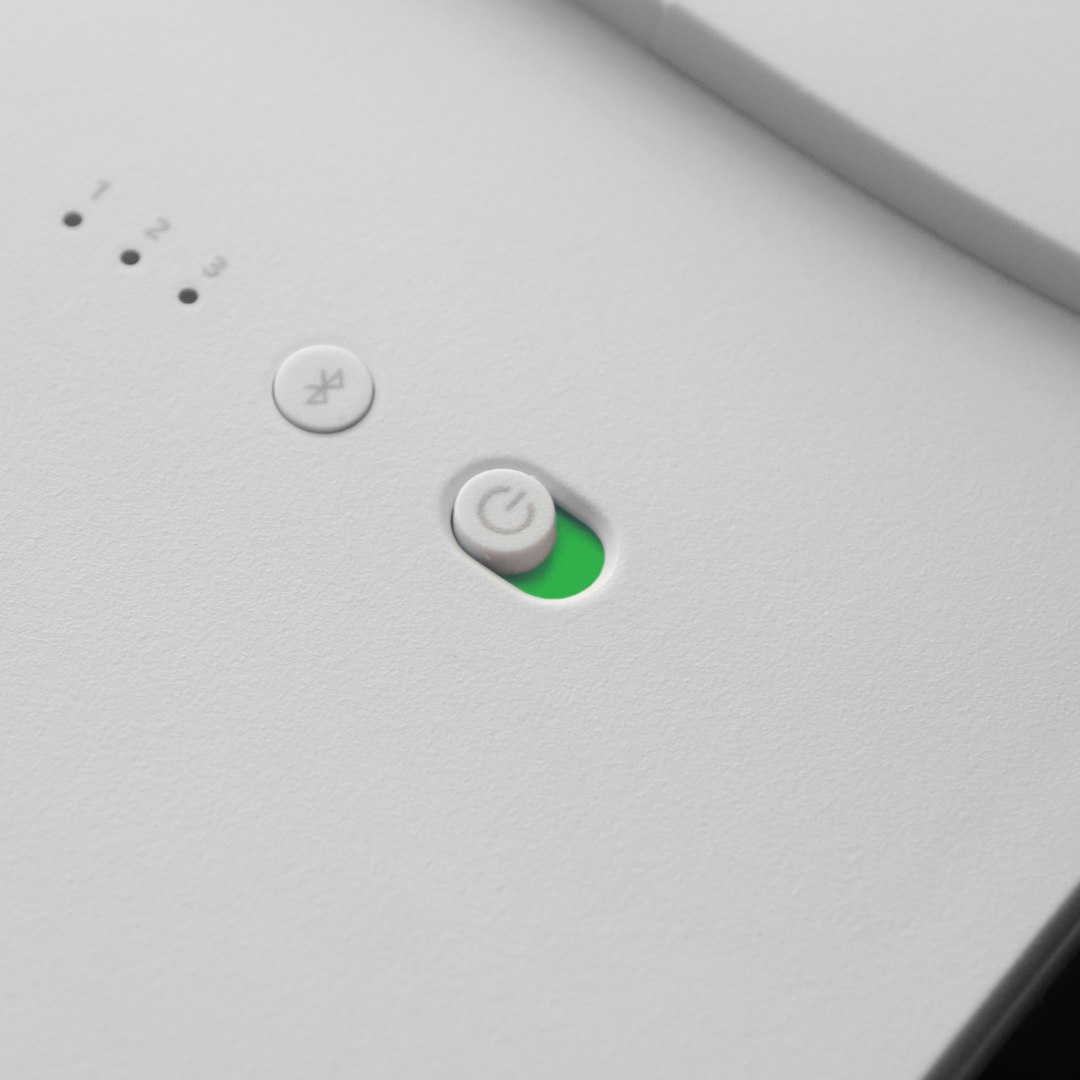
The exact reset method varies by model, but generally involves holding a button on the base station until the status light changes.
After resetting:
- Ensure your phone is connected to 2.4GHz.
- Open the Owlet app.
- Follow the setup instructions carefully.
Quick Troubleshooting Checklist
If you’re in a hurry, go through this rapid checklist:
- ✔ Confirm you’re using 2.4GHz WiFi
- ✔ Restart router and device
- ✔ Move closer to router
- ✔ Verify password accuracy
- ✔ Update app
- ✔ Disable router restrictions
- ✔ Factory reset if necessary
When to Consider Upgrading Your WiFi Setup
If your Owlet repeatedly disconnects even after troubleshooting, the issue might not be the device at all — it could be your home network.
Homes with:
- Thick walls
- Multiple floors
- Heavy smart device usage
- Older routers (5+ years old)
may struggle to maintain consistent coverage.
WiFi Upgrade Comparison
| Option | Best For | Pros | Cons |
|---|---|---|---|
| WiFi Extender | Single weak room | Affordable, easy setup | May reduce overall speed |
| Mesh WiFi System | Whole home coverage | Strong signal everywhere, seamless roaming | More expensive |
| New Router | Outdated hardware | Faster speeds, improved reliability | Medium cost |
If you rely on multiple smart devices — monitors, cameras, thermostats — upgrading to a mesh system often provides the most stable experience.
When to Contact Owlet Support
If none of these solutions work, it may be time to reach out to customer support. Before contacting them, have:
- Your model name
- App version number
- Router brand and model
- A list of troubleshooting steps already tried
This will speed up the process significantly.
Final Thoughts
Owlet WiFi issues can feel urgent, especially when you depend on the device for peace of mind. Fortunately, most connection problems stem from simple causes like WiFi band compatibility, weak signals, or minor configuration errors. By systematically working through these steps, you can typically restore connectivity quickly without needing professional help.
The key is staying calm and troubleshooting methodically. Within minutes, you’ll likely have your Owlet back online — and your reassurance restored.