MakeFilm AI is best used as a fast video co creator, not a magic movie button. It helps you turn ideas, scripts, images, and rough plans into short videos without opening a heavy editing suite.
TLDR: MakeFilm AI can help you create promo clips, social videos, explainers, story scenes, and product demos with less manual editing. A solo creator could turn one 150 word product idea into a 30 second video in under 10 minutes, then resize it for TikTok, YouTube Shorts, and Instagram. If it saves even 45 minutes per video, that is 15 hours back after 20 videos. Use it for speed, then polish the final cut with your own taste.
What Is MakeFilm AI?
MakeFilm AI is an AI video creation tool. It is built to make video production easier. You give it input. That input can be text, images, a script, or a scene idea. The tool then helps create video content from that material.
Think of it like a small creative crew in a browser. One part writes. One part plans shots. One part makes visuals. One part adds voice, music, captions, and timing. You still guide the work. You still make the calls. But you skip many slow steps.
This is useful for creators, marketers, teachers, small teams, and anyone who has said, “I need a video, but I really do not want to edit for three hours.”
What Can You Create With MakeFilm AI?
You can use MakeFilm AI for plenty of simple video jobs. It works best when the goal is clear and the video is short.
- Social media videos: Quick clips for TikTok, Reels, Shorts, and LinkedIn.
- Product promos: Short videos for launches, offers, and feature updates.
- Explainer videos: Simple lessons, how to guides, and FAQ clips.
- Story videos: Fiction scenes, mood pieces, and concept trailers.
- Ad concepts: First drafts for paid ads and campaign tests.
- Training content: Internal guides, onboarding clips, and safety tips.
The sweet spot is speed. You can try three versions of an idea before lunch. That used to be painful. Sometimes it still is, but less so.
Core AI Video Creation Features
MakeFilm AI usually shines through a few key features. The exact options may depend on the version or plan, but these are the big ones to expect from this kind of platform.
1. Text to Video
This is the headline feature. You type a prompt, scene, or script. The AI turns it into video clips or a draft sequence.
Example prompt:
“Create a 30 second video for a cozy coffee brand. Show morning light, fresh beans, steam, and a calm voiceover. Make it warm and friendly.”
The tool may suggest scenes, visuals, voiceover, and captions. You can then edit the result.
2. Script Writing Help
Blank pages are annoying. MakeFilm AI can help you shape a script from a rough idea. You can ask for a funny tone, a serious tone, or a faster pace.
Good scripts are short. One idea per scene. One message per video. If the script says too much, the video gets mushy.
3. Image to Video
You can often upload a product photo, character image, or brand visual. The AI can add motion or build a scene around it.
This is handy for shops and creators with still images. A plain product photo can become a moving promo. Add text. Add music. Add a voice. Done.

4. Voiceovers and Audio
Many AI video tools include voice generation. You pick a voice style, paste the script, and generate audio. Some tools also let you adjust speed, tone, or pauses.
Bad voiceovers ruin good videos. So listen twice. If a line sounds stiff, rewrite it. Use contractions. Say “you’ll” instead of “you will.” It sounds more human.
5. Captions and Subtitles
Captions matter. A lot of people watch with sound off. MakeFilm AI can help create subtitles and place them on screen.
Keep captions big. Keep them clear. Do not cover faces or products. It drives me crazy when a caption blocks the one thing the video is selling.
6. Aspect Ratio Tools
A video for YouTube is not the same as a video for TikTok. MakeFilm AI may help resize or reframe content for vertical, square, or wide formats.
- 9:16: TikTok, Reels, Shorts.
- 1:1: Square social posts.
- 16:9: YouTube, websites, presentations.
A Simple MakeFilm AI Workflow
Here is a clean workflow that keeps things sane.
- Pick one goal. Sell a product. Teach one tip. Announce one update.
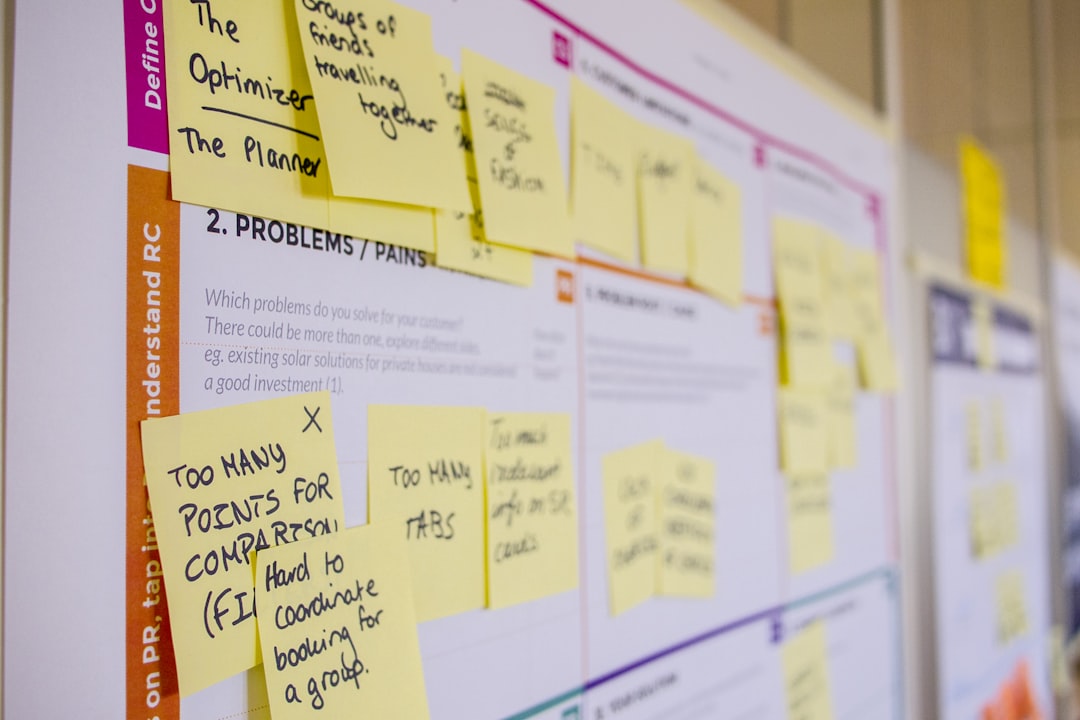
- Write a tiny brief. Include audience, tone, length, and call to action.
- Create the first draft. Use text to video or script to video.
- Cut the fluff. Remove slow intros. Start with the useful part.
- Add voice and captions. Make sure they match the pace.
- Check branding. Add colors, logo, fonts, or product shots.
- Export in 2 or 3 sizes. Post where your audience already is.
Honestly, it feels like AI tools still waste time on tiny fixes. A caption may land two seconds late. A scene may look almost right, but not quite. Expect a cleanup pass. That is normal.
Creative Workflows That Actually Help
The Batch Content Workflow
This is great for busy creators.
Start with one main idea. For example, “five tips for better sleep.” Turn it into five short videos. Each video covers one tip. Use the same style, voice, and structure.
You now have a mini series. It feels planned. It is also easier to make.
The Ad Testing Workflow
Create three versions of the same ad.
- Version A: Problem first.
- Version B: Product first.
- Version C: Customer result first.
Post or test each one. Watch clicks, watch time, and comments. If Version C gets 28% more views, make more like that.
The Storyboard Workflow
Use MakeFilm AI to build a rough visual plan before full production. This is useful for agencies, filmmakers, and teams.
You can test mood, pacing, scenes, and camera ideas. No need to hire a full crew for every early concept.
Tips for Better Prompts
Your prompts matter. Weak prompts create weak results. Be specific, but not messy.
Use this simple prompt pattern:
“Create a [length] video for [audience] about [topic]. Use a [tone] style. Show [visual details]. End with [call to action].”
Example:
“Create a 20 second vertical video for first time plant owners about watering mistakes. Use a playful tone. Show a sad plant, too much water, bright kitchen light, and a happy plant at the end. End with: Follow for easy plant tips.”
That prompt gives the AI real direction. It also keeps the video focused.
Best Uses for MakeFilm AI
- Fast drafts: Get from idea to first cut quickly.
- Social content: Make repeatable short videos.
- Small business promos: Create clips without a large budget.
- Education: Turn lessons into simple visual explainers.
- Concept testing: Try styles before spending more money.
Limits to Watch For
MakeFilm AI is helpful, but it is not perfect. AI video can still produce odd hands, strange motion, weird faces, or awkward scene changes. Some clips may look shiny but have no clear message.
The fix is simple. Keep control of the idea. Use AI for speed. Use your brain for taste.
Also check rights, brand rules, and platform policies. If you use music, voices, faces, or product claims, make sure you are allowed to use them.
Final Takeaway
MakeFilm AI can be a fun, practical tool for video content generation. It can help you write, plan, create, edit, caption, and resize videos with much less friction.
Use it when you need speed. Use it when you need lots of versions. Use it when a blank timeline makes you want to close the laptop. Just remember this: the AI can make the clay, but you still shape the statue.