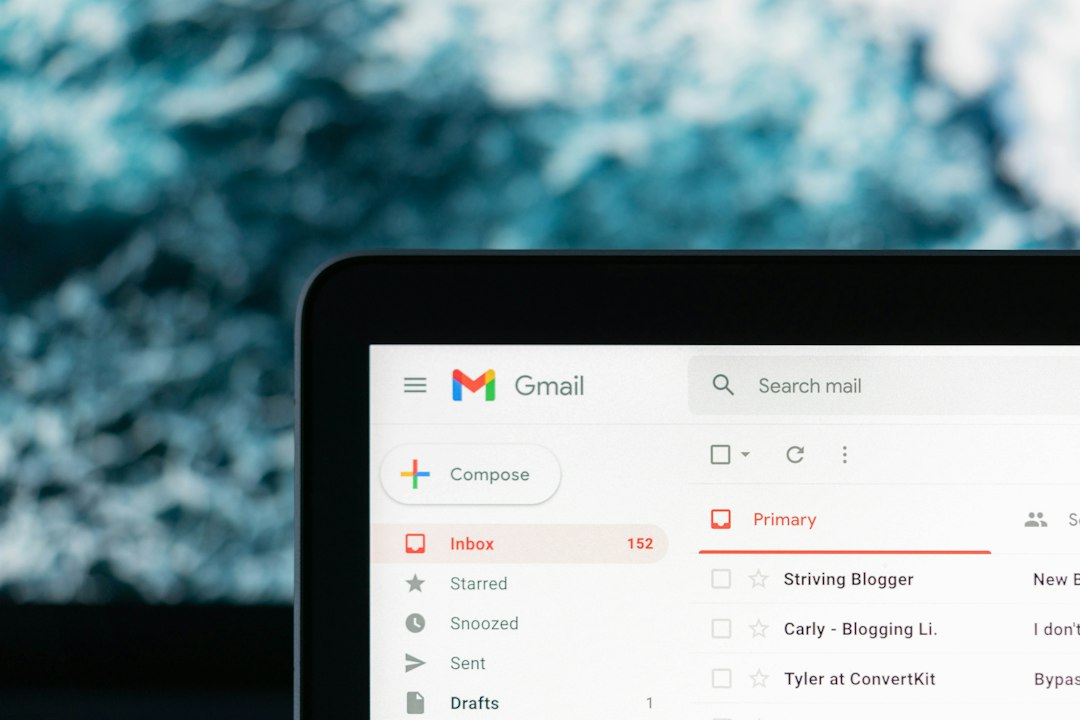
The best way to whitelist an email in Gmail is to create a Gmail filter that marks messages from that sender as “Never send it to Spam.” That is safer than relying only on Google Contacts, because contacts do not always stop aggressive spam sorting. Gmail already blocks more than 99.9% of spam, phishing, and malware, so a legitimate sender can still get caught by mistake [source: Google].
TLDR: Gmail uses filters for whitelisting, while Outlook uses a more direct Safe Senders list. For example, if a payroll employee misses two vendor invoices in one month because they went to Spam, a Gmail filter for that vendor can cut the risk fast. Outlook’s method is simpler, but Gmail’s method gives more control. A user who gets 80 client emails per week may prefer Gmail filters because they can whitelist a sender and label the messages at the same time.
Gmail Whitelisting vs Outlook Safe Senders
Gmail and Outlook handle trusted senders in different ways. Outlook gives users a clear “Safe Senders” list. Gmail does not use that exact label. Instead, Gmail relies on filters, contacts, and user behavior.
The catch is that Gmail’s method feels oddly indirect. A user may expect a button that says “trust this sender forever.” Instead, Gmail asks them to build a rule. It works well, but it takes a few more clicks than it should.
In simple terms:
- Gmail: A user creates a filter and selects Never send it to Spam.
- Outlook: A user adds the address or domain to Safe Senders.
- Best for control: Gmail filters.
- Best for speed: Outlook Safe Senders.
How to Whitelist an Email in Gmail
To whitelist an email address in Gmail, a user should create a filter from that sender. This tells Gmail that future messages from the address should not be treated as spam.
- Open Gmail.
- Click the search options icon in the search bar.
- Enter the sender’s email address in the From field.
- Click Create filter.
- Check Never send it to Spam.
- Optional: Check Always mark it as important.
- Optional: Apply a label such as Clients, Invoices, or Team.
- Click Create filter again.
This is the closest Gmail gets to a true whitelist. It does not mean every message is blindly trusted. It means Gmail receives a strong instruction from the user.
How to Whitelist a Domain in Gmail
A user may also whitelist a full domain. This is useful when messages come from several people at the same company.
For example, instead of whitelisting anna@example.com, the user can enter @example.com in the Gmail filter’s From field. Then every sender from that company domain can be covered by the same rule.
This should be used with care. Whitelisting a full domain is practical for vendors, schools, banks, HR systems, or trusted platforms. It is risky for public email domains such as @gmail.com, @outlook.com, or @yahoo.com. Those domains are shared by millions of people.
Does Adding a Gmail Contact Whitelist the Sender?
Adding a sender to Google Contacts can help, but it is not enough on its own. Gmail may treat contacts as more familiar, yet spam filters can still move messages if something looks suspicious.
That is why the stronger method is a filter. Contacts are good for recognition. Filters are better for control.
A practical setup uses both methods:
- Add the person to Google Contacts.
- Create a Gmail filter with Never send it to Spam.
- Add a label if the sender is tied to work, billing, or support.
How Outlook Safe Senders Works
Outlook makes whitelisting more obvious. A user can add an email address or domain to the Safe Senders list. After that, Outlook should treat future mail from that sender as trusted.
In Outlook on the web, the usual path is:
- Open Settings.
- Go to Mail.
- Select Junk email.
- Find Safe senders and domains.
- Add the email address or domain.
- Save the change.
Outlook’s wording is cleaner than Gmail’s. Honestly, it feels like Gmail hides the useful option behind a tiny search settings icon, while Outlook at least names the feature like a normal person would expect.
Which Method Is Better?
Gmail filters are better for detailed rules. A user can whitelist a sender, label messages, star them, forward them, archive them, or mark them as important. One filter can do several jobs at once.
Outlook Safe Senders is better for quick trust. It is easier for a casual user. The feature name is clear, and the setup feels direct.
For businesses, Gmail filters often win. A finance team can create filters for invoice senders. A recruiter can filter job board alerts. A support lead can label VIP customer messages. It saves time after setup.
For personal email, Outlook’s Safe Senders list may feel less annoying. It gives a simple answer to a simple problem.
Common Mistakes When Whitelisting Senders
- Whitelisting too much: A full domain should only be trusted if the organization is known and secure.
- Using contacts only: Contacts help, but they do not replace Gmail filters.
- Forgetting existing spam mail: The user should move current legitimate messages from Spam to Inbox.
- Ignoring spelling: One wrong character in an email address breaks the rule.
- Trusting lookalike domains: example-payments.com is not the same as example.com.
Best Practice for Gmail Users
The best Gmail setup is simple. A user should create a filter for trusted senders, use labels for sorting, and avoid broad rules unless needed. Critical senders deserve their own filters.
For example, a small agency could create filters for:
- Client domains, such as @clientcompany.com.
- Billing tools, such as invoice or receipt senders.
- Internal team alerts, such as project management notifications.
- Legal or HR contacts, where missing an email can cause real trouble.
Expect to waste time on the first setup if there are many senders. After that, the payoff is real. Fewer lost messages. Less checking Spam. Less panic when a “missing” email was sitting in the wrong folder for three days.
FAQ
Does Gmail have a Safe Senders list like Outlook?
No. Gmail does not use a feature called Safe Senders. It uses filters, contacts, and spam settings. The closest match is a filter with Never send it to Spam checked.
What is the fastest way to whitelist someone in Gmail?
The fastest reliable method is to create a filter from the sender’s email address and select Never send it to Spam. Adding the sender to contacts is useful, but weaker.
Can a Gmail filter stop all spam mistakes?
No filter is perfect. Still, a filter gives Gmail a clear instruction. It greatly lowers the chance that trusted mail will land in Spam.
Is it safe to whitelist a whole domain?
It can be safe for a trusted company domain. It is not smart for broad public domains such as @gmail.com or @outlook.com.
Which is easier, Gmail filters or Outlook Safe Senders?
Outlook Safe Senders is easier. Gmail filters take more steps, but they offer more control for labels, importance, and sorting.
Should a user still check the Spam folder?
Yes. Even with filters, a user should check Spam from time to time, especially when waiting for contracts, invoices, login codes, or client replies.