Spotify has revolutionized the way we listen to music, share playlists, and discover new artists. One of its coolest features is the Spotify Code — a scannable tag that helps users instantly access tracks, albums, playlists, or profiles. Whether you’re sharing a favorite song with a friend or promoting your band’s new single at a live gig, Spotify Codes offer a smart and simple solution.
TL;DR
Spotify Codes are scannable barcodes that let users quickly share and access music on the Spotify app. Scanning a Spotify Code is easy: just open the Spotify app, tap “Search,” then the camera icon, and point it at the Code. You can find these codes on everything from promotional posters to Instagram posts. This guide walks you through the entire process step by step.
What Is a Spotify Code?
A Spotify Code is a visual icon that represents a specific Spotify URL in a scannable format, not unlike a QR code. These codes are designed to be easy to share and even easier to use. Once scanned using the Spotify mobile app, the code will immediately direct the user to a track, album, playlist, podcast, or profile associated with that code.
Introduced in 2017, they have grown in popularity among artists, promoters, influencers, and casual users who want a quick solution for sharing music visually—both online and offline.
Where You Might Find a Spotify Code
Spotify Codes aren’t just for personal sharing. You might come across them in several surprising locations:
- Social media posts – Especially Instagram or Twitter feed posts that include visual promotions.
- Event flyers or posters – Live music venues or artist promotion materials often include these.
- T-shirts or merchandise – Some musicians get creative and print codes directly on merch.
- Online images – Shared between friends or via blogs and fan sites.
How to Scan a Spotify Code
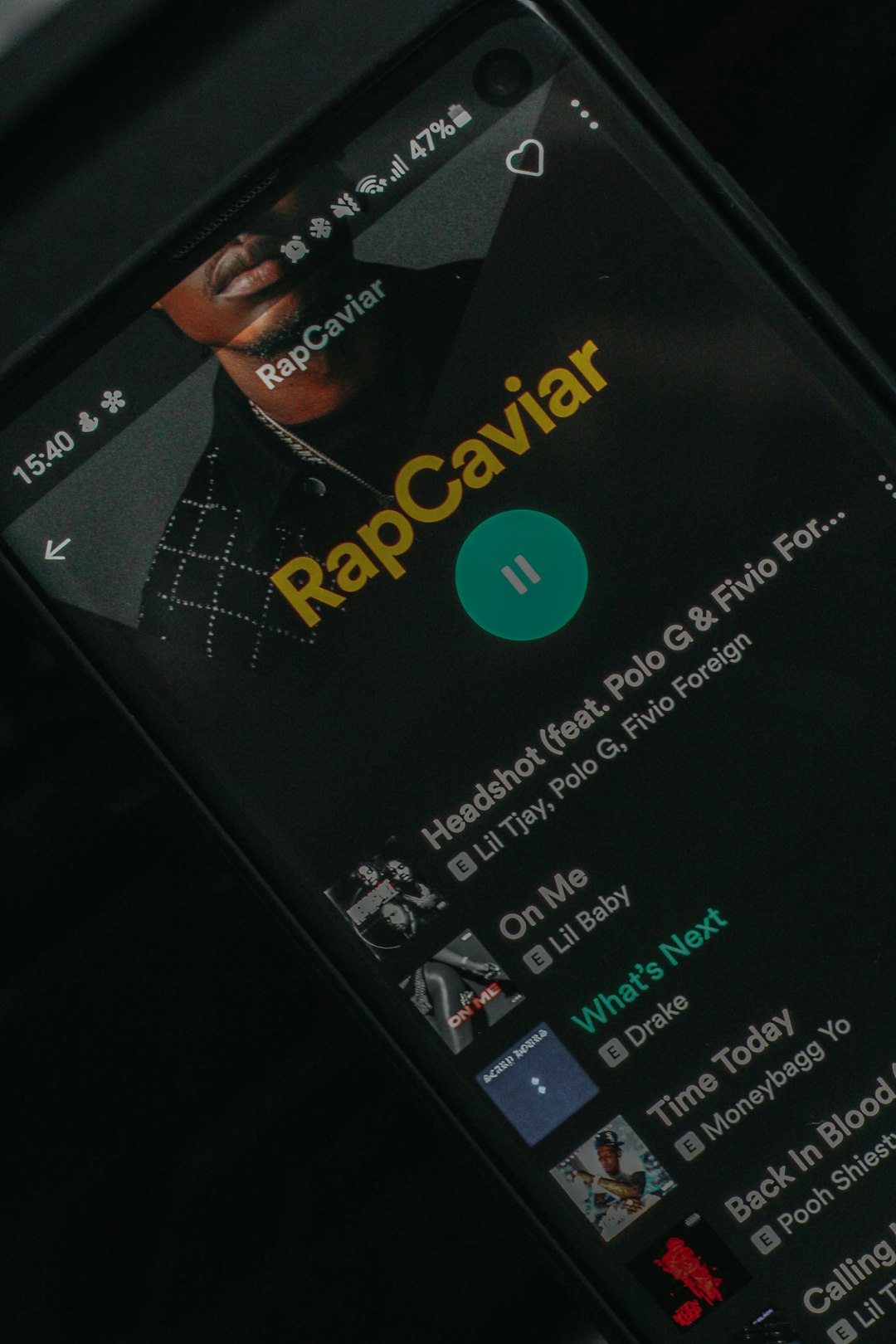
Now for the important part—how to actually scan a Spotify Code. The process is straightforward, but it helps to know exactly where to look and what to do. Here’s the step-by-step guide:
Step 1: Open the Spotify App
Begin by launching the Spotify app on your smartphone or tablet. Spotify Codes can only be scanned using the mobile app, so make sure you’re not using the desktop version.
Step 2: Tap on the “Search” Icon
Along the bottom of the screen, you’ll see several icons. Tap the one labeled “Search,” which is typically represented by a magnifying glass.
Step 3: Access the Camera
In the Search section, you’ll notice a camera icon in the upper-right corner of the screen. Tap this icon to access your camera and prepare to scan a code.
Note: If this is your first time using the Spotify camera, you may be prompted to grant camera access permissions.
Step 4: Point the Camera at the Spotify Code
Now simply aim your camera at the Spotify Code you want to scan. The app will automatically recognize the code and begin directing you to the associated content. There’s no need to press anything—it’s designed to auto-detect.
Step 5: Enjoy the Music
Once the code is scanned, Spotify will load the corresponding page instantly. From there, you can listen, save, share, or add the content to a playlist.

Can You Scan a Code from a Screenshot or Image?
Absolutely! Spotify allows you to scan codes not only by pointing your camera at a physical code but also from images stored on your phone.
Here’s how:
- Open the Spotify app and go to the “Search” section.
- Tap the camera icon in the upper-right corner.
- Look for the option to “Select From Photos”, usually at the bottom of the camera screen.
- Choose the image that contains the Spotify Code. Spotify will scan it and open the linked content.
This is particularly handy if someone sends you a code via a chat app like WhatsApp or Messenger, or if it appears in a post that you screenshot for later access.
Why Use Spotify Codes?
There are plenty of scenarios where Spotify Codes make sharing content more engaging and efficient. Here are just a few benefits:
- Convenience: No need to copy or paste long URLs.
- Offline Usage: Print them on signs or merchandise for offline interaction.
- Visual Appeal: More eye-catching than a plain link.
- Fast Access: Just scan and go—perfect during live events or social gatherings.
Troubleshooting: What If It Doesn’t Scan?
If you’re having issues scanning a Spotify Code, there might be a simple fix. Here’s what to look out for:
- Make sure your camera lens is clean and the code is well-lit.
- Ensure the code isn’t partially obscured or damaged.
- Try adjusting the distance between your camera and the code.
- If using a screenshot, make sure the image isn’t blurry or cropped.
If all else fails, you can manually type in the URL that the code represents, if known.
Creating Your Own Spotify Code
Want to make a Spotify Code to share your own music, playlist, or podcast? It’s simple!
- Open the Spotify app and navigate to the song, playlist, or profile you want to share.
- Tap the three-dot menu icon to open sharing options.
- You will see the Spotify Code appear beneath the item’s cover art.
- You can take a screenshot of this or share it directly via apps or messaging.
Alternatively, visit SpotifyCodes.com to generate a high-resolution version. Just paste the Spotify URL, and you’ll receive a downloadable image code suitable for printing or use in digital promotions.
Creative Ways to Use Spotify Codes
Need some inspiration on how to use Spotify Codes in the wild?
- Music promotion: Include them on business cards or album covers.
- Classroom engagement: Teachers use them to share educational playlists or stories.
- Party playlists: Have guests scan a code to join the communal playlist instantly.
- Tattoo idea: Some superfans even get their favorite track’s Spotify Code tattooed!
Conclusion
Spotify Codes make the act of music sharing feel more immediate and exciting. As we increasingly rely on visuals and mobile-first interactions, having a quick scannable code bridges the gap between physical media, online encounters, and the music itself. Now that you know how to scan these clever little tags and even make your own, you’ll be ready to dive into the world of Spotify in a whole new way.
So the next time a friend shows you a flyer with that strange waveform on it, you’ll know exactly what to do: open your app, hit search, use the camera—and let the music play.