Clash Royale is one of the most competitive and addictive real-time strategy games ever released on mobile. But what if you prefer the larger screen, smoother controls, and performance power of a Mac? While Clash Royale doesn’t have a native macOS version outside of limited Apple Silicon compatibility, there are reliable ways to play it on your Mac using emulators or cloud gaming services.
TL;DR: You can play Clash Royale on your Mac either by using Android emulators like BlueStacks, PlayCover, or NoxPlayer, or by streaming it through cloud gaming platforms. Emulators simulate an Android device on macOS, giving you full access to the game and customizable controls. Cloud gaming services let you play without installing the game locally, relying instead on streaming technology. Your best choice depends on your Mac’s specs and how much local control you want.
Why Play Clash Royale on a Mac?
Although Clash Royale was designed for mobile devices, playing on a Mac offers several advantages:
- Larger Display: Enjoy improved visibility in fast-paced battles.
- Better Performance: Macs often handle multitasking better than phones.
- Keyboard and Mouse Controls: Precision placement can be easier than tapping on a screen.
- No Battery Drain: Play for hours without overheating your phone.
Whether you’re a casual player or climbing the ranked ladder, running Clash Royale on macOS can give you a more comfortable and immersive experience.
Option 1: Playing Clash Royale on Mac Using Emulators
An Android emulator is software that mimics an Android device on your computer. It allows you to download apps from the Google Play Store and run them as if you were on a smartphone.
Image not found in postmetaBest Emulators for Clash Royale on Mac
Here are some popular Android emulators that support Clash Royale:
| Emulator | Compatibility | Performance | Ease of Use | Best For |
|---|---|---|---|---|
| BlueStacks | Intel Macs (limited Apple Silicon support) | High | Very Easy | Beginners |
| NoxPlayer | Intel Macs | Good | Moderate | Custom setups |
| PlayCover | Apple Silicon Macs | Very High | Moderate | M1/M2/M3 users |
How to Install Clash Royale Using BlueStacks
- Download BlueStacks from its official website.
- Install and launch the emulator on your Mac.
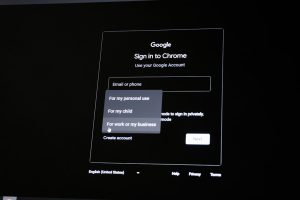
- Sign in with your Google account.
- Open the Google Play Store inside BlueStacks.
- Search for Clash Royale and install it.
- Launch the game and start battling.
Tip: Adjust performance settings in BlueStacks to allocate more RAM and CPU cores if your Mac supports it. This will result in smoother gameplay.
Advantages of Emulators
- Full access to Google Play Store
- Customizable controls and key mapping
- Better performance on high-end Macs
- Offline access once the game is installed
Disadvantages of Emulators
- May require significant system resources
- Compatibility issues on some macOS versions
- Not all emulators fully support Apple Silicon
If you own a newer M1, M2, or M3 Mac, you may want to explore PlayCover, which allows you to run iOS apps more natively using Apple Silicon optimization.
Option 2: Playing Clash Royale via Cloud Gaming Services
If you don’t want to install or configure an emulator, cloud gaming can be an excellent alternative. Instead of running the game on your device, it streams from remote servers directly to your Mac.
How Cloud Gaming Works
Cloud gaming platforms host the game on powerful remote hardware. When you play, your inputs are sent to the server, and the video output is streamed back to your screen in real time.
Key requirement: A stable, high-speed internet connection (at least 10–20 Mbps recommended).
Ways to Play Clash Royale via Cloud Access
- Android-based cloud phone services: Rent a virtual Android device hosted online.
- Remote desktop apps: Access Clash Royale installed on your mobile device remotely.
- Screen mirroring tools: Mirror your phone display to your Mac and control it from there.
Advantages of Cloud Gaming
- No heavy installation on your Mac
- Lower hardware requirements
- Play from almost any device with a browser
Disadvantages of Cloud Gaming
- Highly dependent on internet speed
- Possible latency issues in competitive matches
- Subscription or rental fees may apply
Since Clash Royale is a real-time competitive game, even slight input delays can affect performance. For ladder pushing and high-trophy matches, local emulation typically provides a more responsive experience.
Emulator vs Cloud Gaming: Which Should You Choose?
Your choice comes down to three main factors:
- Mac Hardware: Older Intel Macs may struggle with some emulators.
- Internet Speed: Cloud gaming requires fast and stable connections.
- Competitive Intent: Serious players benefit from minimal input lag.
For most users, emulators provide the best balance between performance and control. Cloud gaming is ideal for casual players who value simplicity over optimization.
Performance Tips for Smooth Gameplay
No matter which method you choose, follow these tips to optimize performance:
- Close background applications to free up RAM and CPU usage.
- Lower in-game graphics settings if experiencing frame drops.
- Use wired internet instead of Wi-Fi for cloud gaming.
- Adjust resolution settings within your emulator.
- Keep macOS updated for compatibility improvements.
Minor tweaks can significantly improve gameplay smoothness, especially during intense overtime battles.
Is Playing Clash Royale on Mac Safe?
Yes, provided you download emulators and tools from official and trusted sources. Avoid modified game versions or unofficial APK files, as they could violate Supercell’s terms of service.
To stay safe:
- Use verified emulator websites.
- Keep your Google account secure.
- Enable two-factor authentication.
- Avoid cheating tools or automation software.
Playing fairly ensures your account remains safe and competitive.
Apple Silicon Macs: A Special Note
If you own an M-series Mac, you may be able to run certain iOS apps directly due to Apple’s ARM architecture. However, availability depends on whether the developer permits macOS installation.
When direct installation isn’t supported, PlayCover and similar tools offer alternative solutions optimized for Apple Silicon. These often perform better than traditional Intel-based Android emulators.
Final Thoughts
Playing Clash Royale on a Mac opens up a new way to experience the game — with better visibility, improved comfort, and potentially smoother performance. Whether you opt for an Android emulator like BlueStacks or NoxPlayer, or choose the convenience of a cloud gaming service, there’s a solution tailored to your setup.
If you want the lowest latency and most control, emulators are typically the superior choice. If you prioritize simplicity and minimal installation, cloud gaming can get you into the arena quickly.
Whichever method you choose, one thing remains the same: strategy, timing, and deck synergy win battles — not just hardware. Now fire up your Mac, drop your Giant at the bridge, and let the Arena battles begin.