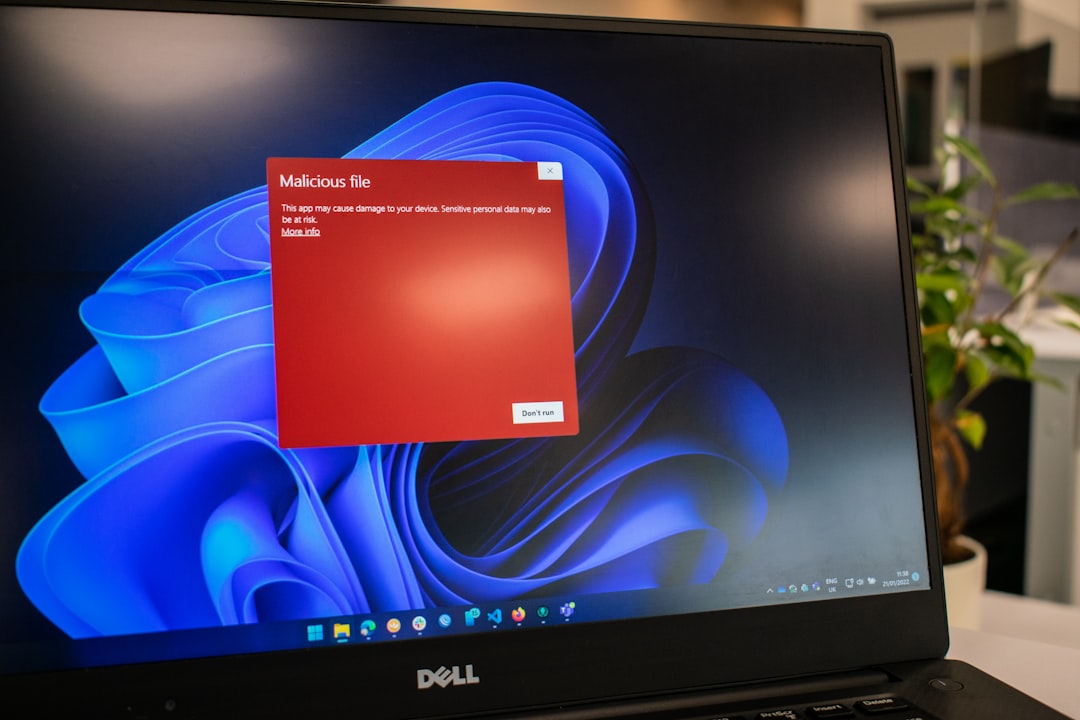
Few things are more frustrating than a sudden Blue Screen of Death (BSOD), especially when it’s accompanied by a confusing error like NTFS.SYS System Service Exception. This error message is your Windows system’s way of telling you that something has gone wrong — typically something related to your system’s file structure or storage drivers. In this article, we’ll explore what this error means, why it occurs, and most importantly, how to fix it.
TL;DR
The NTFS.SYS System Service Exception BSOD is usually caused by corrupted system files, faulty drivers, or failing hard drives. To fix it, start by updating your drivers, scanning your system for file corruption using built-in tools like SFC and CHKDSK, and checking for Windows updates. In some cases, reinstalling Windows or replacing hardware may be necessary. Follow the troubleshooting steps below in order to systematically identify and resolve the root cause.
What Is NTFS.SYS and Why Does It Cause BSOD?
NTFS.SYS is a driver file in Windows that’s directly linked to the NTFS (New Technology File System) — the file system used by Windows for storing and retrieving data on hard drives and SSDs. When something interferes with how this driver functions, the system can crash, leading to the notorious System Service Exception stop code, accompanied by the mention of NTFS.SYS.
This error often points to:
- Corrupted or outdated disk drivers
- Improper system file operations
- Hard disk or SSD hardware issues
- Conflicting third-party software, especially antivirus tools

Fix #1: Boot into Safe Mode
Before diving into advanced solutions, try to boot your system into Safe Mode. Safe Mode loads Windows with only the essential drivers and system files, which helps isolate whether third-party applications are contributing to the issue.
- Restart your PC and press F8 or Shift + F8 before Windows loads.
- Select Troubleshoot > Advanced Options > Startup Settings.
- Choose Enable Safe Mode with Networking.
If your system boots successfully in Safe Mode, it indicates that something outside of core Windows components may be at fault.
Fix #2: Update or Roll Back Disk Drivers
Corrupted or outdated disk drivers are a leading cause of NTFS.SYS BSODs. Updating — or in some cases rolling back — your disk drive and storage controller drivers can resolve the issue.
To do this:
- Press Windows + X and select Device Manager.
- Expand the Disk drives section.
- Right-click your primary drive and select Update driver, then choose Search automatically.
- If the issue began after a recent update, try Roll Back Driver if available.
- Also update drivers under the IDE ATA/ATAPI controllers section.
Fix #3: Run System File Checker (SFC)
Windows’ System File Checker scans your OS for corrupted or damaged system files and repairs them automatically — including files like NTFS.SYS.
Steps:
- Open Command Prompt as Administrator.
- Type:
sfc /scannowand hit Enter. - Wait for the scan to complete and follow any recommended actions.
If SFC finds and repairs critical files, your issue may be resolved immediately.
Fix #4: Use the CHKDSK Tool
If the root of the problem lies in corrupted sectors or bad clusters on your hard drive, you’ll want to use the CHKDSK tool to scan and repair potential problems.
- Open Command Prompt as Administrator.
- Type:
chkdsk /f /rand hit Enter. - You’ll be prompted to schedule the check at the next reboot — type
Yand restart your computer.
CHKDSK will identify and attempt to fix problems with your disk’s file system.
Fix #5: Check for Windows Updates
Sometimes, Microsoft delivers fixes for specific BSOD issues via Windows Updates. It’s always a good idea to ensure your system is fully up-to-date.
- Go to Settings > Update & Security > Windows Update.
- Click Check for updates and install any available updates.
Don’t overlook optional driver updates, which are often available in the View optional updates section.
Fix #6: Uninstall Problematic Apps or Antivirus
Third-party software — particularly overzealous antivirus programs — can interfere with NTFS file system operations. If you began seeing BSODs after installing new software, especially system utilities, try uninstalling them.
To do this:
- Open Control Panel > Programs and Features.
- Look for suspicious or recently added applications.
- Click Uninstall and follow the prompts.
If you’re unsure about your antivirus, try disabling it temporarily or switching to another solution such as Windows Defender.

Fix #7: Test Your RAM
A failing RAM module can also trigger System Service Exception errors. Faulty memory can scramble data as it’s read or written, including essential system files like NTFS.SYS.
You can use Windows Memory Diagnostic or a tool like MemTest86:
- Press Windows + R, type
mdsched.exe, and hit Enter. - Choose to restart your PC and check for problems.
If errors are found, consider replacing your RAM or testing each stick individually to identify the faulty one.
Fix #8: Restore or Reset Windows
If you’ve tried all the above steps and the problem still persists, it may be time to consider a System Restore or even a complete reset of Windows.
Using System Restore:
- Go to Control Panel > Recovery > Open System Restore.
- Follow the wizard to roll back to a restore point from before the BSOD started appearing.
Resetting Windows:
- Go to Settings > Update & Security > Recovery.
- Click Reset this PC and choose to keep or remove your files.
This step should be a last resort, but it can provide a clean slate if all other methods fail.
Fix #9: Inspect Your Hard Drive Health
If your drive is on its way out, you might be getting errors like NTFS.SYS as warning signs. Use a utility like CrystalDiskInfo or your drive manufacturer’s diagnostic tools (e.g. SeaTools, WD Dashboard) to examine your drive’s health.
Indicators of a failing drive include:
- Frequent system freezes
- Clicking or grinding noises
- S.M.A.R.T. errors or warnings
In this case, back up your data immediately and replace the failing hardware.
Prevention Tips
Once your system is stable again, consider the following tips to avoid future NTFS.SYS BSODs:
- Keep your OS and drivers updated
- Run regular disk scans
- Use reliable antivirus software and avoid unnecessary system utilities
- Back up your data regularly
Conclusion
An NTFS.SYS System Service Exception BSOD doesn’t have to spell doom. With the right steps — from Safe Mode diagnostics to updating drivers and scanning system files — you can troubleshoot and fix the issue yourself. Addressing this error promptly not only