
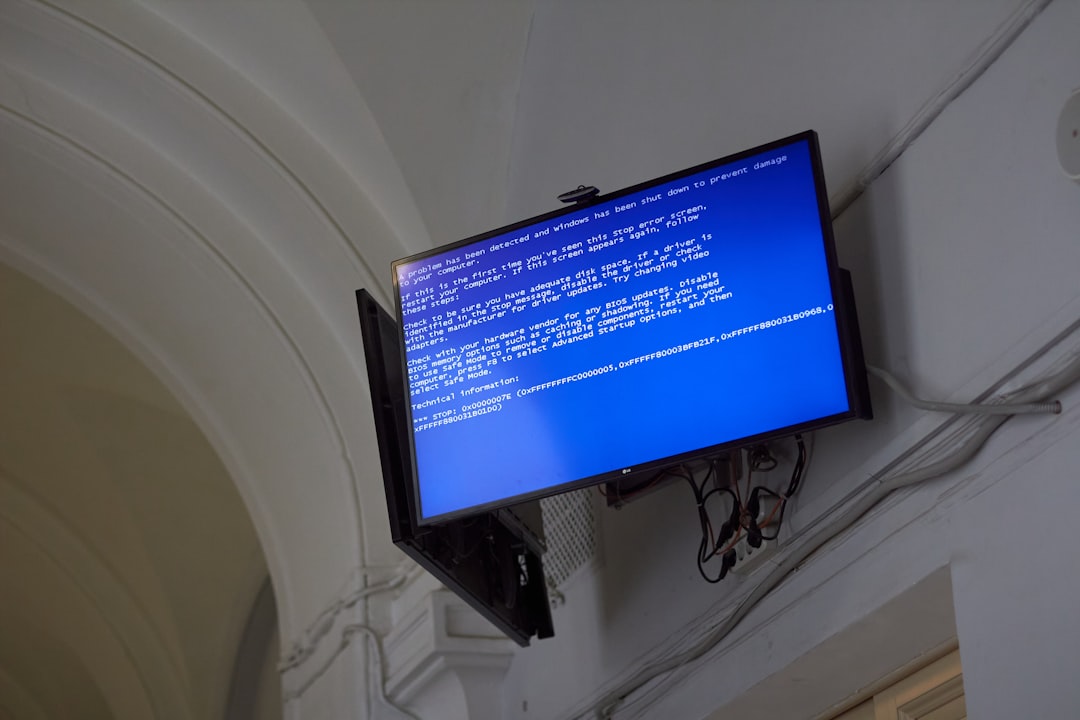
The dreaded Blue Screen of Death (BSOD) is a sight no Windows user ever wants to see, especially when it comes with the cryptic error message KERNEL_MODE_HEAP_CORRUPTION. This error points to memory corruption inside the Windows kernel, often caused by faulty drivers, outdated software, or malfunctioning hardware. Understanding what triggers this issue and knowing how to troubleshoot it can help users restore system stability and avoid future crashes.
TL;DR:
The KERNEL_MODE_HEAP_CORRUPTION BSOD typically results from bad drivers, clashing software, or failing hardware. Fixing it involves updating drivers, uninstalling recent software, or running memory and hardware diagnostics. In some cases, reverting Windows updates or reinstalling the operating system may be necessary. Knowing where to start can save hours of frustration and repeated system crashes.
What is the KERNEL_MODE_HEAP_CORRUPTION Error?
The KERNEL_MODE_HEAP_CORRUPTION BSOD is a Windows stop error that usually indicates a problem in system memory management. It typically appears during startup, software installation, or while running resource-intensive applications like games or video editors. The error often stems from corrupted drivers, damaged RAM, or failing hardware components. Intermittent software bugs can also be culprits.
Common Causes of KERNEL_MODE_HEAP_CORRUPTION
Before diving into the solutions, it helps to understand some of the typical causes:
- Corrupt or outdated device drivers
- Faulty or incompatible graphics drivers – common with NVIDIA or AMD GPUs
- Malfunctioning RAM or hardware issues
- Corrupted system files
- Conflicts with third-party software or antivirus programs
- Overclocking hardware
Step-by-Step Guide to Fix KERNEL_MODE_HEAP_CORRUPTION
1. Boot into Safe Mode
If your computer frequently crashes before you can perform any operations, try booting into Safe Mode. This launches Windows with only essential services and drivers and is ideal for troubleshooting.
- Restart your computer
- Press F8, Shift + F8, or hold Shift while clicking Restart
- From the menu, choose Troubleshoot > Advanced options > Startup Settings
- Click Restart and then select Safe Mode with Networking
2. Update or Roll Back Drivers
Faulty drivers, particularly display drivers, are a prime suspect in heap corruption. Updating or rolling back drivers often resolves the BSOD issue.
- Right-click on Start and choose Device Manager
- Expand categories like Display adapters, Sound, and Network adapters
- Right-click the driver and select Update driver or Roll back driver
If you suspect a particular driver (e.g., related to a recent item you installed), uninstall it and then reinstall the latest version from the manufacturer’s website.
3. Run Windows Memory Diagnostic
Bad memory (RAM) can cause heap corruption errors. Windows includes a built-in tool to test memory issues.
- Press Win + R, type mdsched.exe, and press Enter
- Choose Restart now and check for problems
- Windows will reboot and automatically start a memory scan
Once complete, results will be displayed after you log in. If errors are found, consider replacing or testing your memory sticks individually.
4. Run System File Checker
Corrupted operating system files could lead to this BSOD. Use the SFC tool to locate and repair this corruption.
Open Command Prompt as Administrator and type:
sfc /scannow
This tool will check and repair any corrupted system files. Wait for the process to complete—this can take 10–15 minutes depending on your system.
5. Uninstall Recent Software or Windows Updates
Sometimes, new software installations or updates can disrupt memory processes. If KERNEL_MODE_HEAP_CORRUPTION started after a specific install:
- Go to Settings > Apps > Installed Apps
- Sort by date and uninstall newly installed software
For Windows updates:
- Go to Settings > Update & Security > Windows Update > View update history
- Select Uninstall updates and remove recent problematic updates
6. Disable Overclocking
For users with custom PC builds or high-performance laptops, overclocking RAM or CPU settings may cause instability. Revert to default values in BIOS to rule out these factors.
7. Clean Boot Windows
Performing a clean boot can help identify software conflicts that might cause the error.
- Press Win + R, type msconfig, and press Enter
- Go to the Services tab, check Hide all Microsoft services, and click Disable all
- Go to Startup tab and click Open Task Manager
- Disable all unnecessary startup items
- Reboot the system
If the error doesn’t occur after a clean boot, start enabling services one by one to find the culprit.
8. Check for Hardware Failures
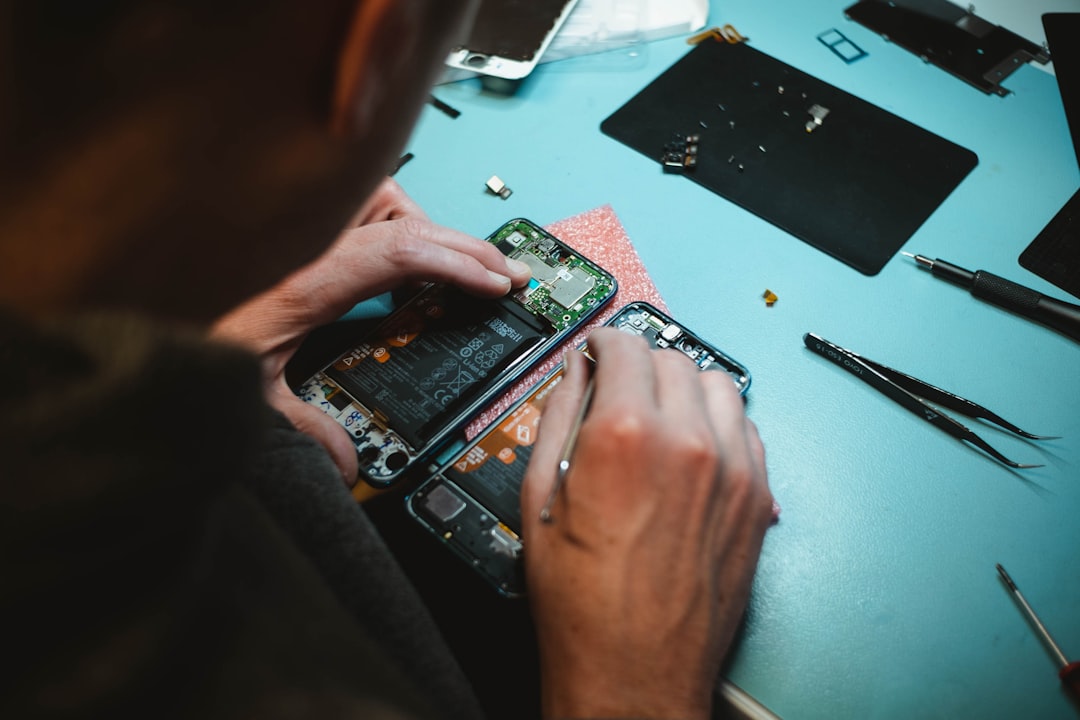
If the issue persists, a hardware component could be failing. Run manufacturer-provided diagnostic tools for GPU, CPU, or motherboard to isolate the issue. In some cases, replacing the faulty RAM or hard drive might be the only solution.
9. Use System Restore or Reset
If none of the above helps, reverting to a restore point may provide relief. For a full reset:
- Go to Settings > Update & Security > Recovery
- Click Reset this PC and choose to keep or remove files
FAQ: KERNEL_MODE_HEAP_CORRUPTION Fix
- Q: What does KERNEL_MODE_HEAP_CORRUPTION mean?
A: It indicates that a corruption has occurred in the system heap used by the Windows kernel, often due to bad drivers, hardware issues, or system memory errors. - Q: Is KERNEL_MODE_HEAP_CORRUPTION caused by GPUs?
A: It can be. Faulty or outdated graphics drivers from NVIDIA or AMD are a common cause of this error. - Q: Can antivirus software cause this BSOD?
A: Yes. Some third-party antivirus tools, especially if outdated or misconfigured, can interfere with system operations and lead to BSODs. - Q: Is it safe to keep using my PC after this BSOD?
A: If the error is recurring, avoid continued use until you’ve addressed the issue. Ignoring it could lead to data loss or permanent hardware failures. - Q: Will resetting Windows definitely fix this?
A: A reset can often fix software-related causes but won’t help if the problem stems from failing hardware.
BSODs can be intimidating, but with a step-by-step approach and proper diagnosis, users can often fix the KERNEL_MODE_HEAP_CORRUPTION error themselves. Keeping systems updated, avoiding unverified software, and maintaining regular backups go a long way in preventing such errors in the future.