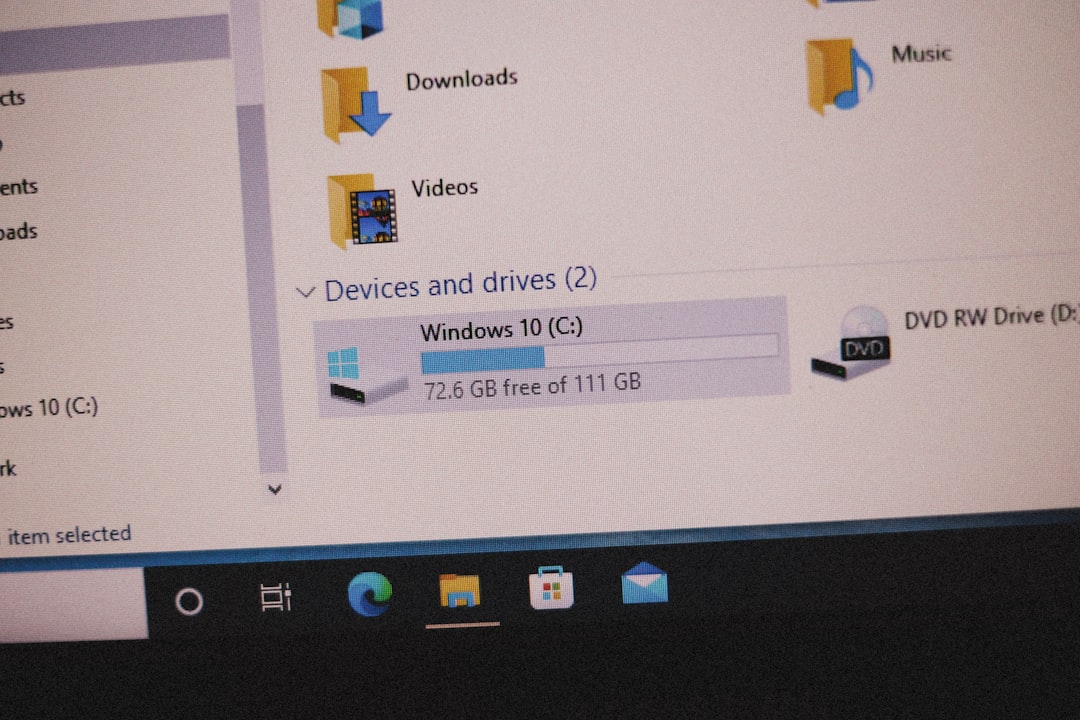
You plug in your external drive. You expect it to open like always. Instead, Windows throws a strange message: Error 0x800701b1: A device which does not exist was specified. Annoying, right? Do not worry. This error sounds scary. But it is usually easy to fix.
TLDR: Error 0x800701b1 usually means Windows cannot properly talk to your external or internal drive. The cause is often a bad USB port, faulty cable, outdated driver, or drive letter conflict. Start with simple fixes like switching ports and cables. If that fails, update drivers, check Disk Management, and scan the drive for errors.
Let’s break it down in a fun and simple way. No tech degree needed.
What Does Error 0x800701b1 Really Mean?
In plain English, it means Windows tried to access the drive, but something went wrong.
This could happen with:
- External hard drives
- USB flash drives
- SD cards
- Even internal drives
Common causes include:
- Loose or damaged cables
- Weak USB ports
- Outdated drivers
- Drive letter conflicts
- Disk corruption
The good news? Most fixes take just a few minutes.
1. Switch the USB Port (The 10-Second Fix)
Start simple. Always.
Sometimes the USB port is the problem. Not the drive.
Try this:
- Safely eject the drive.
- Unplug it.
- Plug it into another USB port.
If you are using a front desktop port, try a back port. Back ports connect directly to the motherboard. They are stronger and more stable.
If you use a USB hub, remove it. Plug the drive directly into your PC.
Why this works: Some ports do not supply enough power. Windows then thinks the device “does not exist.”
2. Change the USB Cable
Cables break more often than drives.
A cable may:
- Look fine outside
- Be damaged inside
If you have another compatible cable, test it.
This is especially important for:
- External HDDs
- Portable SSDs
Pro tip: Shorter cables are usually more reliable.
If the new cable works, great. Problem solved.
3. Update or Reinstall the Drive Driver
Drivers are translators. They help Windows talk to hardware.
If the translator is outdated or confused, communication fails.
Here is how to update the driver:
- Right-click the Start button.
- Click Device Manager.
- Expand Disk drives.
- Right-click your external drive.
- Select Update driver.
Choose Search automatically for drivers.
If that does not work, try this instead:
- Right-click the drive.
- Select Uninstall device.
- Restart your computer.
Windows will reinstall the driver automatically.
Image not found in postmetaThis fix works surprisingly often.
4. Assign a New Drive Letter
Sometimes Windows gets confused with drive letters.
Two drives cannot share the same letter.
To assign a new one:
- Press Windows + X.
- Select Disk Management.
- Find your external drive.
- Right-click it.
- Select Change Drive Letter and Paths.
- Click Change.
Pick a new letter from the list. Choose something near the end, like R or S.
Click OK.
Now check if the error is gone.
Why this helps: If Windows points to the wrong path, it may think the device does not exist.
5. Run a Disk Error Check
Your drive might have minor corruption.
Windows has a built-in repair tool.
Here is how to use it:
- Open This PC.
- Right-click the problem drive.
- Select Properties.
- Go to the Tools tab.
- Click Check under Error checking.
Let Windows scan and repair the drive.
You can also use Command Prompt:
chkdsk X: /f /r
Replace X with your drive letter.
This scans for bad sectors and fixes file system errors.
Important: Large drives may take time.
6. Update Windows
Yes. It is boring. But it works.
Outdated Windows versions sometimes cause hardware issues.
To check for updates:
- Press Windows + I.
- Click Windows Update.
- Select Check for updates.
Install everything available.
Restart your PC.
Microsoft often fixes driver compatibility bugs through updates.
This fix is simple but powerful.
7. Check Power Supply Issues
This one is often ignored.
External drives need power. Some need more than others.
If the drive does not get enough power:
- It disconnects randomly
- It shows Error 0x800701b1
- It disappears in File Explorer
Try this:
- Use a powered USB hub
- Connect to a USB 3.0 or USB C port
- Avoid low power laptop ports
If you are using a desktop, plug the drive into a rear motherboard port.
Stable power equals stable connection.
Quick Comparison of All 7 Fixes
| Fix | Difficulty | Time Needed | Best For |
|---|---|---|---|
| Switch USB Port | Very Easy | 10 seconds | Random disconnects |
| Change Cable | Very Easy | 2 minutes | Old or damaged cables |
| Update Drivers | Easy | 5 minutes | Driver conflicts |
| Assign New Drive Letter | Easy | 3 minutes | Drive not showing correctly |
| Run Disk Check | Medium | 10+ minutes | Corruption issues |
| Update Windows | Easy | 5–20 minutes | Compatibility bugs |
| Fix Power Issues | Easy | 5 minutes | Underpowered drives |
When to Worry
Sometimes the drive itself may be failing.
Warning signs include:
- Clicking noises
- Very slow data transfer
- Frequent disconnects
- Drive not detected on multiple computers
If this happens, back up your data immediately.
Consider professional data recovery if the data is important.
Final Thoughts
Error 0x800701b1 looks technical and scary. But it usually is not.
Most of the time, the problem is simple:
- A weak USB port
- A bad cable
- An outdated driver
Start with the easy fixes first. Work your way down the list.
Take it step by step. Do not rush.
In many cases, your drive will be back to normal in minutes.
And next time Windows says, “Device does not exist,” you will smile and say, “Oh, I know how to fix that.”
Problem solved.