Turn off IPv6 on Windows 11 first if you are testing one PC. Turn it off on the router only if every device has the same problem. Most people should not disable it forever. Microsoft says IPv6 is built into Windows and recommends preferring IPv4 instead of fully disabling IPv6 [source: Microsoft].
TLDR: Use Windows 11 Settings when one laptop, game, VPN, or work app acts weird. Use the router when phones, TVs, consoles, and PCs all have IPv6 trouble at once. For example, if 1 out of 12 devices fails to load a work dashboard, do not touch the router. Start with that one Windows 11 device and test for 10 minutes.
Why would you turn off IPv6?
IPv6 is the newer internet address system. It helps the internet handle a giant number of devices. Your phone, laptop, smart fridge, and doorbell all want an address. IPv6 says, “Fine. Bring the whole circus.”
Still, IPv6 can cause odd problems.
- A VPN connects, then refuses to load sites.
- A game server works on one network but not another.
- A printer appears, vanishes, then appears again. Classic printer drama.
- Some websites load slowly before falling back to IPv4.
- Old router firmware does something strange. Because of course it does.
The catch is that turning off IPv6 can fix one bug and create another. So treat it like pulling a fire alarm. Useful. Loud. Not always the right move.
Option 1: Turn off IPv6 in Windows 11 Settings
This is the best first move. It affects only one PC. If things get worse, you can undo it fast.
Use this when:
- Only one Windows 11 computer has trouble.
- A VPN breaks on your laptop.
- A work app is slow on one machine.
- You want a safe test before changing the whole home network.
Steps:
- Press Windows + I.
- Go to Network & internet.
- Click Advanced network settings.
- Choose More network adapter options.
- Right click your Wi Fi or Ethernet adapter.
- Click Properties.
- Uncheck Internet Protocol Version 6 TCP/IPv6.
- Click OK.
- Restart the app, or restart the PC if needed.
Honestly, it feels like this setting is hidden in a closet behind another closet. But it works. And it is easy to reverse.
Tip: Write down what you changed. Future you will thank present you.
Option 2: Turn off IPv6 on the router
This is the bigger hammer. It can affect every device on your network. That means laptops, phones, tablets, consoles, TVs, cameras, and smart speakers.
Use this when:
- Every device has the same IPv6 problem.
- Your internet provider has broken IPv6 routing.
- Your router shows IPv6 errors after a firmware update.
- You are testing a home lab or office network.
Basic router steps:
- Open a browser.
- Type your router address, often 192.168.1.1 or 192.168.0.1.
- Sign in.
- Find Internet, WAN, or Advanced.
- Look for IPv6.
- Set it to Disabled, if your router allows it.
- Save.
- Restart the router.
Expect to waste time here. Router menus are often a mess. One brand calls it IPv6. Another calls it WAN IPv6. Another hides it under “pro settings,” as if you asked to launch a moon rocket.

Windows Settings vs router: which is better?
| Method | Best for | Risk |
|---|---|---|
| Windows 11 Settings | One PC with one problem | Low |
| Router configuration | Whole network issues | Medium to high |
| Network utilities | Testing before and after | Low |
If you are unsure, start with Windows. It is cleaner. It is faster. It does not make your smart TV sulk in the corner.
Use network utilities before you blame IPv6
Do not guess. Test. A few simple tools can save you from random button smashing.
- ipconfig: Shows your network addresses.
- ping -6 google.com: Tests IPv6 connection.
- ping -4 google.com: Tests IPv4 connection.
- nslookup: Checks DNS answers.
- tracert -6 example.com: Shows the IPv6 path.
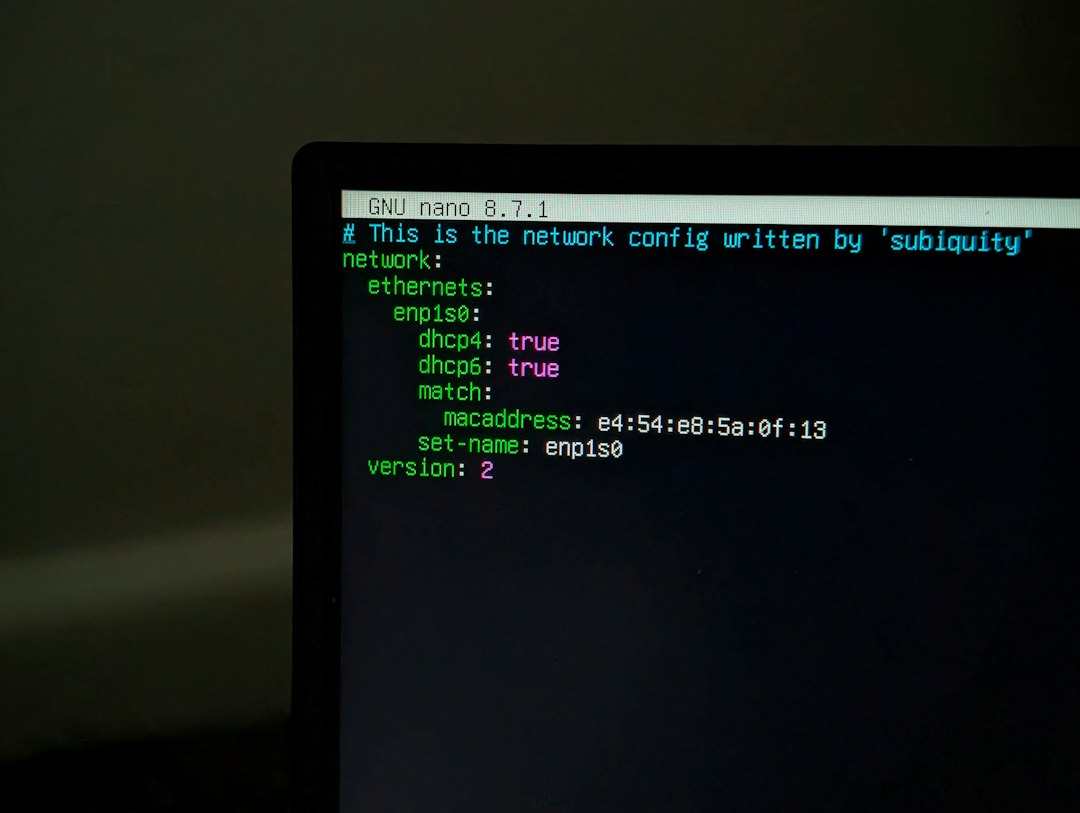
To use them, open Windows Terminal or Command Prompt. Run one command at a time. If ping -4 works but ping -6 fails, IPv6 may be the problem. If both fail, the issue is probably not IPv6. It may be DNS, Wi Fi, the router, or your provider having a bad day.
What about PowerShell?
PowerShell can disable IPv6 too. But use caution. One wrong adapter name can waste your afternoon.
You can list adapters with:
Get-NetAdapterBinding -ComponentID ms_tcpip6You can disable IPv6 on one adapter with:
Disable-NetAdapterBinding -Name "Wi-Fi" -ComponentID ms_tcpip6To turn it back on:
Enable-NetAdapterBinding -Name "Wi-Fi" -ComponentID ms_tcpip6This is handy for techs. For most users, the Settings method is less scary.
Best simple plan
- Test with ping -4 and ping -6.
- Disable IPv6 on one Windows 11 PC.
- Try the broken app again.
- If it works, keep testing for a day.
- If many devices fail, check the router.
- If nothing changes, turn IPv6 back on.
My recommendation: Do not turn off IPv6 across your router unless you have a clear reason. For quick fixes, use Windows 11 Settings. For proof, use simple network utilities. That way you fix the bug without accidentally starting a tiny home network soap opera.