
The fastest fix for Amazon’s “Sorry, Something Went Wrong” message is to refresh once, sign out and back in, then switch browser or app if the error returns. Most cases come from a stale session, overloaded page script, broken cookie, ad blocker conflict, VPN routing issue, or temporary Amazon outage.
TLDR: A shopper should first try a clean browser session, then test Amazon in another browser, the mobile app, or a private window. In a simple user scenario, a buyer adding three household items to cart may lose checkout access for 10 minutes because a damaged cookie keeps reloading the same error page. Internal help desk-style triage often resolves similar checkout issues in under 5 steps, with cache clearing and extension checks fixing a large share of browser-based failures. If Amazon itself is down, waiting 15 to 30 minutes is usually smarter than repeatedly changing account settings.
What the Amazon Error Usually Means
The message “Sorry, Something Went Wrong” is vague. That is the problem. It does not say whether the cart failed, the payment page broke, the product page timed out, or the account session became invalid.
In practice, the error often points to one of these causes:
- Browser cache problems from old scripts or stored page data.
- Cookie conflicts after login, checkout, or address changes.
- Extension interference from ad blockers, coupon tools, privacy add-ons, or script blockers.
- VPN or proxy routing that makes Amazon flag the session as unusual.
- Amazon server issues during traffic spikes or regional outages.
- Payment or checkout mismatch caused by address, card, or gift card errors.
It drives shoppers a little crazy that the same message can appear on product pages, account pages, Prime Video, Subscribe and Save, and checkout. The fix depends on where the message appears.
First Fixes That Take Under Two Minutes
A shopper should start with the lowest-risk steps. These do not remove account data or change payment settings.
- Refresh the page once. Repeated refreshes can make the session worse, so one or two tries are enough.
- Open Amazon in a private window. This tests whether cookies or extensions are causing the issue.
- Sign out and sign back in. A stale login token can break cart and order pages.
- Switch from Wi-Fi to mobile data on a phone, or restart the router on desktop.
- Disable VPN temporarily. Amazon may challenge or break sessions that jump between regions.
If Amazon works in a private window, the browser profile is the likely source. If it fails everywhere, the issue may sit with Amazon, the network, or the account.
Browser Troubleshooting: Chrome, Edge, Firefox, and Safari
Amazon depends heavily on scripts, cookies, and local storage. When one part misfires, the site may show the generic error instead of a useful warning.
Chrome and Edge users should test with extensions paused. Coupon extensions are a common suspect because they scan checkout pages and may alter page behavior. Privacy tools can also block scripts Amazon expects to load.
Firefox users should check Enhanced Tracking Protection. Strict mode may block some cross-site elements. A shopper can lower protection for Amazon only, then reload the page.
Safari users should try disabling content blockers for Amazon. Safari’s privacy controls are strong, but checkout pages can be picky. Honestly, it feels like one blocked script can turn a normal two-second cart load into a blank page and a shrug.
Clearing only Amazon-related cookies is better than wiping the entire browser. It saves other logins and reduces hassle. The usual path is browser settings, privacy section, site data, then search for amazon and remove those entries.
When the Amazon App Has the Same Error
The Amazon app can fail for separate reasons. A shopper should update the app first. Old versions may break after Amazon changes checkout, search, or payment features.
Next, the user can force close the app and reopen it. If that fails, clearing app cache on Android often helps. On iPhone, deleting and reinstalling the app is the cleaner option because iOS does not offer the same cache controls.
App errors also appear when permissions are restricted. Location, notifications, camera, or storage settings rarely break shopping alone, but they can affect barcode search, delivery settings, and returns that require photo uploads.
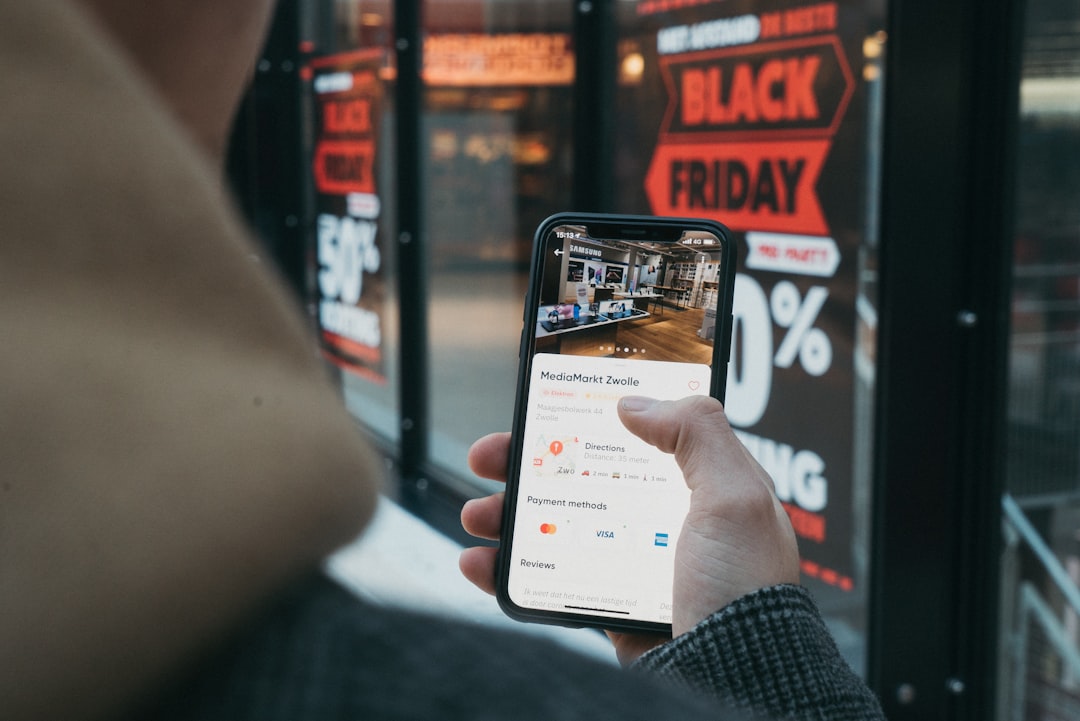
Amazon Troubleshooting vs E-Commerce Alternatives
Sometimes the question is not how to fix Amazon. It is whether the purchase should wait. If a shopper needs batteries, diapers, pet food, a laptop charger, or medicine cabinet basics, downtime can matter.
In those cases, other e-commerce options may be faster than fighting the error for half an hour. Walmart, Target, Best Buy, eBay, Etsy, Costco, and direct brand stores can fill the gap. Grocery delivery services may also cover household goods that Amazon normally supplies.
Still, Amazon has strengths that are hard to replace. Prime shipping, saved addresses, stored payment methods, order history, subscriptions, returns, and wide product range keep users tied to the platform. A 5-minute fix is worth trying. A 45-minute checkout failure is not.
A practical rule works well:
- Under 5 minutes: troubleshoot Amazon.
- 5 to 15 minutes: test another browser, app, or device.
- Over 15 minutes: check outage reports and consider another store.
- Urgent order: use an alternative retailer first, then fix Amazon later.
Browser Alternatives Worth Trying
Switching browsers is one of the fastest diagnostic steps. It separates an Amazon account problem from a local browser problem.
- Google Chrome: Best for compatibility, but extension clutter can cause issues.
- Microsoft Edge: Good fallback on Windows, with strong site support.
- Mozilla Firefox: Useful for privacy-minded shoppers, though strict blocking can interfere.
- Safari: Best fit for Apple devices, but content blockers may need adjustment.
- Brave: Fast and privacy heavy, but shields may need to be lowered for checkout.
If Amazon fails in Chrome but works in Edge, the account is probably fine. If it fails in every browser and on the app, the shopper should check Amazon’s service status, regional outage reports, and email for account alerts.
Checkout and Payment Errors
The same message may appear during payment. This version deserves care. A shopper should not click the submit order button repeatedly. Duplicate attempts may create pending charges, even if the order does not appear right away.
Better steps include checking the order page, waiting a few minutes, and reviewing payment alerts from the bank. If there is no order confirmation, a different payment method can be tested. Address formatting also matters. Apartment numbers, postal codes, and mismatched billing details can trigger checkout failures.
Gift cards and promotional credits can add another wrinkle. Removing a promo code, placing the order without it, or contacting Amazon support may be required if the credit is stuck.
Security Checks Before Trying Again
If the error appears after login, password reset, address change, or payment update, Amazon may be holding the session for security review. A shopper should check email and SMS messages linked to the account.
Signs of account-level trouble include:
- Repeated sign-in loops.
- Requests to verify identity.
- Missing saved cards or addresses.
- Orders that appear and vanish.
- Prime Video or Kindle access errors at the same time.
In that case, changing browsers may not help. Amazon support is the better route, especially if the account contains active orders or subscriptions.
Best Practical Path
The best path is simple. A shopper should test Amazon in a private window, remove Amazon cookies, pause extensions, switch browser, and check the app. If payment is involved, the user should slow down and avoid repeated order attempts. If the same issue hits every device, waiting or using another retailer may save time.

FAQ
Why does Amazon say “Sorry, Something Went Wrong”?
It usually means a page script, login session, cookie, extension, network path, or Amazon service has failed. The message is generic, so the location of the error matters.
What is the fastest fix?
The fastest fix is opening Amazon in a private window or another browser. If it works there, the issue is likely cache, cookies, or an extension.
Should a shopper clear the full browser cache?
Not at first. Removing only Amazon site data is cleaner and avoids logging out of every other website.
Can ad blockers cause Amazon checkout errors?
Yes. Ad blockers, coupon tools, and privacy extensions can block scripts used by cart, checkout, recommendations, or payment pages.
Is the Amazon app better than the browser?
It can be. The app avoids some browser extension problems, but it can still fail because of cache, outdated app versions, account issues, or outages.
When should a shopper use another e-commerce site?
If the order is urgent and Amazon still fails after 15 minutes, another retailer may be the smarter choice. Troubleshooting can wait until the purchase is no longer time-sensitive.