For content creators, editors, social media teams, educators, and marketers, a reliable video splitter can turn long recordings into polished clips, highlight reels, shorts, tutorials, and reusable assets. The best tools do more than cut a video into pieces; they preserve quality, support multiple formats, speed up workflow, and make publishing easier across platforms.
TLDR: The top-rated video splitters for creators and editors include Adobe Premiere Pro, DaVinci Resolve, Final Cut Pro, CapCut, Filmora, Movavi Video Editor, and LosslessCut. Professional editors typically prefer timeline-based tools with advanced trimming, color, audio, and export controls, while social media creators often benefit from fast, template-friendly apps. The best choice depends on skill level, operating system, budget, and whether the workflow requires frame-accurate editing or quick platform-ready clips.
What Makes a Video Splitter Useful for Creators?
A video splitter is any tool that allows footage to be divided into smaller sections. In a professional editing environment, splitting is usually part of a larger timeline workflow that includes trimming, rearranging, transitions, captions, audio cleanup, and color correction. For fast content production, the most valuable splitter is one that reduces repetitive work without damaging image quality.
Editors commonly look for frame-accurate cuts, support for common formats such as MP4, MOV, AVI, and MKV, fast rendering, and clear export presets. Content creators may also need vertical video support, subtitle tools, batch processing, cloud collaboration, and direct publishing options. A top-rated video splitter should feel dependable, especially when working with long interviews, podcasts, webinars, game recordings, or multi-camera footage.

1. Adobe Premiere Pro
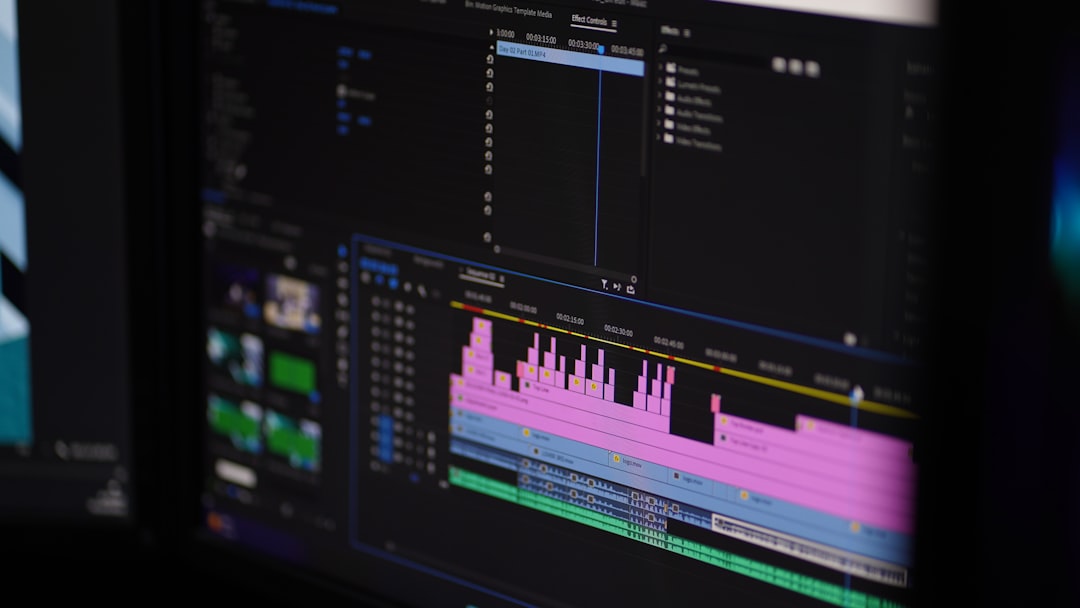
Adobe Premiere Pro remains one of the most respected editing platforms for professional creators, production teams, and agencies. Its splitting tools are simple on the surface but extremely powerful when combined with ripple edits, markers, nested sequences, multicam editing, and advanced audio controls.
Premiere Pro is best suited for editors who need more than basic cutting. Long-form YouTube creators, documentary editors, and branded content teams can split footage, organize sequences, add captions, color grade, and export in multiple aspect ratios. Its integration with After Effects, Audition, and Photoshop also makes it useful for creators who work across motion graphics and sound design.
- Best for: Professional video editors and production teams
- Strengths: Advanced timeline editing, excellent format support, plugin ecosystem
- Considerations: Subscription pricing and a steeper learning curve
2. DaVinci Resolve
DaVinci Resolve is highly rated because it combines editing, color grading, audio post-production, visual effects, and delivery tools in one application. Its free version is unusually powerful, making it a strong choice for creators who want professional features without immediately paying for software.
The Cut page is especially useful for quickly splitting and assembling footage, while the Edit page provides deeper timeline control. Editors can make precise cuts, remove dead space, create short clips from long recordings, and use markers to organize scenes. Resolve is also famous for color correction, which makes it attractive to filmmakers and creators who want cinematic results.
- Best for: Editors seeking professional tools with a strong free option
- Strengths: Color grading, precision editing, audio tools, free version
- Considerations: Requires a capable computer for smooth performance
3. Final Cut Pro
Final Cut Pro is a top-rated choice for Mac-based creators who want speed, stability, and an efficient editing experience. Its magnetic timeline helps editors split, move, and organize clips without accidentally leaving gaps or disrupting the structure of a project.
For YouTubers, course creators, and freelance editors using Apple hardware, Final Cut Pro offers excellent performance. It handles high-resolution formats smoothly on modern Macs and supports features such as compound clips, multicam editing, roles for audio organization, and optimized media. The one-time purchase model may also appeal to editors who prefer not to manage monthly subscriptions.
- Best for: Mac users and independent creators
- Strengths: Fast performance, magnetic timeline, strong media organization
- Considerations: Available only for macOS
4. CapCut
CapCut has become one of the most popular video splitters for social media creators. It is especially useful for short-form content because it includes quick cutting tools, auto captions, effects, templates, background removal, speed controls, and aspect ratio presets for platforms such as TikTok, Instagram Reels, and YouTube Shorts.
CapCut is not designed to replace every professional editing suite, but it excels at speed. A creator can split a long clip into several vertical videos, add text overlays, insert trending effects, and export quickly. Its desktop and mobile versions make it flexible for creators who edit both at a workstation and on the go.
- Best for: Social media creators and short-form video editors
- Strengths: Fast workflow, captions, templates, mobile-friendly editing
- Considerations: Less suitable for complex professional post-production
5. Wondershare Filmora
Wondershare Filmora is known for balancing ease of use with a broad selection of editing features. It is a practical choice for beginner and intermediate creators who want to split videos, add transitions, apply filters, insert titles, and export polished content without learning a complex professional interface.
Filmora’s timeline is approachable, and its splitting tool is easy to understand. Creators producing tutorials, vlogs, product videos, and small business content often appreciate its visual effects library and ready-made assets. It also includes useful features such as motion tracking, screen recording, and audio tools, depending on the version.
- Best for: Beginner and intermediate creators
- Strengths: Simple interface, creative effects, quick exports
- Considerations: Advanced editors may outgrow its workflow
6. Movavi Video Editor
Movavi Video Editor is another accessible option for creators who need a clean and simple way to split videos. It is often chosen by educators, small business owners, and casual editors because it focuses on straightforward editing rather than overwhelming users with technical controls.
Movavi makes it easy to remove unwanted sections, divide long recordings into chapters, combine clips, add music, and create titles. It is especially useful for editors who do not need the complexity of Premiere Pro or Resolve but still want results that look polished. Its export presets help simplify delivery for common online platforms.
- Best for: Simple projects, tutorials, family videos, and small business content
- Strengths: Easy learning curve, clean interface, practical editing tools
- Considerations: Not ideal for advanced color grading or complex timelines
7. LosslessCut
LosslessCut is a specialized tool designed for fast, lossless trimming and splitting. Instead of re-encoding video, it can often cut files while preserving the original quality, which is valuable when editors need to quickly extract segments from large recordings.
This tool is particularly useful for streamers, podcasters, researchers, and creators who handle lengthy source files. It may not offer the creative features found in full editing suites, but it performs its core function extremely well. When the goal is to split footage quickly without quality loss, LosslessCut is one of the most efficient options available.
- Best for: Fast technical splitting and lossless trimming
- Strengths: Preserves quality, lightweight, efficient for long files
- Considerations: Limited creative editing features
8. Shotcut
Shotcut is a free, open-source video editor that includes reliable splitting and trimming tools. It supports a wide range of formats and appeals to creators who want a no-cost desktop editor without being locked into a subscription.
Although its interface may feel less polished than some commercial options, Shotcut is capable enough for many editing tasks. Editors can split clips, arrange footage on a timeline, apply filters, adjust audio, and export in several formats. It is a good choice for budget-conscious creators who are willing to spend time learning the workflow.
- Best for: Open-source users and budget-conscious editors
- Strengths: Free, format flexibility, practical timeline editing
- Considerations: Interface may require adjustment
9. VEED and Kapwing
VEED and Kapwing are browser-based platforms that allow creators to split and edit videos without installing traditional software. They are especially helpful for teams that work remotely or creators who need quick edits from different devices.
These online tools are popular for repurposing content into short social clips. They often include automatic subtitles, resizing, simple trimming, branding tools, and collaborative features. However, internet speed, file upload limits, and subscription tiers can affect the experience, especially with large or high-resolution files.
- Best for: Online editing, collaboration, and quick social content
- Strengths: Browser access, captions, templates, team workflows
- Considerations: Upload times and plan limits may matter

How Editors Should Choose the Right Video Splitter
The best video splitter depends on the creator’s workflow. A filmmaker may need DaVinci Resolve for color precision, while a social media manager may prefer CapCut for rapid vertical edits. A podcast producer handling three-hour recordings may benefit from LosslessCut for quick segment extraction before final editing elsewhere.
Several factors should guide the choice:
- Skill level: Beginners often benefit from simple interfaces, while professionals need deeper timeline control.
- Platform: Mac users may prefer Final Cut Pro, while cross-platform teams may choose Premiere Pro, Resolve, or web-based tools.
- Output needs: Social clips require different presets than documentaries, courses, or client commercials.
- Budget: Free tools can be excellent, but paid tools may save time through automation and professional features.
- Quality requirements: Lossless splitting matters when preserving original footage is essential.
Final Thoughts
Top-rated video splitters are not all built for the same type of creator. Adobe Premiere Pro, DaVinci Resolve, and Final Cut Pro are strongest for professional editing, while CapCut, Filmora, and Movavi offer faster, simpler workflows for everyday content production. LosslessCut stands out for technical trimming, and browser-based tools such as VEED and Kapwing are useful for cloud-based collaboration.
For creators and editors, the right tool is the one that removes friction. When a video splitter helps footage become organized, reusable, and ready for distribution, it becomes more than a cutting tool; it becomes a key part of the content production system.
FAQ
What is a video splitter?
A video splitter is a tool that divides a video into smaller segments. It may be a simple cutter, a full editing program, or an online platform with trimming and export features.
Which video splitter is best for professional editors?
Adobe Premiere Pro, DaVinci Resolve, and Final Cut Pro are among the best choices for professional editors because they offer precise cutting, advanced timelines, and strong export controls.
Which video splitter is best for beginners?
Filmora, Movavi Video Editor, and CapCut are strong beginner-friendly options. They provide simple splitting tools and easy ways to add text, music, transitions, and effects.
Can a video be split without losing quality?
Yes. Tools such as LosslessCut can split many video files without re-encoding, which helps preserve the original quality. However, compatibility depends on the file format and codec.
Are online video splitters good enough for creators?
Online splitters such as VEED and Kapwing can be very useful for quick edits, captions, and social media clips. For large files, complex timelines, or high-end exports, desktop software may be more reliable.
What should creators look for in a video splitter?
Creators should look for ease of use, format support, export quality, editing speed, caption tools, aspect ratio presets, and pricing. The best option should match the creator’s content style and production volume.