
So, you tapped “Download and Install” on iOS 26. Now you’re staring at the progress bar. Waiting. Wondering. Is this normal? Is it stuck? Did you break your phone?
Good news. You probably didn’t. Updating your iPhone is usually smooth. But the time it takes can vary a lot. Let’s break it all down so you know exactly what to expect.
TLDR: iOS 26 usually takes 30 minutes to 1 hour to download and install. Fast Wi-Fi and a newer iPhone make it quicker. Older devices or slow internet can stretch it to 1–2 hours. If it takes longer than that, something might be wrong.
The Short Answer
Most people can expect:
- Download time: 10 to 30 minutes
- Preparing update: 5 to 15 minutes
- Installing: 10 to 20 minutes
Total time? Around 30 to 60 minutes.
But that’s just the average. Let’s explore what really affects it.
What Affects iOS 26 Download Time?
Not all updates happen at the same speed. Several things come into play.
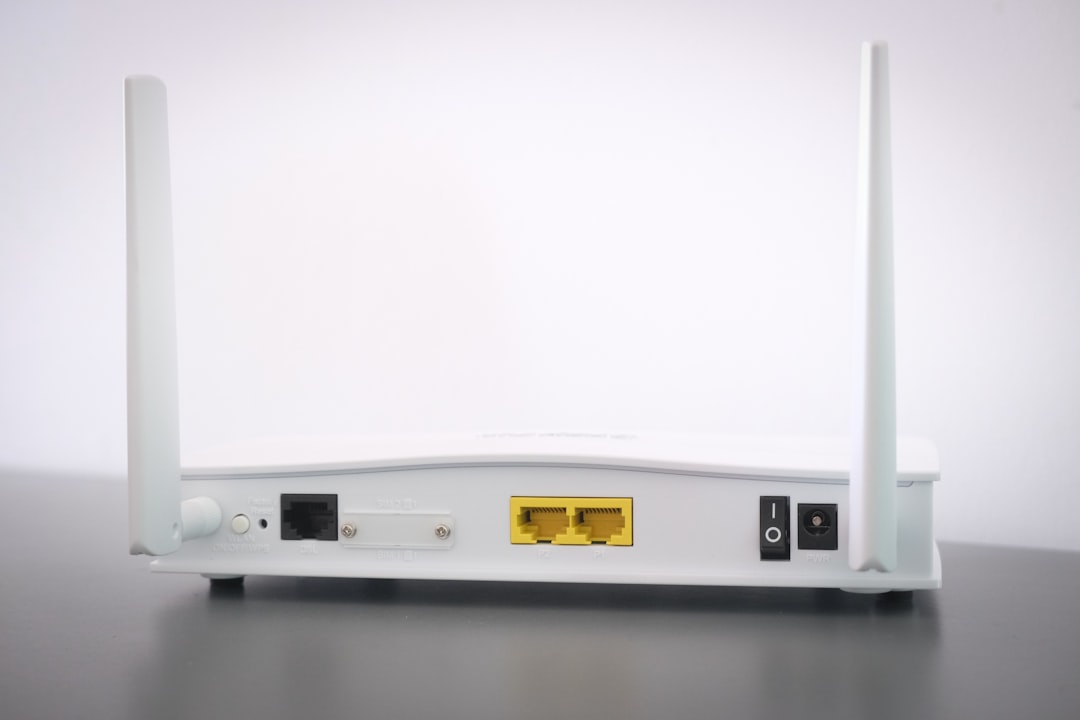
1. Your Internet Speed
This is the big one.
If you have fast Wi-Fi, like fiber or strong broadband, the download can finish in 10 to 15 minutes.
If your connection is slow, it could take 45 minutes or more.
And if everyone in your house is streaming Netflix? It might crawl.
Tip: Update overnight when fewer people are online.
2. Apple’s Servers
This surprises many people.
On release day, millions of users try downloading iOS 26 at the same time. Apple’s servers get busy. Things slow down.
Even with fast internet, you might wait longer on day one.
Smart move: Wait a day or two after launch.
3. Your iPhone Model
Newer iPhones install updates faster.
Older models take longer.
Why? Because newer chips process the installation more quickly.
Here’s a simple idea:
- iPhone 15 or newer: Faster install
- iPhone 13–14: Average speed
- iPhone 11 or older: Slower install
The download speed depends on Wi-Fi. But the installation speed depends on your phone’s hardware.
Breaking Down Each Stage
When you update iOS 26, it happens in steps. Let’s make it simple.
Step 1: Downloading
This is when the file moves from Apple to your phone.
iOS updates are usually between 4GB and 7GB.
That’s a big file.
The time depends mainly on your internet speed.
Step 2: Preparing the Update
This part confuses people.
The bar seems stuck.
But your phone is checking files. Verifying everything. Getting ready.
This can take 5 to 15 minutes.
Don’t panic if it pauses. That’s normal.
Step 3: Installing
Your phone restarts.
You see the Apple logo and a progress bar.
This usually lasts 10 to 20 minutes.
Older devices might take up to 30 minutes.
Total Time Estimates by Scenario
Let’s make this super clear.
| Scenario | Estimated Time |
|---|---|
| Fast Wi-Fi + New iPhone | 30–40 minutes |
| Average Wi-Fi + Mid-range iPhone | 45–60 minutes |
| Slow Wi-Fi + Older iPhone | 60–120 minutes |
| Release Day + Busy Servers | Up to 2 hours |
If it goes beyond 2 hours, something may be wrong.
Why Is My iOS 26 Update Taking So Long?
If it feels endless, check these common reasons:
- Weak Wi-Fi signal
- Low storage space
- Low battery (below 50%)
- Updating on launch day
- Background apps running
Your phone needs at least 50% battery or be plugged into power.
You also need enough free storage. Usually 10GB of free space is safe.
How to Make iOS 26 Install Faster
Want to speed things up? Try this:
Before Downloading
- Connect to strong Wi-Fi
- Plug in your charger
- Free up storage space
- Restart your phone first
During the Update
- Don’t switch Wi-Fi networks
- Don’t force restart unless stuck
- Be patient during “Preparing Update”
Simple steps. Big difference.
Should You Update Right Away?
That depends.
If you love new features, go for it.
If you hate bugs, maybe wait a week.
First releases sometimes have small glitches. Apple usually fixes issues quickly with minor updates like iOS 26.0.1.
Waiting a few days can mean:
- Faster downloads
- Fewer bugs
- Better battery performance
What If the Update Gets Stuck?
It happens sometimes.
Here’s what to do:
If Stuck on “Downloading”
- Check Wi-Fi connection
- Pause and resume update
- Restart your router
If Stuck on “Preparing Update”
- Wait at least 20 minutes
- Restart your iPhone
- Delete update and re-download
If Frozen on Apple Logo
- Wait 30 minutes
- Try a force restart
- Use recovery mode if necessary
Most problems are rare. And fixable.
Does iOS 26 Install Faster Overnight?
Yes. And it’s a great option.
If you enable Automatic Updates, your iPhone can:
- Download while you sleep
- Install while charging
- Finish before morning
You wake up to a fully updated phone.
No staring at progress bars.
Will You Lose Data During the Update?
In normal cases? No.
Your apps, photos, and messages stay safe.
But it’s always smart to back up.
Use:
- iCloud Backup
- Finder on Mac
- iTunes on Windows
Better safe than sorry.
Is It Worth the Wait?
Usually, yes.
Major iOS updates bring:
- New features
- Security patches
- Bug fixes
- Better performance
Even if you wait an hour, you’ll likely use the new system for an entire year.
That’s a good trade.
Final Thoughts
Updating to iOS 26 should not take all day.
For most people, it’s under an hour. Sometimes much less.
If you:
- Have strong Wi-Fi
- Use a newer iPhone
- Update after launch week
It will feel quick and easy.
The key is patience. And good internet.
So next time that progress bar moves slowly, relax.
Your iPhone is just getting better.