For Formula 1 fans, race day is sacred. Whether it is a qualifying sprint or the final laps of a championship decider, the last thing anyone wants to see is a streaming error interrupting the action. One of the more frustrating issues users report is the F1 TV App Error BM1208. This streaming error can suddenly block access to live sessions, replays, or on-demand content, leaving viewers searching for quick solutions. Fortunately, with the right troubleshooting steps, most BM1208 errors can be resolved quickly and efficiently.
TL;DR: Error BM1208 in the F1 TV app is typically caused by connectivity problems, server-side issues, outdated apps, or device compatibility conflicts. Most users can fix it by restarting the app and device, checking their internet connection, clearing cache, or reinstalling the app. If the issue persists, checking F1 TV server status or contacting support may be necessary. Acting quickly and following structured troubleshooting steps can restore streaming in minutes.
What Is F1 TV Error BM1208?
The BM1208 error code usually appears when the F1 TV app fails to load video content properly. Instead of streaming live or on-demand sessions, the application displays an error message and prevents playback. This issue can occur on multiple platforms, including:
- Smart TVs
- Roku and Fire TV devices
- iOS and Android smartphones
- Tablets
- Web browsers
Although the exact internal meaning of BM1208 has not been publicly detailed by F1 TV, it is commonly linked to stream authentication failures, network instability, or corrupted app data.
Common Causes of BM1208 Error
Understanding the underlying cause is the key to solving the problem quickly. Several factors commonly trigger this streaming issue.
1. Internet Connectivity Problems
Streaming Formula 1 in high definition requires a stable and reasonably fast internet connection. If the connection drops momentarily or fluctuates, the app may fail to authenticate the stream and display BM1208.
2. Outdated F1 TV App
An older version of the app may contain bugs or compatibility issues that interfere with video playback. Developers frequently release updates to fix performance and security problems.
3. Corrupted Cache or App Data
Over time, stored cache files may become corrupted, especially after app updates. This can interrupt normal functionality.
4. Device Compatibility Issues
Not all smart TVs or streaming devices support the latest version of the F1 TV app. Firmware mismatches may lead to playback errors.
5. F1 TV Server Outages
During high-traffic race weekends, F1 TV servers can become strained. If the issue originates server-side, individual user fixes may not resolve the problem immediately.
How To Fix F1 TV Error BM1208 Quickly
When the error appears, users can follow a structured troubleshooting process. These steps are arranged from simplest to more advanced solutions.
Step 1: Restart the App
Completely close the F1 TV app rather than minimizing it. Relaunch the application and attempt to stream again. This simple reset often resolves minor glitches.
Step 2: Restart the Device
Power off the smart TV, phone, tablet, or streaming stick. Wait at least 30 seconds before turning it back on. This clears temporary system memory and refreshes background processes.
Step 3: Check Internet Connection
Run a quick speed test. For stable HD streaming, users generally need:
- Minimum 10 Mbps for HD content
- Higher speeds for 4K or multi-camera streams
If speeds are inconsistent:
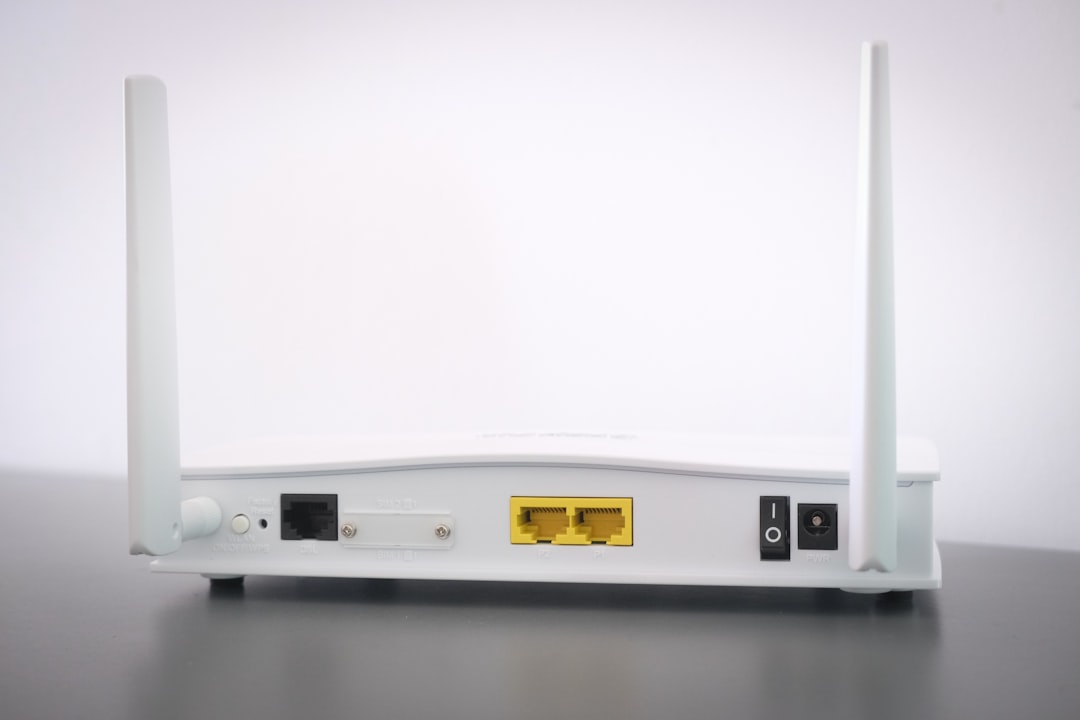
- Restart the router
- Switch from WiFi to wired Ethernet
- Move closer to the router
Step 4: Update the F1 TV App
Navigate to the device’s app store and check for updates. Installing the latest version ensures bug fixes and compatibility improvements are applied.
Step 5: Clear Cache and App Data
On Android devices and some smart TVs:
- Go to Settings
- Select Apps
- Choose F1 TV
- Tap Clear Cache
iOS users may need to delete and reinstall the app to clear cached data.
Step 6: Disable VPN Services
Using a VPN can sometimes trigger authentication issues, particularly if the IP address conflicts with the user’s subscription region. Temporarily disabling the VPN may resolve BM1208 instantly.
Step 7: Reinstall the App
If previous steps fail, uninstall the app completely and perform a fresh installation. Log back into the account and test the stream.
Device-Specific Troubleshooting
Because BM1208 appears across multiple platforms, solutions may vary slightly depending on the device.
Smart TVs
- Ensure the TV firmware is fully updated
- Perform a full power cycle (unplug for 60 seconds)
- Check storage space
Roku and Fire TV
- Remove and re-add the F1 TV channel
- Restart the device from system settings
Web Browsers
- Clear browser cache and cookies
- Disable browser extensions
- Try a different browser such as Chrome, Edge, or Safari
When the Issue Is Server-Side
Sometimes the problem is not on the user’s end. During major events such as season openers or championship finales, traffic spikes can affect platform stability.
Users should:
- Check F1 TV’s official social media channels
- Visit outage tracking websites
- Wait 10–15 minutes and retry
If thousands of users are reporting issues, it is likely a temporary server disruption.
Preventing Future Streaming Issues
While not all errors are avoidable, several proactive steps reduce the likelihood of encountering BM1208 again.
- Keep devices updated
- Install app updates promptly
- Use a stable wired internet connection when possible
- Log in to F1 TV before race start to test functionality
Logging in 15–20 minutes before lights out allows users time to troubleshoot without missing the formation lap.
When To Contact F1 TV Support
If all troubleshooting steps fail and the problem persists across multiple devices and networks, contacting support is the next logical step.
Before reaching out, users should prepare:
- Device model and operating system version
- App version number
- Screenshot of the error code
- Description of troubleshooting steps already attempted
This information helps customer service diagnose the problem faster.
FAQ: F1 TV Error BM1208
What does BM1208 mean on F1 TV?
BM1208 typically indicates a streaming authentication or playback failure, often caused by network instability, corrupted app data, or compatibility issues.
Is BM1208 caused by my internet connection?
In many cases, yes. An unstable or slow connection is one of the most common triggers. Running a speed test and restarting the router can quickly confirm if this is the cause.
Can a VPN cause F1 TV Error BM1208?
Yes. VPNs may interfere with location verification and subscription authentication, leading to playback errors. Disabling the VPN often resolves the issue.
Why does BM1208 happen during live races?
Live races generate peak traffic. Server overload or bandwidth congestion can increase the likelihood of streaming failures.
Should I reinstall the app immediately?
Reinstallation is effective but should be attempted after simpler steps like restarting the app, checking internet connectivity, and clearing cache.
Does BM1208 affect all devices?
The error can appear on various platforms, including mobile apps, smart TVs, streaming devices, and web browsers. However, the fix may differ slightly depending on the device.
How quickly can BM1208 be fixed?
In most cases, the issue can be resolved within 5 to 15 minutes by following systematic troubleshooting steps.
Final Thoughts: While the F1 TV Error BM1208 can be disruptive, especially during a live Grand Prix, it is rarely permanent. By methodically addressing connectivity, app updates, device compatibility, and potential server issues, users can usually restore their streaming experience quickly and get back to enjoying the race action without missing crucial moments.