
Jira is one of the most powerful tools for managing projects, tracking issues, and coordinating development work. At the heart of its flexibility lies the ability to create filters—custom views that allow you to search, sort, and organize issues according to specific criteria. Whether you are a project manager monitoring progress, a developer tracking assigned tickets, or an executive reviewing high-level metrics, understanding how to create and manage filters in Jira is essential for maintaining visibility and control.
TLDR: Creating a filter in Jira allows you to define custom search criteria using basic search tools or advanced JQL (Jira Query Language). Filters help you track specific issues, save time, and share structured views with teams. To create a filter, use the issue search function, define criteria, refine using JQL if needed, and save the filter with appropriate permissions. Well-designed filters improve reporting, dashboard accuracy, and team productivity.
Understanding What a Jira Filter Is
A filter in Jira is a saved search query that retrieves issues based on specific conditions. Instead of manually searching for the same set of issues every time, you can create a filter once and reuse it whenever necessary.
Filters allow you to:
- Quickly access relevant issues
- Share structured views with team members
- Power Jira dashboards and gadgets
- Feed data into reports and boards
- Automate notifications and subscriptions
They are particularly useful in large projects where the number of issues can quickly become overwhelming.
Accessing the Issue Navigator
Before creating a filter, you need to access Jira’s Issue Navigator:
- Log into your Jira account.
- Navigate to the top menu and select Filters.
- Click on View all issues or Advanced issue search.
This opens the search interface where you can define your filtering criteria.
Image not found in postmetaCreating a Filter Using Basic Search
Jira provides a user-friendly basic search interface suitable for most users. This method requires no knowledge of query syntax.
Step 1: Select Project
Choose one or more projects from the project dropdown. This narrows down the search scope.
Step 2: Add Issue Criteria
You can refine the list using fields such as:
- Issue Type (Bug, Task, Story, etc.)
- Status (To Do, In Progress, Done)
- Assignee
- Priority
- Labels
- Due Date
As you add criteria, the issue list updates dynamically.
Step 3: Review the Results
Make sure the returned issues match your expectations. If necessary, refine your selection further.
Step 4: Save the Filter
- Click Save As in the upper-right corner.
- Name your filter clearly and descriptively.
- Choose whether to mark it as a favorite.
- Click Submit.
You now have a reusable filter available under your filters menu.
Creating a Filter Using JQL (Advanced)
For more complex requirements, Jira offers Jira Query Language (JQL). This powerful query language allows advanced filtering that goes far beyond the basic interface.
To switch to JQL:
- Open the issue search page.
- Click on Advanced near the search bar.
Basic JQL Syntax
A simple JQL query looks like this:
project = “Marketing” AND status = “In Progress”
This retrieves all issues in the Marketing project that are currently in progress.
Common JQL Fields
- project
- status
- assignee
- reporter
- created
- updated
- priority
Using Operators
Some commonly used operators include:
- = (equals)
- != (not equals)
- IN
- NOT IN
- > and <
- IS EMPTY
Example of a More Advanced Query
project = “Development” AND priority = High AND status NOT IN (Done, Closed) AND updated >= -7d
This filter shows all high-priority development issues that are not finished and have been updated within the last seven days.
Image not found in postmetaOnce your query produces the intended results, click Save As and store it like any other filter.
Managing and Organizing Filters
After creating filters, proper management becomes crucial—especially in organizations with many teams.
Editing a Filter
- Go to Filters.
- Select Manage Filters.
- Locate your filter.
- Click Edit.
You may update the query, rename the filter, or adjust sharing settings.
Deleting a Filter
If a filter is no longer needed, you can delete it from the same management area. Ensure it is not used in dashboards or boards before removal.
Sharing Filters with Teams
One of the most valuable aspects of Jira filters is collaboration. Filters can be shared with:
- Specific users
- Project roles
- Groups
- The entire organization (depending on permissions)
To share a filter:
- Open Manage Filters.
- Click the permissions icon next to the filter.
- Define viewing or editing rights.
Proper permission management ensures data visibility without compromising sensitive information.
Using Filters in Dashboards
Filters are the foundation of Jira dashboards. Many dashboard gadgets require a saved filter as their data source.
Common gadgets include:
- Two-dimensional filter statistics
- Pie charts
- Created vs resolved chart
- Filter results
To add a gadget using a filter:
- Open your dashboard.
- Click Add Gadget.
- Select the preferred gadget.
- Choose your saved filter as the data source.
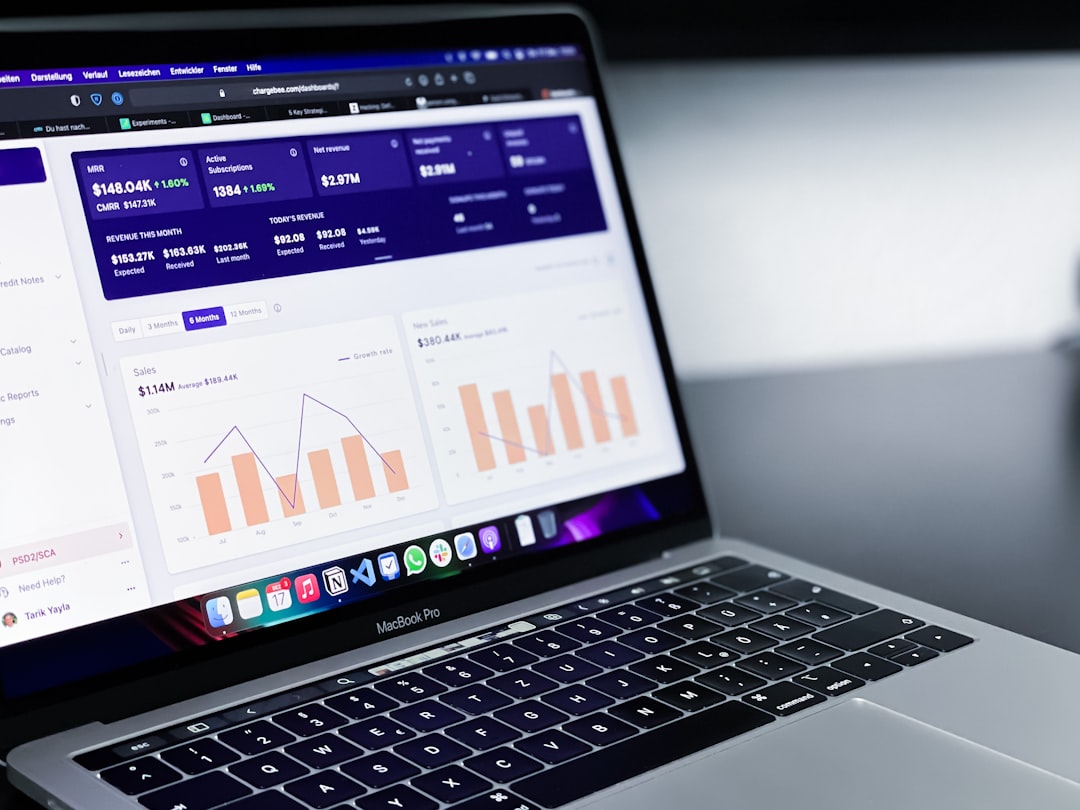
This integration makes filters essential for meaningful reporting.
Subscribing to Filters
Jira allows automatic email subscriptions based on filters. This feature is especially useful for managers or stakeholders who need regular updates without manually logging into Jira.
To subscribe:
- Go to the saved filter.
- Select Details.
- Click New Subscription.
- Define recipients and schedule.
This ensures timely distribution of project insights.
Best Practices for Creating Effective Filters
To maintain order and usability, adhere to the following guidelines:
1. Use Clear Naming Conventions
Include the project name and purpose in the filter title. For example: DEV High Priority Open Issues.
2. Avoid Overly Complex Queries
Complex JQL may become difficult to maintain. Keep filters focused and modular.
3. Test Before Sharing
Ensure the filter returns accurate and consistent data.
4. Document Important Filters
For enterprise environments, consider documenting critical filters used in executive dashboards.
5. Review Periodically
As workflows evolve, filters may need updates. Schedule periodic reviews to keep them relevant.
Common Mistakes to Avoid
- Ignoring permissions: Filters may appear empty if users lack access to projects.
- Using ambiguous field names: Ensure consistency in custom field identifiers.
- Forgetting time zones: Date-based filters may behave differently depending on settings.
- Overusing global filters: Too many shared filters can create confusion.
Conclusion
Creating filters in Jira is not merely a convenience—it is a fundamental skill for effective project management. Filters streamline workflows, enhance reporting capabilities, and enable collaboration across teams. By mastering both basic search functionality and advanced JQL, you gain precise control over how issues are identified and analyzed.
Well-structured filters reduce noise, improve decision-making, and ensure relevant data is always accessible. In complex project environments, this level of clarity is not optional—it is essential. Through careful planning, thoughtful organization, and adherence to best practices, Jira filters can become one of the most powerful tools in your project management arsenal.