Remote work, global IT teams, and on-demand tech support have transformed how businesses operate. At the center of this transformation is remote desktop software—tools that allow users to securely access computers and servers from virtually anywhere. Whether you’re an independent contractor, a managed service provider, or part of a large enterprise IT department, having secure and reliable remote access is no longer optional—it’s essential.
TLDR: Remote desktop tools enable secure access to computers from anywhere, making them essential for remote work and IT support. The best platforms combine strong encryption, multi-factor authentication, stable connections, and cross-platform compatibility. This article explores seven reliable remote desktop tools and compares their features to help you choose the right one for your needs. Security, scalability, and usability are the key factors to consider.
What Makes a Remote Desktop Tool Secure and Reliable?
Before diving into specific tools, it’s important to understand what separates average solutions from truly dependable ones. A strong remote desktop platform typically includes:
- End-to-end encryption (commonly AES-256)
- Multi-factor authentication (MFA)
- Cross-platform compatibility
- Low-latency performance even on slower networks
- Session logging and audit capabilities
- Granular access controls
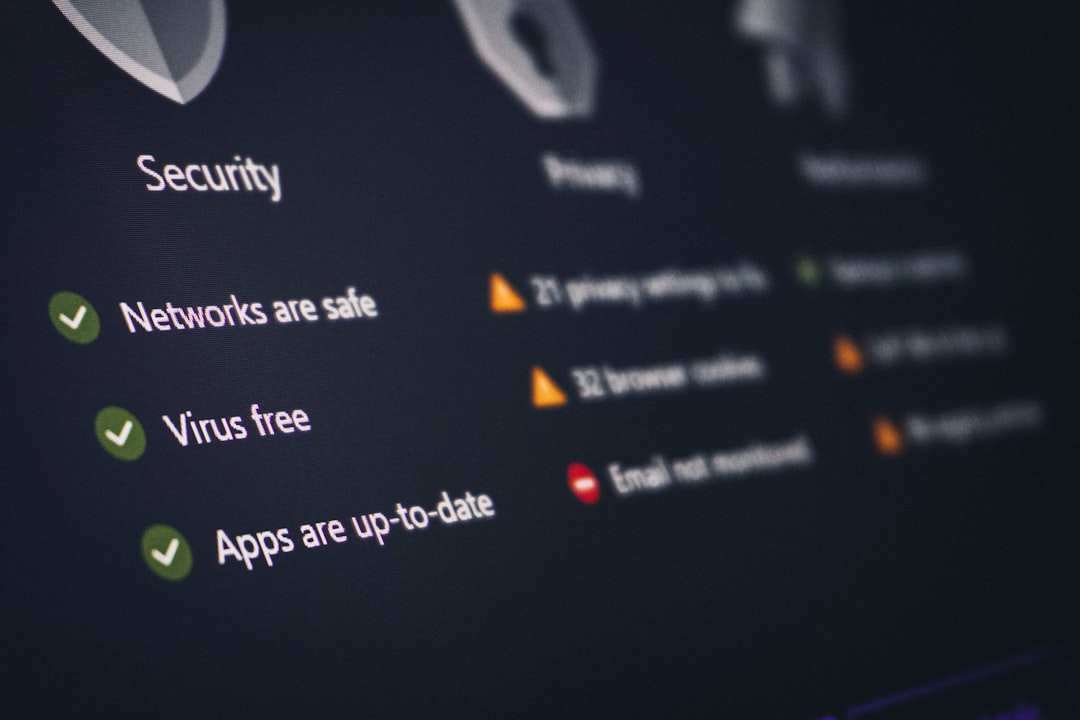
Security breaches often begin with weak remote access configurations. Choosing a tool with modern security standards can drastically reduce risk while maintaining seamless usability.
1. TeamViewer
Best for: Cross-platform support and enterprise scalability
TeamViewer is one of the most recognizable names in remote desktop software. It offers strong security features including 256-bit AES encryption, two-factor authentication, and device authorization controls.
Its remote access capabilities extend beyond simple desktop sharing. Users can manage servers, conduct remote troubleshooting, transfer files, and even access mobile devices.
Notable Features:
- Unattended remote access
- Remote printing
- Multi-platform compatibility (Windows, macOS, Linux, iOS, Android)
- Enterprise-grade management console
TeamViewer is particularly useful for organizations that need large-scale deployment and centralized administrative oversight.
2. AnyDesk
Best for: High-speed performance and lightweight installations
AnyDesk is known for its exceptional speed. Its proprietary DeskRT codec optimizes data transfer, providing smooth performance even over limited bandwidth connections.
Security is handled via TLS 1.2 encryption and optional two-factor authentication. AnyDesk also allows whitelisting of trusted devices for added protection.
Why it stands out:
- Low latency performance
- Customizable security permissions
- On-premises deployment option
This makes AnyDesk an attractive option for companies operating in bandwidth-constrained environments.
3. Splashtop Business Access
Best for: Affordable business-grade remote access
Splashtop combines affordability with strong security infrastructure. It uses 256-bit AES encryption and supports device authentication, multi-level password security, and two-step verification.
It performs particularly well for creative professionals and IT teams needing remote workstation access.
- High-definition streaming
- Multi-monitor support
- File transfer and remote wake
Its pricing structure makes it appealing for small and medium businesses that need secure access without excessive costs.
4. Microsoft Remote Desktop (RDP)
Best for: Windows-based environments
Microsoft’s built-in Remote Desktop Protocol (RDP) is widely used in enterprise networks. When configured correctly—preferably behind a VPN or gateway—it provides reliable internal remote access.
It integrates natively with Windows systems, making setup straightforward for companies operating primarily within the Microsoft ecosystem.
Image not found in postmetaSecurity considerations:
- Network Level Authentication (NLA)
- Encrypted connections
- Integration with Active Directory policies
While powerful, RDP requires careful configuration to avoid exposure to the open internet.
5. Chrome Remote Desktop
Best for: Quick, simple remote access
Chrome Remote Desktop offers a straightforward, browser-based solution. It’s easy to set up and works across devices through a Google account.
Although it doesn’t offer the advanced administrative controls of enterprise tools, it provides:
- Secure connections through Google infrastructure
- Cross-platform accessibility
- Minimal setup complexity
This makes it ideal for freelancers, students, and individuals needing occasional remote access.
6. ConnectWise Control
Best for: Managed service providers (MSPs)
ConnectWise Control is designed for IT professionals managing multiple client systems. It includes robust administrative control features and deep security customization.
- Role-based permissions
- Session auditing and logging
- Customizable branding
- Cloud or on-premise deployment
Its granular permission settings make it highly suitable for compliance-driven industries such as finance or healthcare.
7. Zoho Assist
Best for: Secure remote support sessions
Zoho Assist emphasizes secure, web-based remote sessions without large software installations. It uses SSL and 256-bit AES encryption to protect connections.
One of its strengths is ease of remote customer support:
- Browser-based access
- Unattended computer access
- File transfer and chat tools
Zoho Assist fits well for help desk teams offering fast remote troubleshooting services.
Comparison Chart of Top Remote Desktop Tools
| Tool | Encryption | Best For | Cross-Platform | Unattended Access |
|---|---|---|---|---|
| TeamViewer | AES 256-bit | Enterprise use | Yes | Yes |
| AnyDesk | TLS 1.2 | High performance | Yes | Yes |
| Splashtop | AES 256-bit | SMBs | Yes | Yes |
| Microsoft RDP | Encrypted via NLA | Windows environments | Limited | Yes |
| Chrome Remote Desktop | Google encryption | Personal use | Yes | Yes |
| ConnectWise Control | AES 256-bit | MSPs | Yes | Yes |
| Zoho Assist | AES 256-bit | Remote support | Yes | Yes |
Key Security Practices When Using Remote Desktop Software
Even the best remote desktop tool can become vulnerable if misconfigured. Here are critical best practices:
- Always enable multi-factor authentication
- Restrict access by IP address where possible
- Use strong, unique passwords
- Regularly update software versions
- Monitor session logs for unusual activity

Organizations should also implement zero-trust principles—verifying every connection attempt rather than assuming internal traffic is safe.
Choosing the Right Tool for Your Needs
The best remote desktop solution depends on your goals:
- If you manage dozens or hundreds of endpoints, TeamViewer or ConnectWise Control may be ideal.
- If speed and lightweight performance are critical, AnyDesk stands out.
- If you operate primarily within Windows systems, Microsoft RDP may suffice.
- For occasional use, Chrome Remote Desktop offers simplicity.
- Budget-conscious businesses may prefer Splashtop or Zoho Assist.
Carefully assess factors such as compliance requirements, number of users, device diversity, and IT staffing before deciding.
Final Thoughts
Remote desktop tools are foundational to modern digital operations. As cyber threats grow more sophisticated, secure access solutions must evolve to match. Fortunately, today’s top platforms combine strong encryption, advanced authentication mechanisms, and high-performance connectivity.
Investing in a secure and reliable remote desktop tool not only boosts productivity but also protects valuable data and infrastructure. Whether you’re troubleshooting a colleague’s system across the country or maintaining global server networks, the right remote desktop solution ensures you can connect with confidence.
By prioritizing security, performance, and scalability, you can transform remote access from a potential vulnerability into a strategic strength.